Adjust Values from Element Details Panel
As you are reviewing Elements in the Display panel, you can make adjustments to any Attributes for an Element, browsing the Attribute section or browsing the Quickedit section, providing those Attributes have been set up as "editable" or set up with the "Quickedit" feature. While you can use the Quickedit
Quick edits
To edit an Attribute's value from the Element Details panel - Quick Edits section:
Click on the Element in the Display panel, click on the Element whose Attribute you need to change.
The Element Details panel opens. If there are Attributes set up with the Quick Edits feature, the Quick Edits section is automatically expanded, as shown in the following figure.
Element Details panel
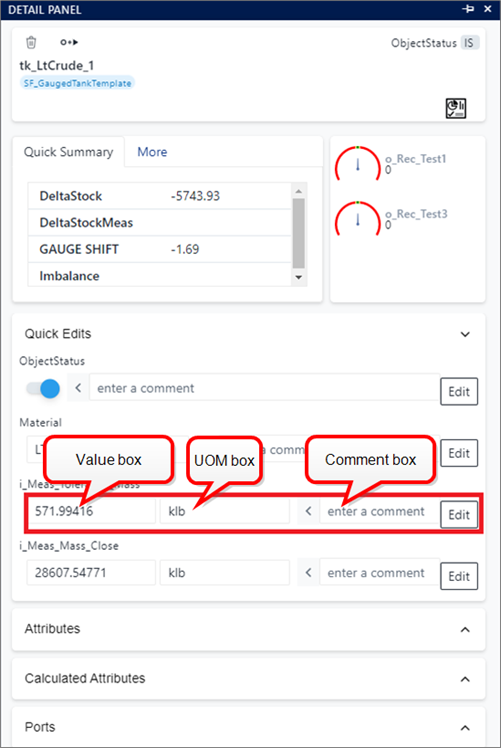
Click in the Value box and type the new value you want to apply.
If the value supports a Unit of Measure (UOM), the UOM box is displayed.
Click in the UOM box and either type the Unit of Measure or press the space bar to display a list from which you can select it.
NoteThe new value can optionally be associated with a unit of measure abbreviation. In such a case, the value is converted to the default unit of measure configured for the attribute. If the new value does not include the unit of measure abbreviation, the value is assumed to be related to the default unit of measure of the attribute, and therefore, no value conversion is made.
Click in the Comment box to add a comment regarding your adjusted value.
Click the Edit button to temporarily save your change.
Repeat steps 2 through 5 for each Attribute value you need to change.
To close the Element Details panel, click on the Open/Close panel toggle icon on the far left, as shown in the following figure.
Open/Close panel toggle icon

Attributes
To edit an Attribute's value from the Element Details Panel - Attributes section:
In the Display panel, click on the Element whose Attribute you need to change.
The Element Detail Panel opens.
Element Detail Panel
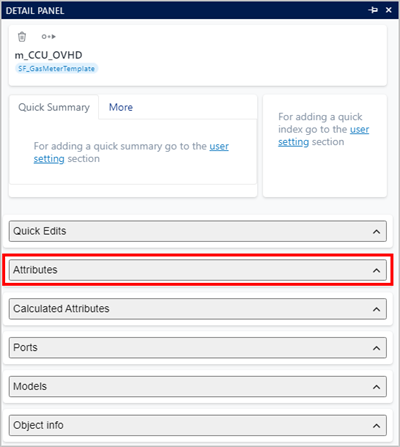
Click on Attributes to expand the list of the Element's attributes.
Element Detail Panel - Attributes list
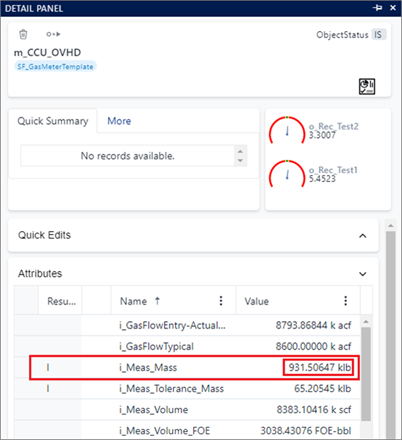
Click on the value of the Attribute you want to adjust, in the Attributes list.
tipIf the list is extensive, you can narrow it by using the search box and operator features at the top of a column. See Search By Column Content for details. You can also use the column sort feature to display the list in an order that is convenient. See Sort Settings Lists for details.
The Adjustment panel opens for the selected attribute.
Attribute Adjustment and Information tabs
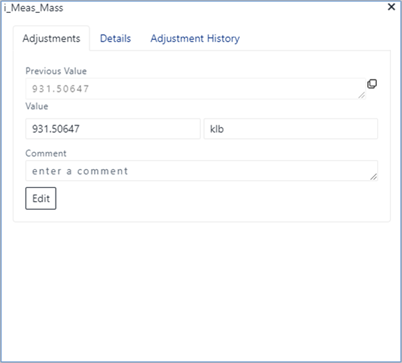
Click on the current Value in the value box and replace it with your adjustment.
If the value supports a Unit of Measure (UOM), the UOM box is displayed.
Click in the UOM box and either type the Unit of Measure or press the space bar to display a list from which you can select the UOM.
(Optional) In the enter a comment box, type in a reason for the adjustment you are making.
Click the Edit button or press Enter on your keyboard to temporarily save your change.
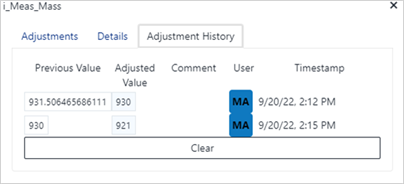
Your adjustment is added to the 'Adjustment History' information and reflected in the Display panel for the selected Element. In addition, the Attribute is flagged with a "wrench" icon in the Attributes list so that it is easily identified as having had an adjustment to its value, as shown in the following figure.
Attribute adjustment flagged
Repeat steps 3 - 7 for each Attribute you need to adjust.
Repeat all the steps on each Element for which an Attribute adjustment is needed.
If you want your adjustments to be saved to the database, you can 'Checkin' the Case. See Case Checkout, Checkin & Undo Checkout for further details.