View Element Details
You can view the details of a Case on an Element by Element basis. For each Element you select, you can access detailed information relative to that specific Element.
To view an Element's details:
Select or search for the Element you want to view.
Select an Element: Once an Element is selected, the Element Details panel may open automatically, for example, when you click on an Element in the Display, or when you search, you then need to click on the red stick pin for the selected Element to open it's Details panel.
Do one of the following:
To select an Element, click on the Element in the Display panel.
To search for an Element:
a. Use the Search for a Single Element feature to find the Element in the Display panel. b. Click on the Element's red stick pin.
Regardless of which method you use to access the Element details, the same Details panel opens.
Element Details panel
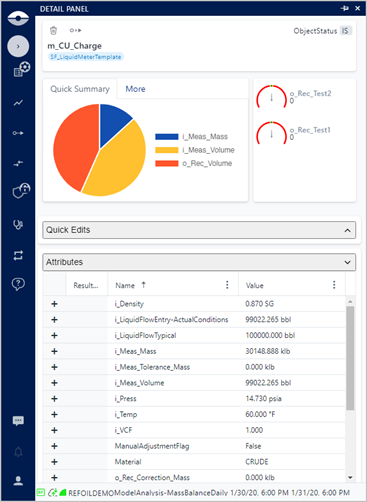
This panel provides the following information.
Element Detail Panel item descriptions
| Item | Description |
|---|---|
| ObjectStatus | The Element Attribute that indicates whether the Element is currently "In Service" or "Out of Service". |
| [Element name] | The actual name of the Element. |
| [template name] | The name of the template with which the Element is associated. |
| Quick Summary | When set up under your user Settings, the 'Quick Summary' tab displays a summary of the Attributes in a template that you have defined as those you want a quick summary on. To setup the Quick Summary, see Quick Summary Settings. Element Detail Panel - Quick Summary set up 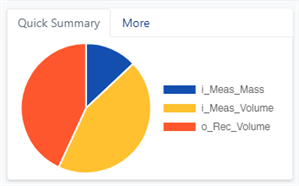 By default, the Quick Summary does not display any information, as shown in the following figure. Element Detail Panel - Quick Summary not set up  |
| More | The 'More' tab allows you to view more in-depth information about the Element, such as it's Description, Template, Categories and Type. Element Detail Panel - More 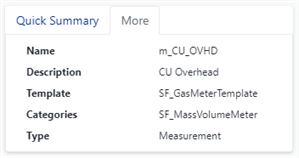 |
| Quick Index | When set up under your user Settings, this panel displays a graphical representation of an Element's statistical test factor results. These results are displayed based on how you configure the settings in your user Settings panel, under the Quick Index Settings. By default, the Quick Index graphical representation does not display any information unless it has been configured to do so. Element Detail Panel - Quick Index  |
| Quick Edits | Displays the Attributes that are available for quick editing in both the Element Details panel and in the Display panel. This tab only includes those Attributes that have been set up for quick editing in the Display Settings applied to the display you have loaded. Element Detail Panel - Quick Edits 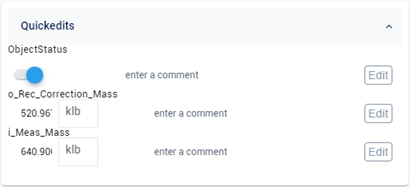 |
| Attributes | Displays all the Attributes of the selected Element. All Elements that are set up as "editable" (in your User Settings) can be modified from this panel if needed. The vertical ellipsis at the top of each column opens the from which you can use its Filter option to narrow the scope of the attributes table list. See Search Using the Column Menu Filter Option for more information about the Filter option. Element Detail Panel - Attributes 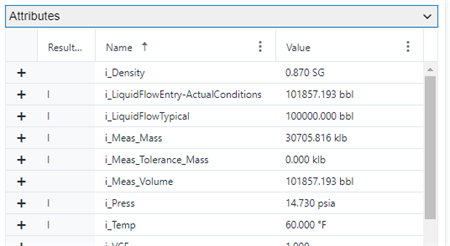 |
| Calculated Attributes | Displays all the Attributes having a Data Reference configured for the selected Element. Element Detail Panel - Calculated Attributes 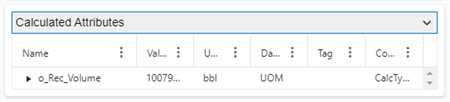 |
| Ports | Displays the port(s) specifications for the selected Element. The Ports data is not editable. Element Detail Panel - Ports  |
| Models | Displays the Model(s) with which the selected Element is associated. The Models data not editable. Element Detail Panel - Models  |
| Object info | Displays the information about the object along with its Inputs and Outputs. The Object info data is not editable. Element Detail Panel - Object info 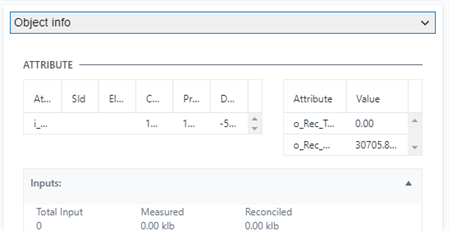 Note: Object Info is only available if ADA is licensed for Sigmafine Server. |