Display Additional Attribute Columns
When you open the Attributes or Calculated Attributes tab in the Elements Details panel, only columns of first level details are displayed in the list. Should you want to see more attribute details, you can, SFHub Visualizer provides a feature that allows you to show or hide more data columns in the Attributes or Calculated Attributes list.
To show or hide the display of a column of data:
Open the Element Details panel.
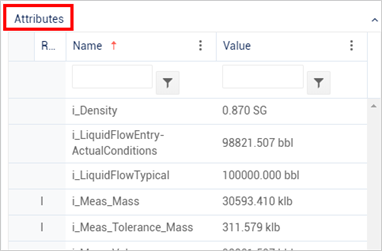
Click on the Attributes or Calculated Attributes pane to display the list of attributes.
Attributes List example
To the right of any column, click the
 vertical ellipsis to open the Column Menu.
Attribute List - Column Menu, select 'Columns'
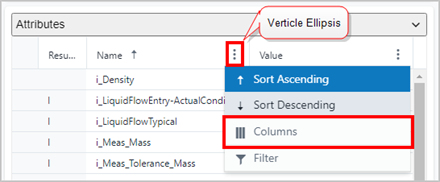
Click on Columns option.
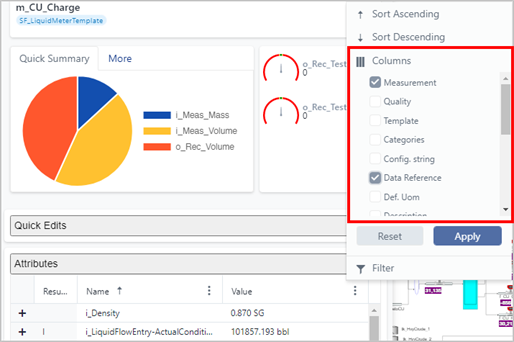
The menu expands to display a list of columns that can be shown or hidden.
Column Menu - available Columns
 info
infoThe column 'Tag name' is available as well, to easily show the nae of the PI tag configured in the PIPoint Data Reference.
Do any of the following, depending on what you want to accomplish:
- To show a column: Check the checkbox next to the column name.
- To hide a column: Uncheck the checkbox next to the column name.
- To reset the selection: Click the Reset button. This does not reset to the default columns, instead it resets to the previous selections you made, prior to your most recent selection. Once you close the columns menu, clicking the 'Reset' button upon reopening the columns selection list has no affect.
When through with selecting/deselecting columns, click the Apply button to save your selections and collapse the menu.