Sort Data Order of Attributes Lists
SFHub Visualizer provides a feature that allows you to sort any column of data in the Attributes and Calculated Attributes lists in ascending or descending order, or by the order in which the data was added to each list (based on the date/time stamp, with the most current at the top).
To change the sort order of a column of data in either list:
Locate the header for the column you want to sort.
Click on the header to sort by the next available sort order, which is based on the current order in which the column is being sorted. Following are the three states of the sort order:
[blank] Sorted by the order in which the data was added to the list. This is the default sort order for every column of data in the list. 
Sorted in ascending order. 
Sorted in descending order. The sort feature works like a three-way toggle in that each click selects the next contiguous setting.
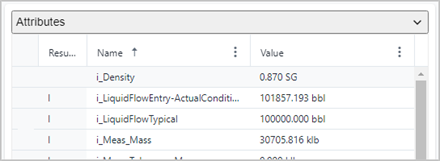
EXAMPLE: List sorted by 'Name' in ascending order
exampleList sorted by 'Name' in ascending order
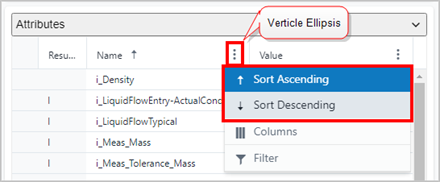
Alternatively, you can click on the
 vertical
ellipsis in a column header and select the sort order from the
Column Menu. When this feature is used, only the ascending and
descending order can be selected.
vertical
ellipsis in a column header and select the sort order from the
Column Menu. When this feature is used, only the ascending and
descending order can be selected.EXAMPLE: Column header menu
exampleColumn Menu - Select Sort Order