View Attribute Adjustment History
The Attribute Adjustment History allows to view all the adjustments created on the selected attribute. Using this panel you can also clear the adjustment as well as reset the result.
To view an Attribute's Adjustment history:
Open the Element Details panel.
Click on the Attributes down-arrow to expand the list of the Element's attributes.
Element Details - Attributes list
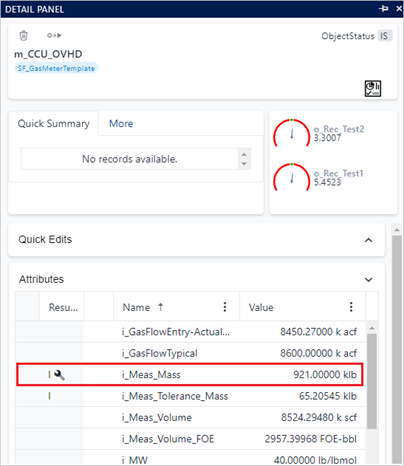
Locate the Attribute for which you want to view the adjustment history, and click on its value.
The Adjustment panel opens for the selected attribute, to display the Attribute's options.
Click on ADJUSTMENT HISTORY to view the history of the Attribute's adjustments.
Attribute Adjustment History
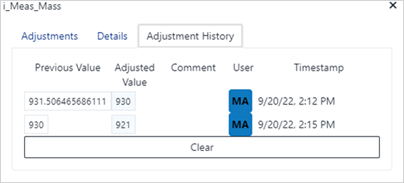
The adjustments are displayed in date order, beginning with the oldest date. They include the value prior to the adjustment and the adjusted value, along with any comments that were posted for each adjustment.
infoClear adjustments are displayed with an empty value in the Adjusted Value column.
Clear Adjustment
To delete all the adjustemnts created on the attribute click on the Clear button.
The clear adjustment does not empty the adjustment list but it creates a new entry containing the clear adjustment request.
Reset Result
To reset the result of the attribute click on the Reset Result button.
Attribute Adjustment History - Reset Result
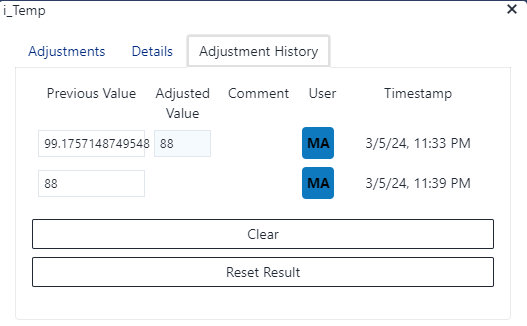
The Reset Result button is only visible if there are no adjustments on the selected attribute or a clear adjustements has been requested before.