Use Filters to Find Attributes
To find a specific element, attribute or value in a table list, you can use the Filter option from the Column Menu.
The Filter option allows you to narrow the results in a table list to only those elements,
attributes or values that meet the criteria you set, thereby minimizing the amount of data you have to scroll through.
The Filter option can also be used to find an exact element, attribute or value you want.
When using the Filter option, you can use a single filter and term or value, or two filters and terms or values,
in conjunction with one another, by using one of two connecting conjunctions ('and' or 'or'). Using both filters allows for more refined filtering.
The following is a list of filters available in the Filter option:
- Is equal to
- Is not equal to
- Contains (This is the default operator)
- Does not contain
- Starts with
- Ends with
- Is null (blank)
- Is not null (not blank)
- Is empty
- Is not empty
Note that when using the Filter option, regardless of the column in the table list that you are filtering on, the selection of operators remains the same.
When you define criteria to filter on, your settings are applied to only the content contained in the table list you are currently viewing. It does not affect others who may be viewing the same table, and does not affect any other tables you may view.
All column values are managed as strings, therefore, numeric filters are not supported.
Using the Filter Option
To search for an element, attribute or value using the Filter option:
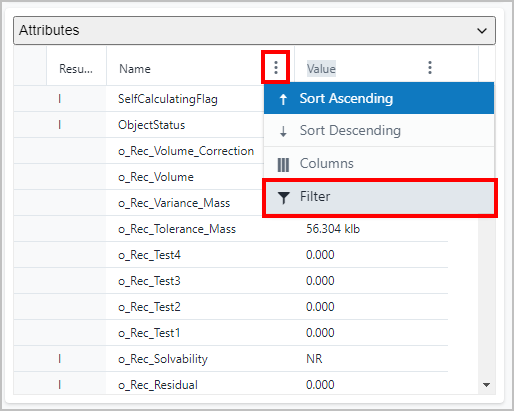
Click on the
 (vertical ellipsis) in a column heading, and then click Filter.
Column Menu - select Filter option
The Filter selection panel opens.
Filter selection panel
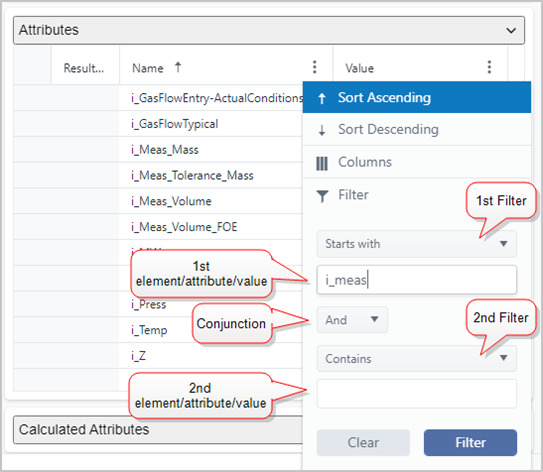
Click on the first filter option arrow and select the filter you want to use.
Click in the first element/attribute/value text box below the first filter, type the value to which you want to apply the filter.
Your entry should match the same type of data in the column on which you selected the Filter option.
If you want to use another filter or create a compound filter, click the Conjunction arrow and select the appropriate conjunction for your filters. Available conjunctions are "And" or "Or". Continue with steps 5 and 6. If you only want to use the 1st filter, skip to step 7.
(Optional) Click on the second filter option arrow and select the second filter you want to use.
(Optional) Click in the second element/attribute/value text box and type the value to which you want to apply the filter or combined with the 1st filter.
Click the red Filter button.
The list is automatically condensed to show only the content that is based on the search term and the chosen operator.
Filtered results example

To clear the filter(s) and value(s), click the Clear button.