Data Importer
The SFHub Visualizer Data Importer replicates the same features made available by Pimsoft Data Importer desktop application installed by the Sigmafine Client setup kit.
SFHub Visualizer Data Importer could be used in the same way to load data from an excel sheet into an AF Database.
- Importing data into the Sigmafine model for Elements. Elements can have their attributes updated/modified for specific cases. Even though it can be done manually, Data Importer provides an efficient time-saving approach especially when the number of elements is high.
- Importing data into the Sigmafine Model for Transfers. Transfers can be created and if they already exist or have been created, their attributes can be updated or modified. Even though it can be done manually, Data Importer provides an efficient time-saving approach especially when the amount of Transfers is high.
- Importing multiple Strapping Tables. Tank may have their height level measured to obtain their volume using Strapping Tables. Even though Strapping Tables can be created manually one-by one, it can be very cumbersome and time-consuming if the number of Strapping Tables is high. Data Importer is the perfect tool to load from one to several hundreds of Strapping Tables to Sigmafine with little effort.
- Importing Component Data Tables. With the same concept as in Strapping Tables, Data Tables can be imported to Sigmafine, saving time and effort.
- Importing any data table in an element attribute. This feature is suitable to be used whenever you are faced with the need to initialize data for composition tracking and quality tracking analysis rules. Both the analyses require the initialization of data tables like Composition Tracking Results (Composition Tracking) and Quality Tracking Results (Quality Tracking) on the first Sigmafine case.
The Data Importer feature is made available in the SFHub Visualizer command bar and it is always visible even if a display or report are not opened as well as a Case is not selected.
The import features you can use depend by the context where you are working.
| Context | Available features |
|---|---|
| No display or report open | You can only import transfers or strapping tables selecting the Server and database where to import data. |
| Display or report open | You can only import transfers or strapping table in the server and database referenced by the display. |
| Case Selected | You can use any of the features made available by the data importer. |
Data Importer Activation
To use the Data Importer:
Click on the
 Data Impoter icon in the command bar
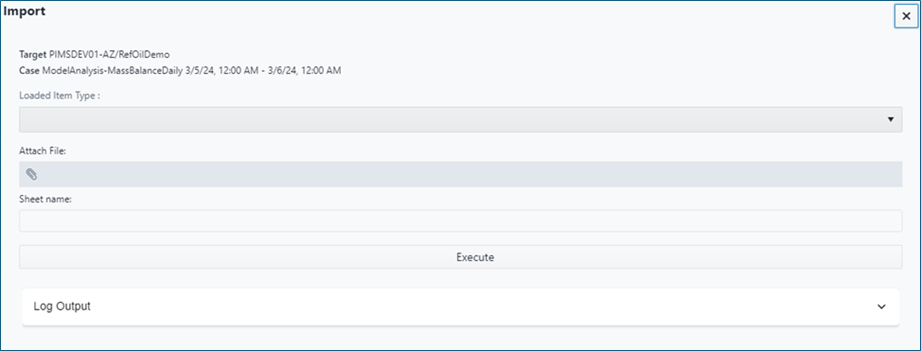
The Data Importer panel opens
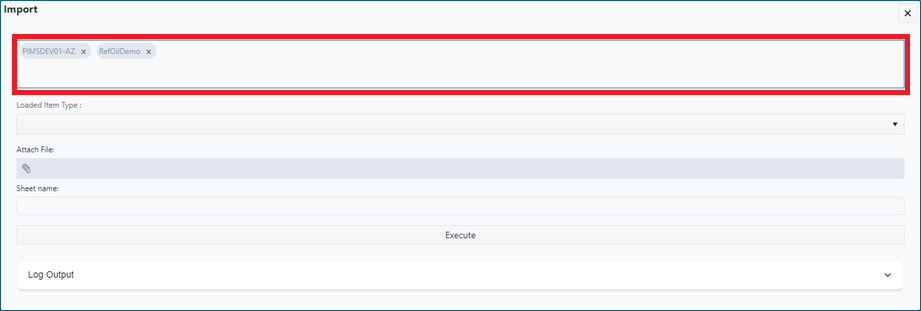
Select the Server and Database where to import the data
infoOnly required if the Sigmafine context has not yet selected (display or report are not open)
In the Data Importer dialog panel - Loaded Item Type - you can select the type of data you want to import in the AF Database:
Fill the required parameters according to the type of data. Next section topics provide more details about the Item Types you can upload in the Sigmafine database.
infoThe Attributes or Elements available for the user in Data Importer cannot be modified (name change, attribute removal, etc.). New Attributes or Elements cannot be created here. These available Elements and Attributes for Data Importer are the ones currently residing in PI System Explorer. For any modification, PI System Explorer is the place to go.
In the Attach File, select the Excel file containing the data you want to upload.
In the Sheet Name (Optional), you can specify the Sheet Name you want to upload in case the Excel file contains multiple spreadsheets
To run the Data Importer, click the Execute button
The below toast is shown to inform that the request has been submitted successfully.

The Data Importer is executed in a batch modality so, you have to wait until the job execution terminates.
The below message is shown to inform that the Data Importer job is terminated successfully.

Click the Log Output tab to see the results and the error messages of the Data Importer execution.
Item Types
Elements
The Elements option allows to upload data in the Case Elements Attributes (Processes, Measurements, Inventories, Receipt and Shipment Points and Flows).
The Elements option is only available if a case has been selected either from the display or report.
You can specify if to store the data in the element attribute as adjustment as well as require the refresh of all attribute values depending by that attribute.
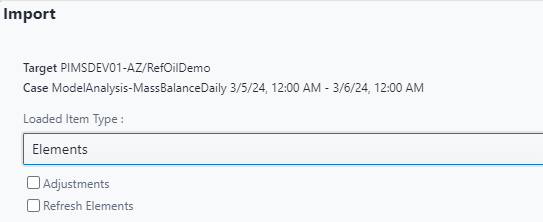
If the Adjustments option is not selected, the value will be recorded as Case Result.
Transfers
The Transfers option allows to upload transfers data on a single Case, on multiple Cases or only the Sigmafine database. The Transfer option is always available, even if a display or report has not been open.
Adjustments check-box
When this check-box is selected, transfer attribute values will be recorded in the Sigmafine Case as adjustment.
This check-box is only visible when you have a Sigmafine Case selected.
This option applies only when transfer are loaded into Sigmafine Case, otherwise it is ignored. (see Load Transfer Into check-box)
Transfer Templates drop-down
You can select one of the transfer templates available on the target database. The transfers will be created according to the selected template.
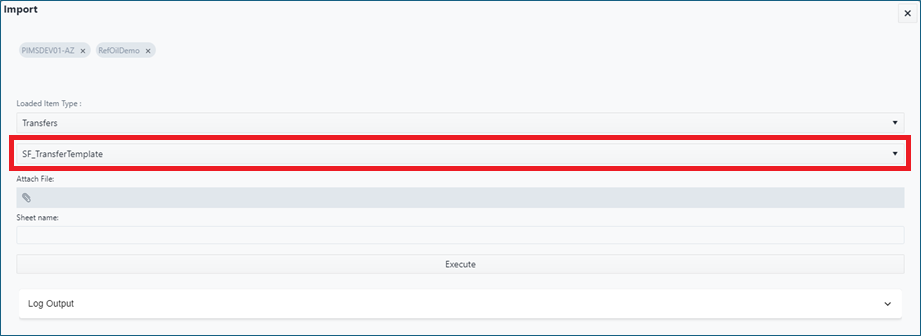
The drop-down may be empty when the server and database was not yet selected.
Load Transfer Into check-box
You can select this check-box in order to decide where to create the transfers.
This check-box is only visible when you have a Sigmafine Case selected. If Sigmafine Case is not selected the transfers will be always created in the database
Following options are available:
| Option | Description |
|---|---|
| None | This option means that the transfers will created or updated in the Sigmafine database even if you have a case selected. |
| Single Case | This option means that the transfers will created or updated in the Sigmafine Case. The transfer attribute values will be recorded as adjustments if the Adjustments check-box is checked. |
| Multiple Case | This option means that the transfers will created or updated in multiple Sigmafine Cases. The transfer attribute values will be recorded as adjustments if the Adjustments check-box is checked. |
Tables
The Tables option allows to upload or update the tank strapping tables in the selected Sigmafine database. The tables option is always available, even if a display or report has not been open.
If you are out of the display or report context, you must select the server and database where you want to load the strapping tables.

If a Display or report is open, the strapping tables will be imported in the server and database referenced by the display.
Data Tables
The Data Tables option allows the loading of "Component Data Tables"" to Element Attributes. Loading Data Tables is like loading data to other attributes.
The Elements option is only available if a case has been selected either from the display or report.
The Component Data Tables are always recorded into Sigmafine case as adjustment.
Any Data Tables
The Any Data Tables option represents an extension of the Data Tables option and it allows the loading of any data table to Element Attributes. Using this option you will be enabled to initialize:
- Composition Tracking data tables
- Quality Tracking data tables
The Any Data Tables option is only available if a case has been selected either from the display or report.
The Data Tables are always recorded into Sigmafine case as adjustment.
Data Importer Errors
Data Importer activation error
The sumbission of the Data Importer Job may raise a timeout like:

This error may occurs whenever the job is not able to connect the AF Server and database where to import the data.
Log Output Errors
Most of the errors raised by the Data Importer are self explaining like for example:
- invalid characters where numeric values are expected or
- invalid uom are specified
Example
Element/Transfer: tk_C4 - Attribute: i_Meas_Mass_Close - Cannot convert '5000a' to type Double using UOM 'a'.
In some scenarios, the errors raised may not be comprehensive. Here below are listed the most common error messages in the Log Outputs panel:
Write Transfers ERROR >> Input string was not in a correct format.
This error in generally raised when a column in the excel sheet is of type DateTime but the value stored in the cell is incorrect.
'Transfer name' has an invalid value for Attribute >> 'MeasuredMass'. Please check your spreadsheet.
This error is generally raised when a column in the excel sheet is of type numeric but the value stored in the cell contains characters that cannot be converted to numeric values.
The numeric value may contain not numeric characters if the cell is formatted as text and the unit of measure is specified in the value. For example, when the cell value is "5000 t" instead of "5000" with unit of measure "t". If the unit of measure is invalid, the above error message may be reported.
The unit of measure is invalid when:
- it is not recognized as a valid unit of measure by the target PI System (e.g. does not exist in the UOM database) or
- it is not compatible with the unit of measure specified in the attribute configuration (e.g. the attribute is configured with unit of measure of type 'Mass' and the value is specified with unit of measure of type 'Volume').
- the target attribute does not have a unit of measure specified and the value is specified with unit of measure. In this case, the unit of measure should be omitted in the value.
Invalid characters where numeric values are expected
This error is generally raised when a column in the excel sheet is of type numeric but the value stored in the cell contains characters that cannot be converted to numeric values. For example, when the cell value is "5000a" instead of "5000".
Unable to import the file 'File name.xls | xlsx': Central directory header is broken.
This error is generally raised when the excel file is corrupted or when the file extension does not match with the file content. For example, when an excel file with .xlsx extension is actually a .xls file.
Unable to import the file 'File name.xlsx': Format string is not in the correct format.
This error is generally raised when the excel file is corrupted or not recognized as a valid excel file or when the file has been created by an Excel version not compatible with the Excel format provider used by SFHub.
Workaround for this error is to save the file with a different name using a different Excel format like .xls and then try to import the new file.