Element Tool Tip
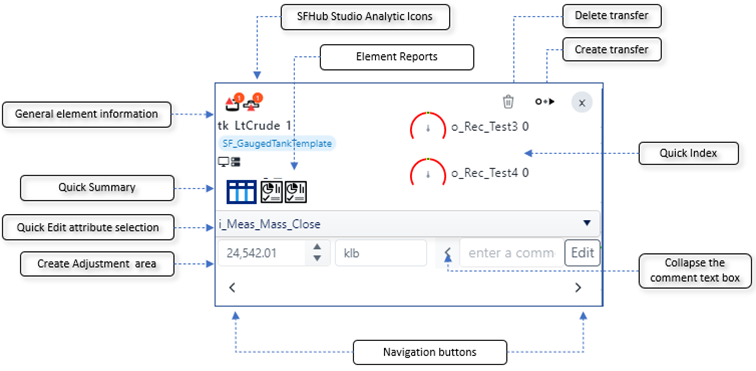
When hovering over a display element, aTool tip panel opens to display information about that element. In SFHub Visualizer, the tool tip is actually an active panel, where you can make most of the required actions. The following figure shows how the tool tip panel is organized.
Element Tool Tip panel options
Element Tool Tip Panel Descriptions
| Item / Option | Description |
|---|---|
| General element information | The General element information section shows the element name, the Sigmafine template from which the element is derived, and synchronization information. |
| Quick Summary section | The Quick summary section shows the quick summary according to the configured chart type and the chart settings defined for the element template. If a chart is configured, then it displays like this: Quick Summary section when chart is configured 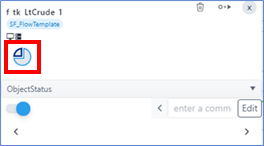 If a list of calculated on-the-fly values is configured, then the quick summary looks like this: Quick Summary section when list of calculated on-the-fly values configured 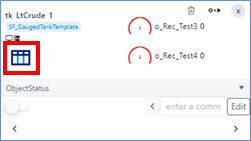 In the calculated on-the-fly values configuration, hovering over the icon opens an additional panel that displays the calculated on-the-fly values for the element. Panel displaying calculated on-the-fly values 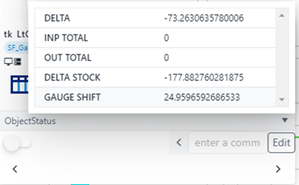 |
| Quick Edit attribute selection | The Quick Edit attribute selection allows you to select one of the attributes configured for the quick edit, so that you can create an adjustment on it. Click the arrow to select from the list of attributes. Quick Edit attribute selection 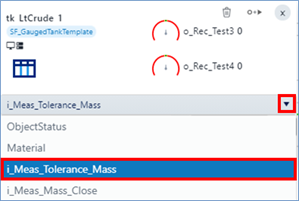 |
| Create Adjustment Area | The Create Adjustment are allows you to adjust the current value for the selected attribute. |
  Navigation buttons | Left and right buttons allow you to navigate through the display according to the input or output connections of the selected element. When more than one connection is available (e.g., multiple flows or transfers), then a selection panel displays, allowing you to select the connection you want. Navigating to more than one output 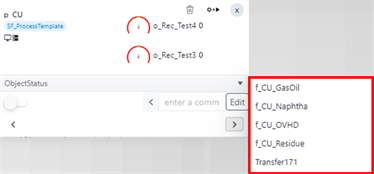 The navigation over the connected elements automatically updates the tool tip information for the selected element. |
Collapse comment text box | The comment text box can be collapsed by clicking the arrow to the left of it. |
| Quick Index section | The Quick Index section displays the quick index according to the quick index configuration defined for the element template. |
 Delete Transfer | The Delete Transfer button is active when the tool tip is activated over an element. It allows you to delete the selected transfer. |
 Create Transfer | The Create Transfer button is active when the tool tip is activated over an element that is not a flow and is not a transfer. It allows you to create a transfer starting from the selected element. |
| SFHub Studio Analytics Icons | This is the section where SFHub Studio Analytic icons may appear as a result of a search over the SFHub Studio Analytic results. When hovering over the icon, the diagnostic message is shown; when you click the icon, the SFHub Studio results panel opens and the message details are shown. Diagnostic message example 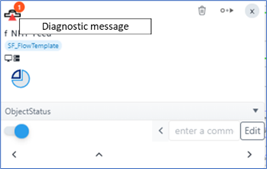 Note: The icons displayed, depend on the severity assigned to the insights generated by the analytics. Refer to the "SFHub Studio User Guide" for more details.Refer to the SigmafineHub Studio Settings for more details. |
| Element Reports | The Element Report section shows the available Reports of type Element according to the reports configured in the referenced display settings. Element Reports section 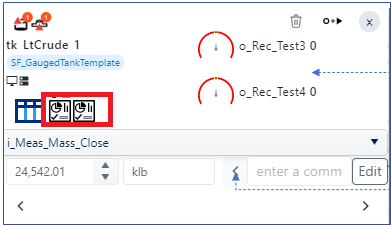 Hover over the icon to display the report name. Click the icon to open the Report Panel that displays the report for the selected element. You can open multiple reports at the same time by selecting the icons available on the tooltip or element Detail Panel. The same report can be opened in the context of another element in the display for which you wish to view the data. |
info
Element Reports opened from SFHub Visualizer don't allow or support you to switch to another Case. As soon as you change the Case selection from the Case Search, the Report Panel automatically closes.