View Attribute Details
You can view the details of a Case on an Element Attribute level. For each Element you select, you can access detailed information relative to that specific Element's Attributes.
To view an Attribute's details:
Open the Element Details panel.
Click on the Attributes down-arrow to expand the list of the Element's attributes.
Element Details - Attributes list
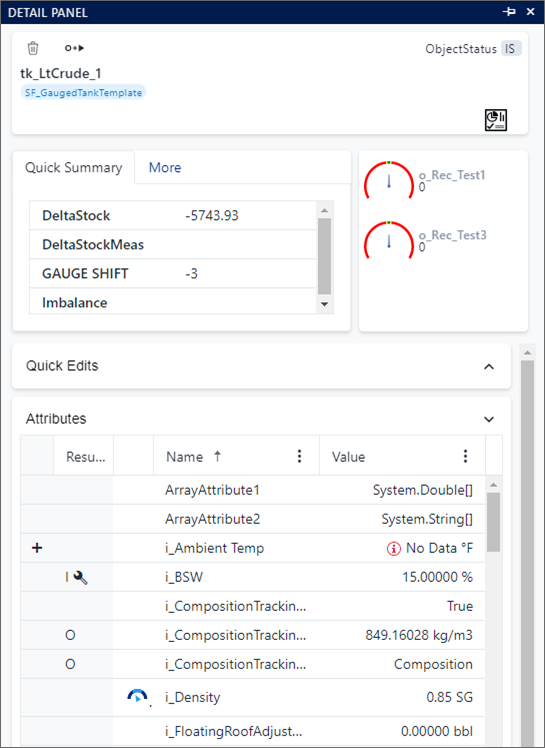
In the Attribute list, you have the ability to sort the columns by the data they contain, add more columns to display, or use Filters to quickly find the attribute you want to view (or edit). In addition, you can change the order in which the columns display in the list. For more details on all these features please see Sort Attributes by Column Data Order, Display Additional Attribute Columns, Use Filters to Find a Specific Attribute and Rearrange Order of Columns.
Locate the Attribute for which you want to view details.
The following table provides attribute detail descriptions.
Detail Description + (Plus sign) When displayed, the plus sign indicates that the attribute has sub-attributes. Click on the + (plus sign) to expand the panel of sub-attributes and their details. Result The Result column displays the type of results recorded in the attribute.
I = Input result
O = Output results
When a wrench symbol appears in the proximity of the type of results, it indicates that the value has been adjusted.Chart When a gauge symbol appears in the Chart column, it indicates that a comparison chart has been configured on the attribute.
Hover your mouse over the gauge symbol to display the image of the configured chart (as shown in the following image).
Chart symbol - Image of configured chart
If you have applied a "Display Setting" to the display, in which either you or the SF Admin has created a "comparison" chart for the selected attribute, the chart is shown in the Comparison chart. For more details on Display Setting Attribute level charts.*
See Create an Attribute Comparison Chart for further details.Name The Name column displays the actual name of the selected attribute. Value The Value column displays the Value that is currently recorded in the selected attribute. Click on the Value to open the Adjustment panel (See Adjust Element Attribute Values for further details).