Reviewing Case Diagnostics
To review Case diagnostics:
Click on the Diagnostic icon to open the Diagnostic panel.
Diagnostic panel
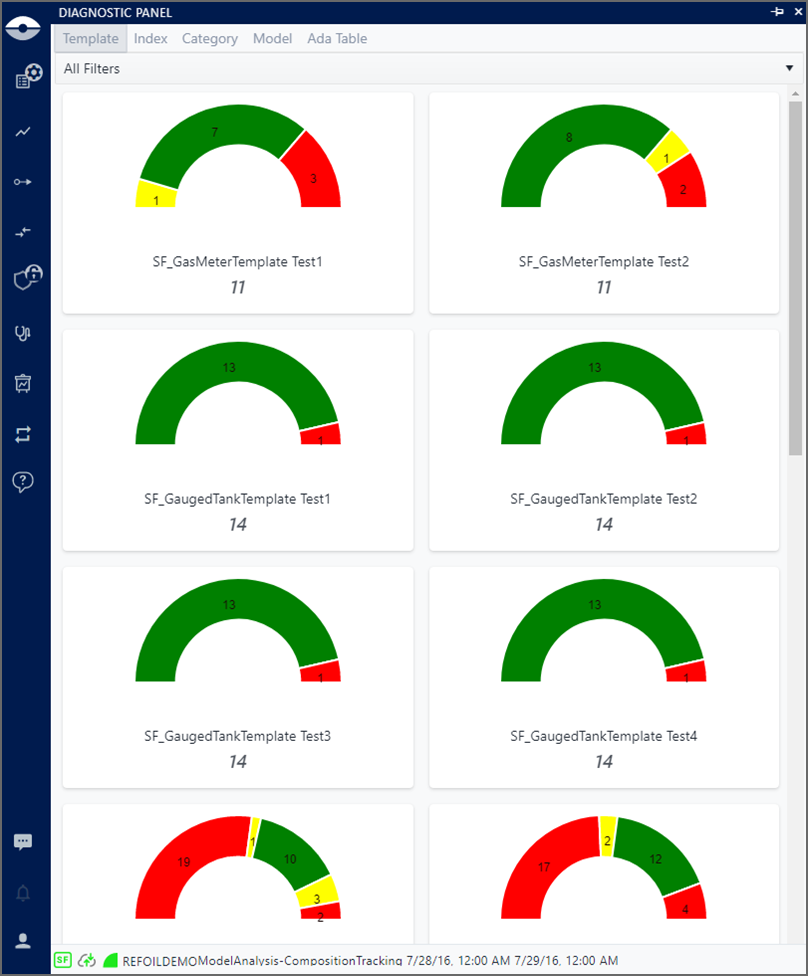
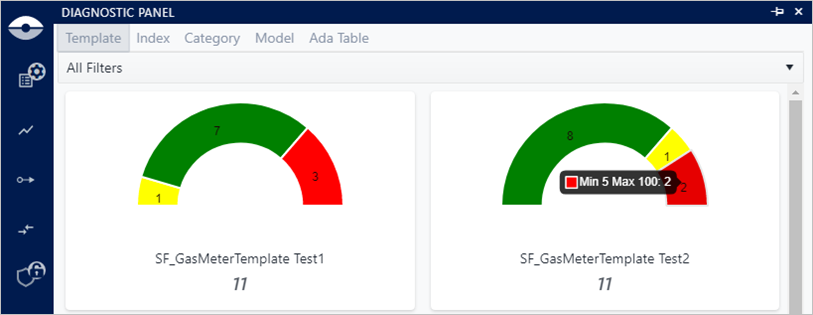
Click on one diagnostic group (Template, Index, Category or Model), as shown in the following figure.
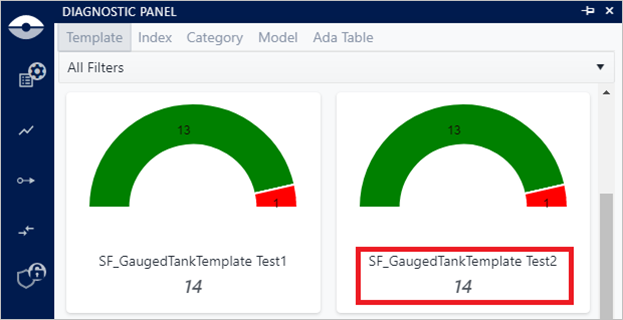
Select Template Test name
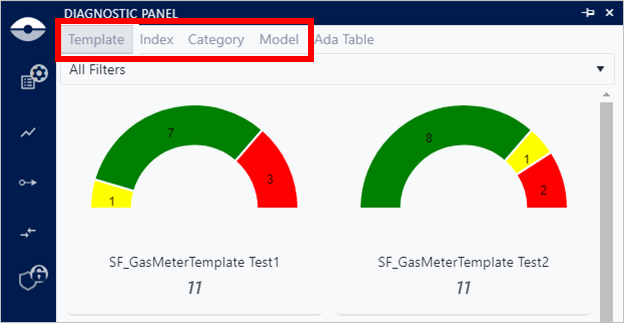
Do one of the following to locate the graph you want.
Scroll to the graph you want to view all Elements.
Use the "Filters" feature to find specific types of graphs (See Use the Diagnostics Filter Feature).
Do one of the following to locate the Element Attribute(s) that you want to analyze.
The available Element Attributes from which to choose, depend on the diagnostic group you select.
Select from all Elements associated with a specific Graph
a. Click on the name of the graph for which you want to view all Elements (as shown in the following figure).
All graphs associated with selected diagnostic group
The Diagnostic panel displays all the Elements associated with the selected graph. (In our example, we selected Template and a statistical index.) In addition, a diagnostic tool-tip is shown on all Display symbols belonging to the selection. All Elements associated with the selected graph (Template and statistical index)
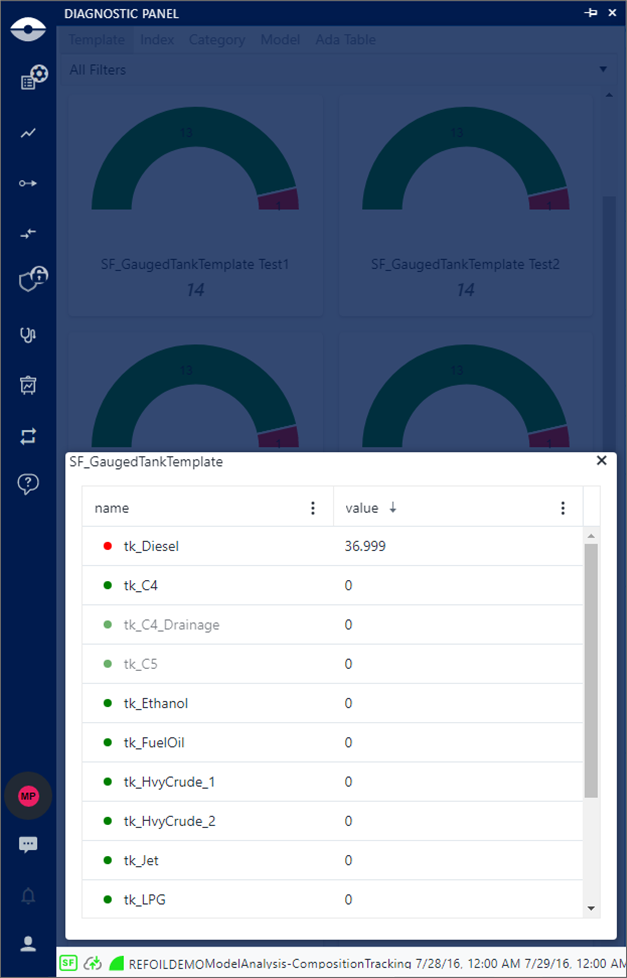
b. Click on the name of the Element you want to analyze or modify (as shown in Figure 5).
Select from only those Elements that fall within a specific Min/Max range
a. Click on the color that represents the Min/Max range, as shown in the following figure. Select the Min/Max range
 Another panel opens displaying all the elements associated with
the selected range. In addition, a diagnostic tool-tip is shown
on all Display symbols belonging to the selection.
Another panel opens displaying all the elements associated with
the selected range. In addition, a diagnostic tool-tip is shown
on all Display symbols belonging to the selection.Elements falling between the selected Min/Max range
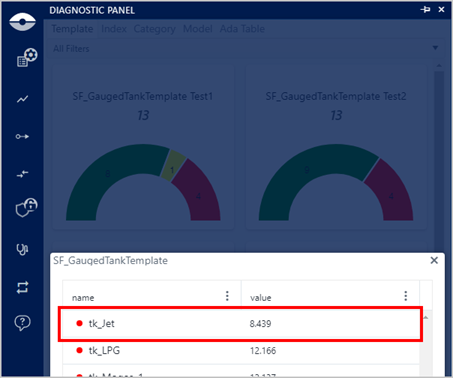
b. Click on the name of the Element you want to analyze or modify, as shown in the previous figure.
The Element's symbol tool-tip becomes the focus in the Display. An option to 'Select a Quickedit' is activated if Quick Edits have been configured on your active display settings (you can use it to make an adjustment).
Select Quickedit Attribute
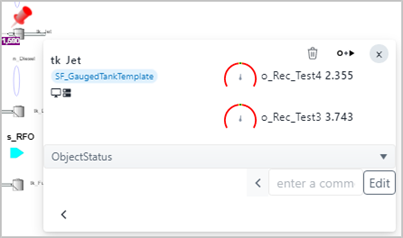
If after reviewing you find that you need to adjust some Element Attribute values, please see Adjust Values from Diagnostic Panel for more detailed steps.