Diagnostic - ADA Results Table
The ADA Table tab in the Diagnostic Panel, shows the content from the Sigmafine Diagnostic Add-in result table as provided by ADA for PI Processbook. The results tables and their content are configured according to the ADA configuration defined by the ADA for PI Processbook, and recorded in the Sigmafine database.
The ADA Result table is visible in SFHub Visualizer only if ADA is licensed for the Sigmafine Server connected by the display.
ADA Table - All Filters
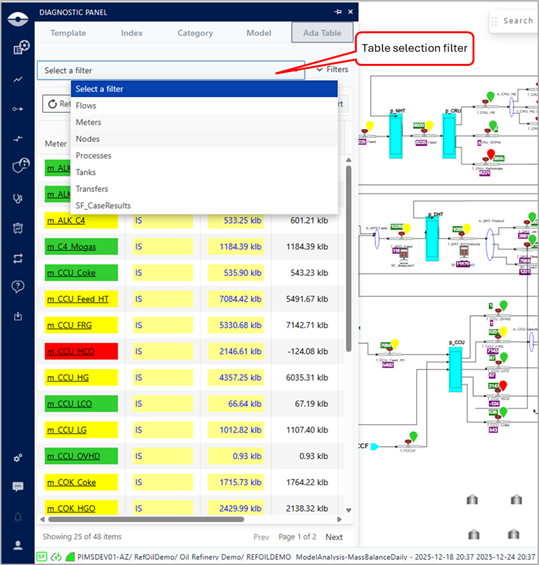
The table selection filter allows you to select the result table to view. Once the selection is done, the selected result table is shown.
The columns and the formatting shown on the table are reliably replicated by SFHub Visualizer, according to the ADA configuration stored in the Sigmafine database. As well, the Color schema is replicated according to the defined color ranking configuration.
ADA Table - filtered results
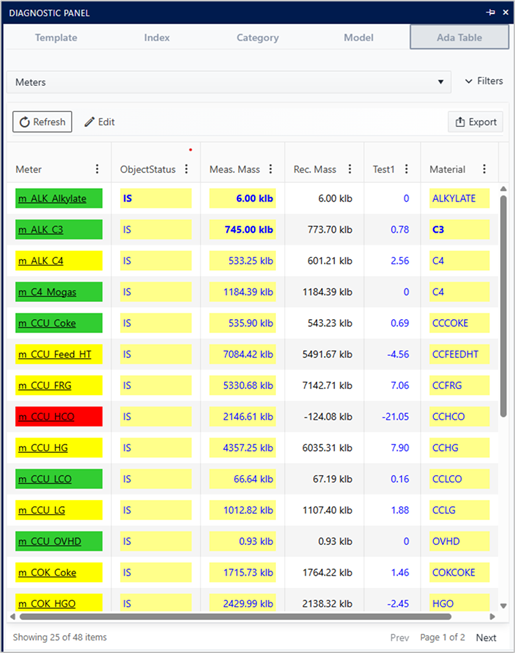
Filters
The ADA table provides filters to select the result table to view, and to filter the content of the table.
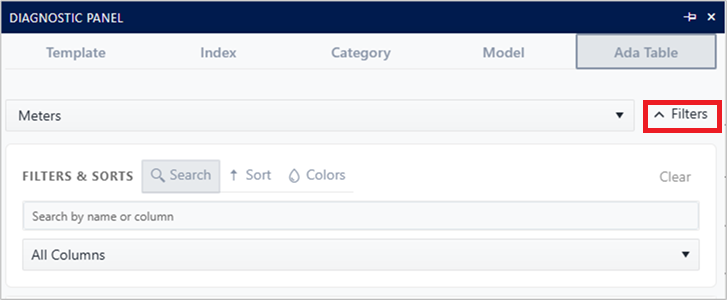
Search Filter
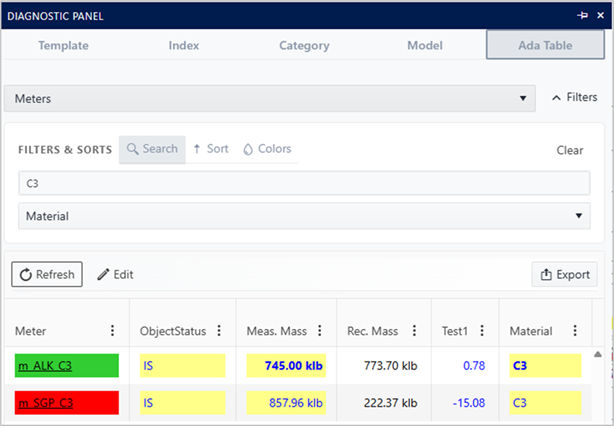
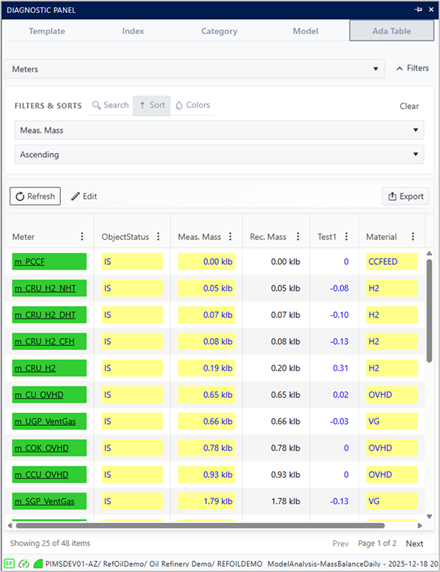
The Search filter allows you to search for a specific text in the table content. You can narrow down the search by selecting the column to search in. The search is performed on the content of the cells, and all matching cells are shown in the table, while non-matching cells are hidden.
Sort
The sort feature enables you to order table rows by a selected column in either ascending or descending order.
Colors
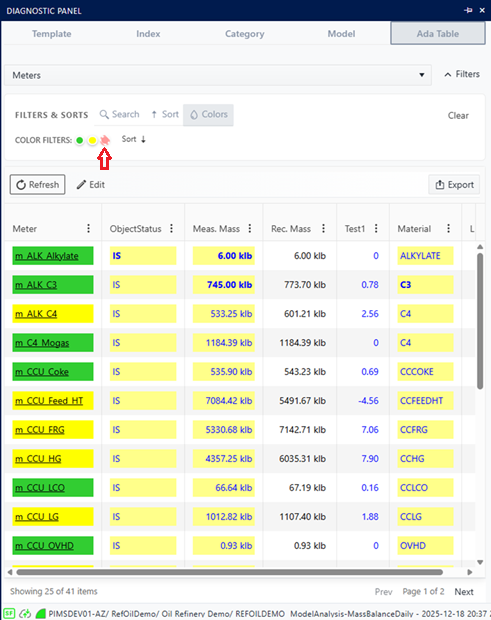
The color filter allows you to filter or sort the table content by the color ranking, if available.
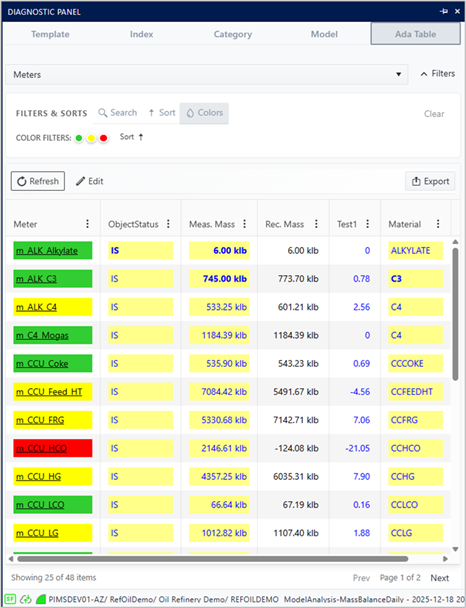
The sort by color ranking allows you to sort the table by the color ranking.
The filter by color ranking allows you to filter the table by the color ranking, showing only the elements matching the selected color ranking, and excluding all other elements.
Locate elements from ADA tables
When you click on the name of an element in the ADA table, SFHub Visualizer locates that element on the display.
Create Adjustments
The element tool-tip allows you to use the quick edit, to eventually create adjustments on the selected element. You can optionally use the In-line editing of the ADA table cells to create adjustments on multiple elements at once.
In-line editing of ADA table cells
SFHub Visualizer allows you to edit certain cells directly in the ADA table. The editing is only enabled for cells that are editable according to the ADA configuration (the ones having yellow background).
Cell editability is determined by the ADA configuration stored in the Sigmafine database. The 'Editing' column in the AF Table SFDiag_TableConfig specifies which cells can be edited.
You can edit multiple cells before saving the changes. The save button allows you to save all the changes at once by creating multiple adjustments.
Click the 'Edit' button to enable the in-line editing mode.
In-line editing of ADA table cells
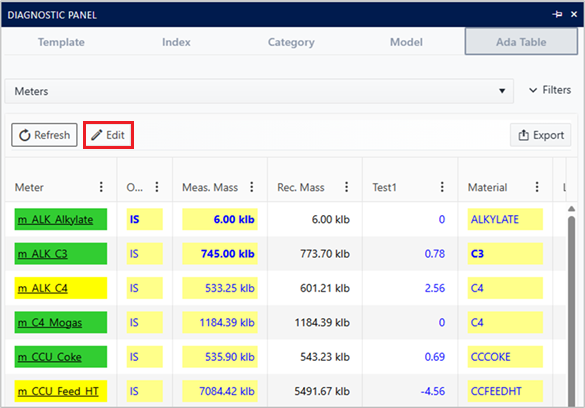
All the editable cells are highlighted.
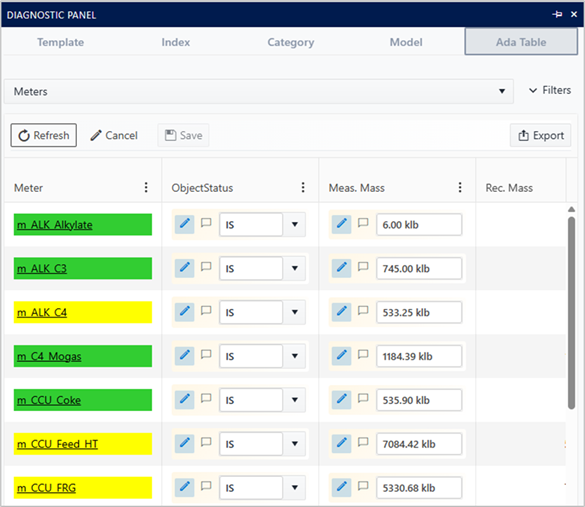
You can click on any of the editable cells to edit its content.
The new value typed may include or not its original unit of measure.

It is not possible to change the unit of measure of the value being edited. Any unit of measure different from the original one will be ignored.
Some cells may provide a drop-down list to select the new value from a predefined list.

Each cell has a comment button that allows you to add a comment to the cell, which will be saved with the adjustment when you save the changes.

Once you are done with the edits, click the 'Save' button to save all the changes at once.
The 'Cancel' button allows you to discard all the changes and exit the in-line editing mode.
Export ADA table to Excel file
You can export the content of the ADA table to an Excel Workbook file (.xlsx). The export allows you to save the file locally on your machine in two different format:
- Data Import Format
- Table
Data Import Format
The Data Import Format export creates an Excel file that can be used to import the data back into Sigmafine, using the Sigmafine Data Import tool.
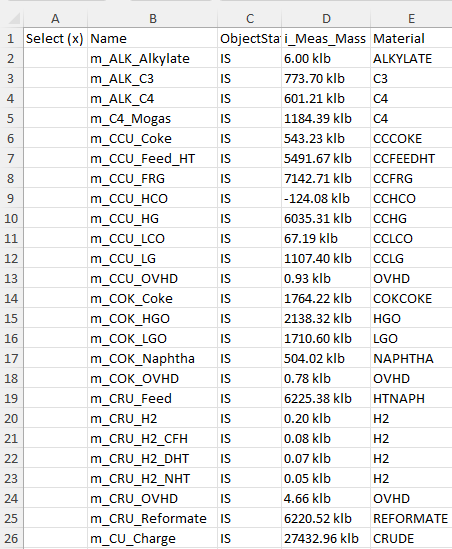
Users can use this format to export the data, make changes to the data in Excel, and then import the modified data back into Sigmafine. (see Sigmafine Data Importer for more details on how to use the Data Importer tool)
Table Format
The Table Format export creates an Excel file that replicates the ADA table as shown in SFHub Visualizer, including the formatting and color ranking.
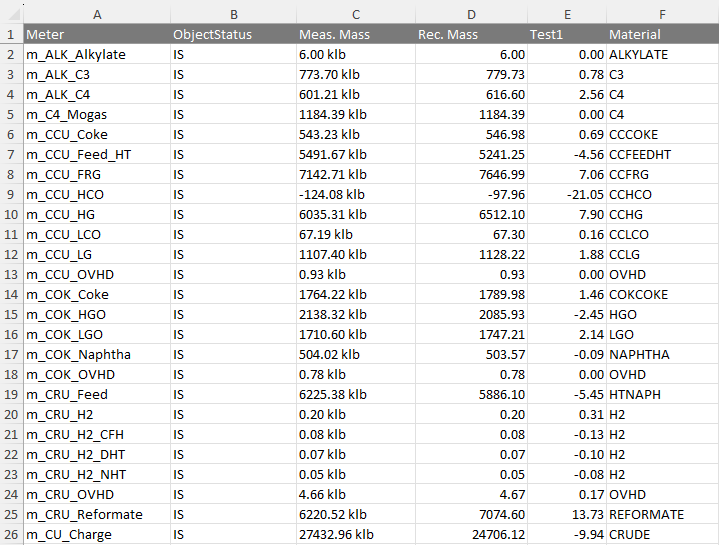
Users can use this format to create reports or share the data with others, while preserving the visual representation of the table.