View a Case Journal
You can access the Case Journal for a Sigmafine Case from the Case Journal sub-panel in the main Workflow panel.
Click the
 Workflow icon in the command bar to
access the Case Journal sub-panel.
Workflow icon in the command bar to
access the Case Journal sub-panel.
Case Journal Sub-Panel
The Case Journal is a sub-panel in which SFHub records all the actions taken on a Sigmafine Case that were made by all users. A Case Journal is maintained for each Sigmafine Case and can be used for audit purposes.
Workflow Panel - Case Journal sub-panel
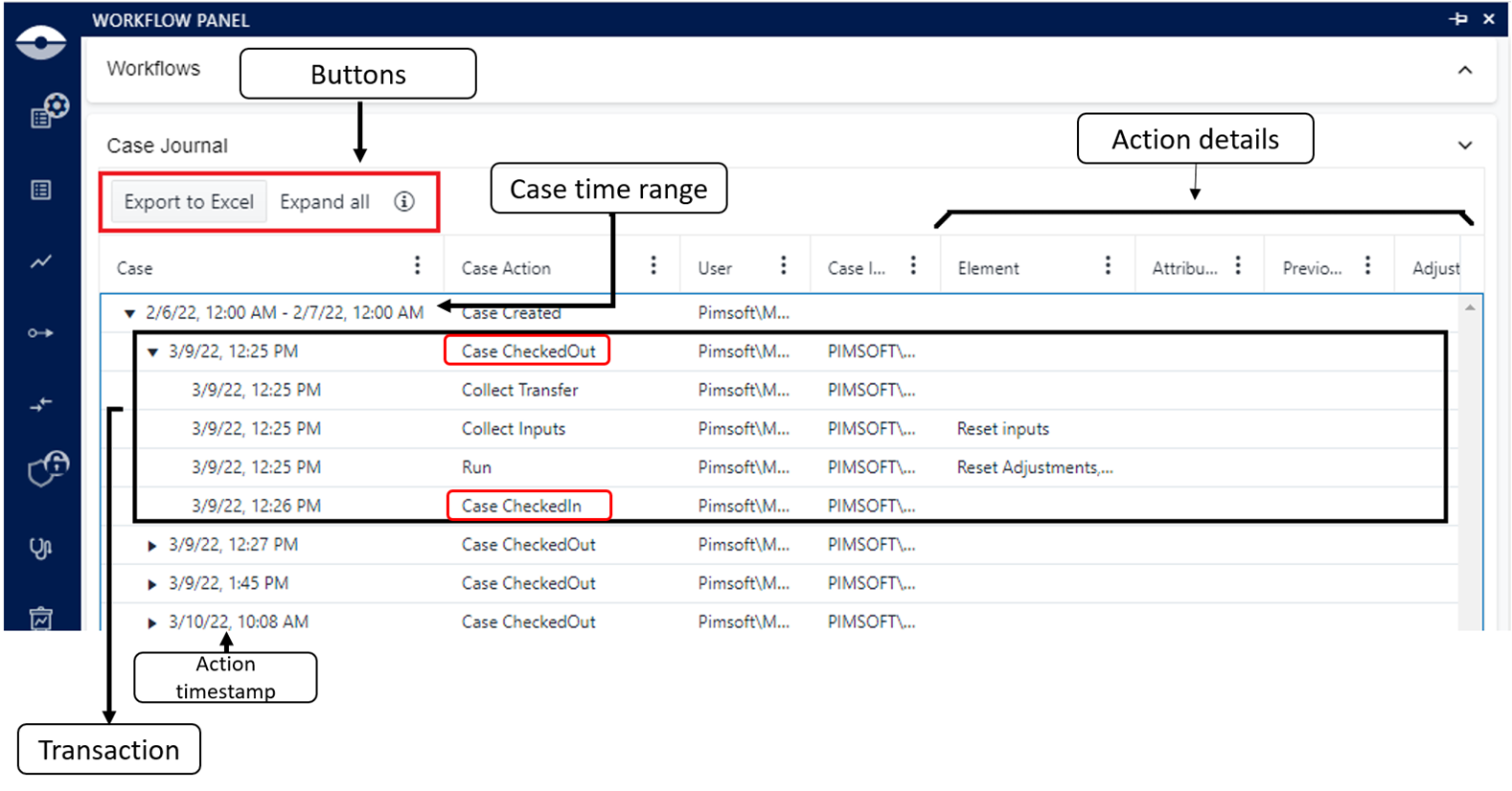
The following table provides descriptions of the main areas of the Case Journal sub-panel.
Case Journal sub-panel
| Area | Description |
|---|---|
| Case time range | The time range for the select Sigmafine Case. |
| Action details | This area contains details of the action. Details vary based on the action type. |
| Action timestamp | A timestamp that indicates the time at which the Case action was executed. |
| Transactions | A Transaction is a set of changes enclosed between a Case CheckOut and a Case CheckIn or Case UndoCheckOut. |
Case Journal Buttons(Icon
| Button | Description |
|---|---|
| Export to Excel | The Export to Excel button allows you to export the case journal to an Excel spreadsheet file. |
| Expand all | The Expand all button works as a toggle to expand or collapse all transactions. |
 | The Information icon works as a toggle to show or hide the action details. |
All the actions made by each user are recorded in ascending order, based on the action timestamp, and grouped by transaction.
Any action initiated by a user on a Sigmafine Case always begins with a Case Checkout made automatically by the SFHub Visualizer or explicitly by the user.
All actions made by a user are recorded in the Sigmafine Case when the Case CheckIn is requested, or unless a user discards (rolls-back) an action by selecting a Case UndoCheckOut. When a Case UndoCheckOut is requested to discard all the modifications made on a Sigmafine Case, the Case Journal still tracks all the operations.
View a Case Journal
To view the Case Journal for a Case:
Ensure that you have the display opened in the Display and the Case loaded.
Click on the
Workflows icon to open the
Workflow Panel.Workflow main panel

If not already open, click on the Case Journal arrow to open the Case Journal sub-panel.
Case Journal sub-panel
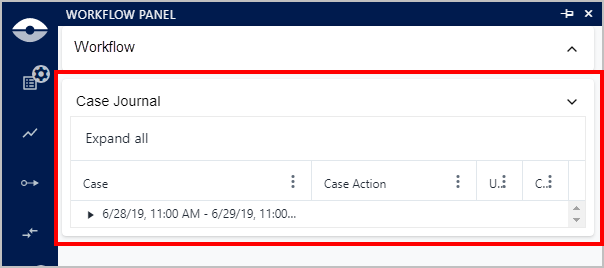
The following table provides descriptions of the columns in the Case Journal sub-panel.
Case Journal - column descriptions
Column Description Case The first row shows the Case time-range, while the remaining rows show the timestamp of the executed action. Case Action Provides the short description of the executed action. User The name of the SFHub user who made the action. Case Identity The username of the user, as known on the AF Server side. Element Case element name where a change has been made. The following columns are for Adjustments and actions with parameters only.
Column Description Attribute Element attribute where a change has made. Previous Value Replaced attribute value Adjusted Value New attribute value. Note Reserved for analytics. Instructions Active layers, reserved for analytics. All the actions made by each user are recorded in ascending order, based on the action timestamp, and grouped by transaction.
The following table provides a description summary of all the messages recorded in a Case Journal.
Case Journal - recorded messages
Case Journal Message Description Case CheckedOut The Case has been checked out by the user specified in the User column. Case CheckedIn The Case has been checked in by the user specified in the User column CaseU ndoCheckOut The user specified in the User column has undone their check out of the case. Add Adjustment An Adjustment has been created by the user specified in the User column, to the element and attribute specified in the Element and attribute columns. Delete Adjustment An Adjustment has been deleted by the user specified in the User column, to the element and attribute specified in the Element and Attribute columns. Drawing Transfer The transfer specified in the Element column has been created by the user specified in the User column. Edit Transfer The transfer specified in the Element column has been changed by the user specified in the User column. Delete Transfer The transfer specified in the Element column has been deleted by the user specified in the User column. Case Locked The Case has been locked by the user specified in the User column. Case Unlocked The Case has been unlocked by the user specified in the User column. Case Incorrect The Case changed its state as a consequence of an action executed from the SFHub environment. A good example would be when a user initiates an action over a Sigmafine Case from the PI System Explorer. In such a scenario, the Case Identity column would show the username of the user responsible of the inconsistency.
Note
In this version of SFHub, it is not still available the name of the external application from which the action is initiated.Layer Changed The Case layers have been changed. Active layers are shown in the Instructions column. Collect Elements
Collect Transfers
Collect Inputs
Run
PublishAll case actions are logged with relevant parameters such as Reset adjustments, Reset inputs, etc.
Click the arrow next to a Case time range, to expand the actions that where taken on the case during that time range.
Case Journal sub-panel data
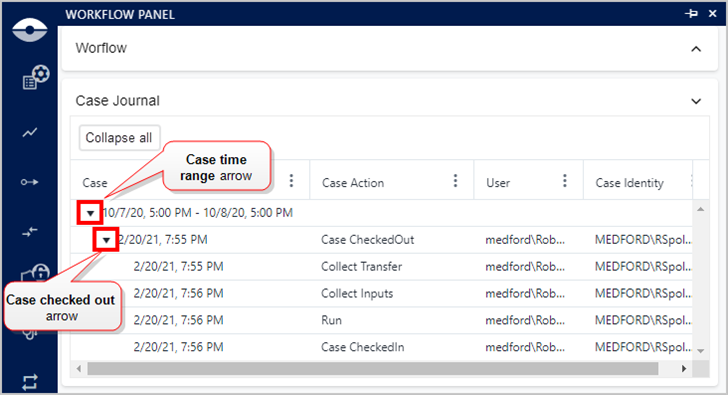
Click on a Case checked out arrow, to expand the actions on the Case at a specific date and time, by user.
tipClick on Expand all button to expand every time range and case checked out date/time.
To collapse all again, click the Collapse all button.(Optional) Click on the
 (vertical ellipsis) in a column
heading, to open the Column Menu which allows you to both select
which columns to show in the Case Journal and use filters on the
selected column, to find specific data in that column.
(vertical ellipsis) in a column
heading, to open the Column Menu which allows you to both select
which columns to show in the Case Journal and use filters on the
selected column, to find specific data in that column.For more details on using the Column Menu to select columns you want to show in the Case Journal, see Select Columns to Display.
For more details on using the Column Menu to search for specific data in a column, see Search by Column Content.