Review Case Diagnostics
The Diagnostic panel is used to obtain evidence of the Sigmafine statistical reconciliation indexes which help you to identify the source of potential data issues. It also shows the ADA Result table where Sigmafine results are presented in a tabular format according to the ADA configuration stored in the Sigmafine database.
If you have licensed the ADA product, the Diagnostic panel also shows the ADA Result table where Sigmafine results are presented in a tabular format, according to the ADA configuration stored in the Sigmafine database.
The diagnostic panel is divided into the following five tabs:
Template - Shows the indexes grouped by element template
Index - Shows by index, all elements which are aggregated by statistical index
Category - Shows the indexes grouped by element category
Model - Shows the model indexes
ADA table (only if ADA product is licensed) - Shows ADA diagnostic tables
See any of the following topics for additional diagnostic information.
- How Diagnostic Panels Work
- Select Elements for Diagnostics
- Diagnostic Indexes
- Reviewing Case Diagnostics
- Use the Diagnostics Filter Feature
How Diagnostic Panels Work
When a diagnostic panel is selected or an ADA table is selected, a list of elements is shown pertaining to the selected diagnostic index or the selected ADA table.
When the element list is actualized by your selection, SFHub Visualizer marks that elements on the display by colored stick pins; similar to what the Search does. The color assigned to the stick pin reflects the same color assigned to the diagnostic indexes, according to their configuration or the same color assigned in the ADA table according to the defined format ranking.
Diagnostic Panel example 1
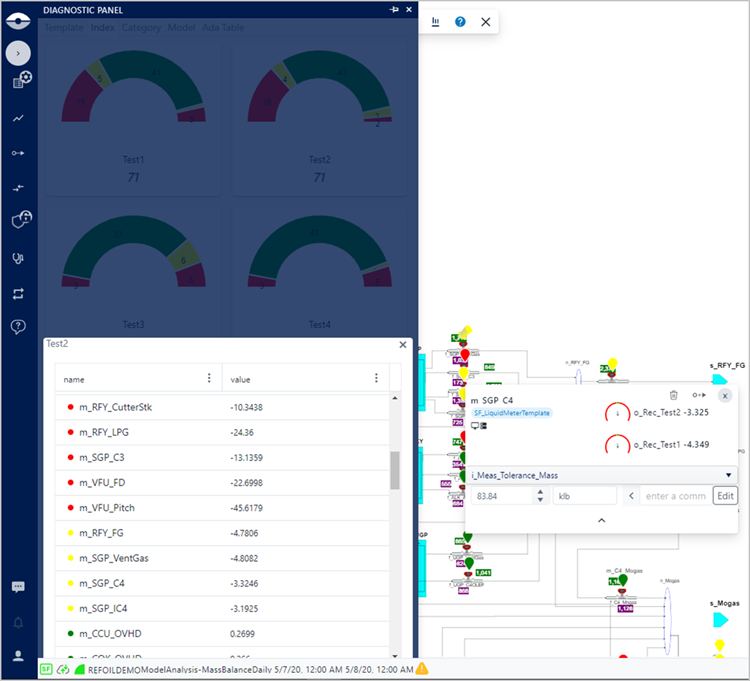
Diagnostic Panel example 2
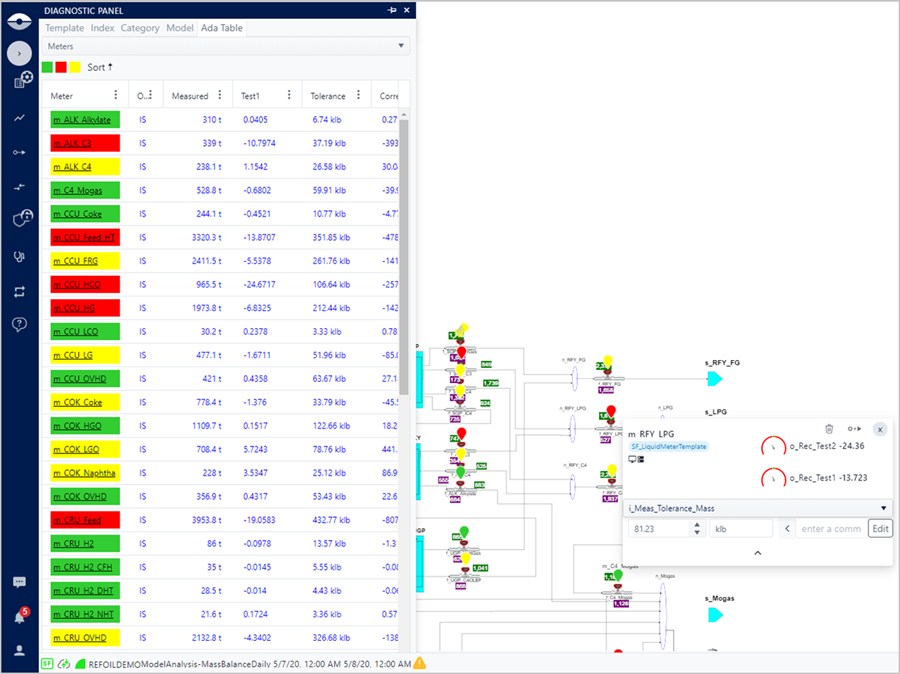
The Diagnostic panel feature allows you to easily locate the elements of interest on the SFHub Visualizer display. The hover over the stick pin will allow to activate the element tool tip from which you can access to further information as well as to the action buttons and Quick Edit panel.
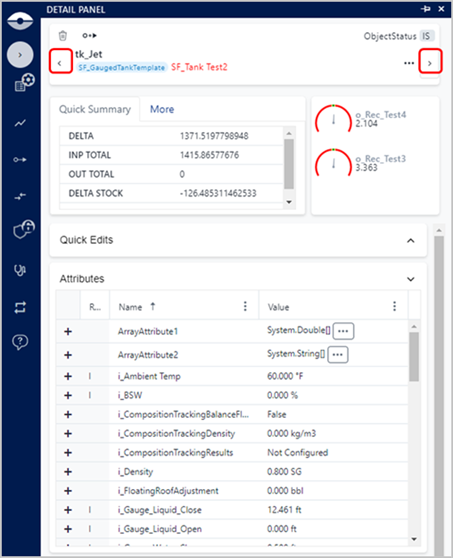
Moreover, you can navigate through the elements collection by collapsing the Diagnostic panel and activating the Detail Panel on one of the elements of the collection and then you can use the Sibling buttons to navigate through the elements.
The Detail panel allows you to look at more detailed information for deep investigation and take the necessary actions using the features made available by the panel.