Deselect a Case
When you are finished viewing a Case you can either select another case, which will automatically deselect the Case you currently have opened, or if you are finished reviewing Cases in the selected display or report, you can use the following steps to deselect the case.
To deselect a case:
In the left panel, click on the
 to open the Case panel
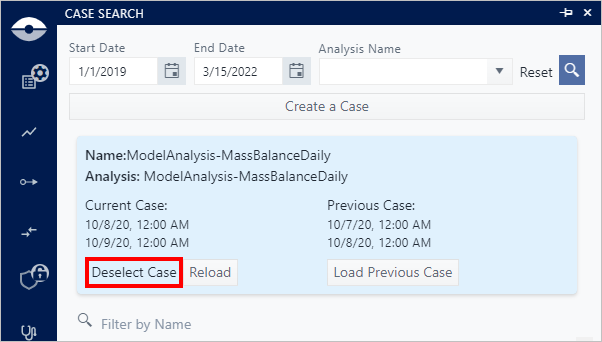
Case Panel - Delelect Case
Do one of the following:
Scroll to the Case you currently have opened in the Display panel. The Case you currently have selected can be easily identified by its light gray color and a "Deselect Case" button.
If you have checked out the Case for modifications, the Case can also be identified by a black shield with a star in the middle, as shown in the following figure.

Click the Deselect button
NoteIf you have the Case checked out, we suggest you check it back in or undo the check out prior to deselecting the Case.