Case Status (State) Management
SFHub Visualizer allows to control and verify the Case Status in order to enable the concurrent access of multiple users over the Sigmafine Case resource.
Case Status panel
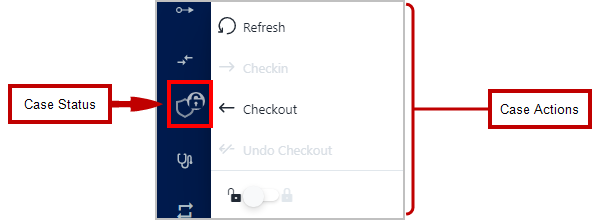
Case Status Icon - The Case status icon provides an immediate status indication of the current selected Sigmafine Case. The icon is automatically updated whenever the Case status changes as a consequence of an action performed by another user working on the same Case resource.
Case Actions Panel - The Case actions panel contains a menu that allows you to request an action for the current case. The actions appear enabled or disabled, in accordance with the state of the Case.
As an example: If the Case is Checked out, then the only enabled actions are Checkin and Undo Checkout.
When a Case is modified, SFHub Visualizer manages the change by updating the "Case Status" icon, updating the Display when applicable, and sending a notification of the status change to all connected users.
The various status change icons are as follows:
| Icon | Case Status |
|---|---|
 | Case is free |
 | Case is in Checked Out state (by me) |
 | Case is in Checked Out state (by someone else) |
 | Case is Unlocked |
 | Case is Locked |
It is essential to understand that changes to the state of a Case can occur for several reasons:
- The user selects a status change (via the SFHub Visualizer Case icon)
- Whenever an action is performed on the case SFHub Visualizer automatically changes the status
- A request for a status change is detected in SFHub Visualizer from an outside application such as PI System Explorer, ProcessBook, etc.
The following table shows what happens when a status change occurs.
Status Change Effects
| Initial Case state | Request | Ending Case state | Action | Effects |
|---|---|---|---|---|
| Checkout | | Case is checked out | SFHub Visualizer notifies all who use the case that it has been checkedout. |
| Lock | | Case is locked and checked in | SFHub Visualizer notifies those who use the Case that it has been locked. SFHub Visualizer notifies those whouse the Case thatit has been checked in. The Display is updated. |
| Unlock | | Case is unlocked and checked in | SFHub Visualizer notifies those who use the Case that it has been unlocked. SFHub Visualizer notifies those who use the Case that it has been checked in. The Display is updated. |
| Lock | | Case is locked and checked in | SFHub Visualizer notifies those who use the Case thatit has beenlocked. SFHub Visualizer notifies those who use the Case that it has been checked in. The Display is updated. |
| Unlock | | Case is unlocke dand checked in | SFHub Visualizer notifiesthose who use the Case thatit has been unlocked.SFHub Visualizer notifies those who use the Case that it has been checked in. The Display is updated. |
| UndoCheckout | | Case checkout is undone | SFHub Visualizernotifiesthose who use the Case that acheckouthas beenundone. The display is updated. |
| Check In | | Case is checked in | SFHub Visualizer notifies those who use the Case that it is nowchecked in. The Display is updated. |
| UndoCheckout | | Case checkout is undone | SFHub Visualizer notifies those who use theCase that acheckouthas beenundone. The display is updated. |
| This icon indicates that the case is checked out by someoneelse. It may also be locked, however, you won't see the lock, as there is no way of knowing the state until the user frees the case. Therefore, the only request you can make is an "UndoCheckout". |