Display Toolbar
The display editor makes available a toolbar allowing most common gestures used in the display editing. This toolbar is located on the right side of the canvas.
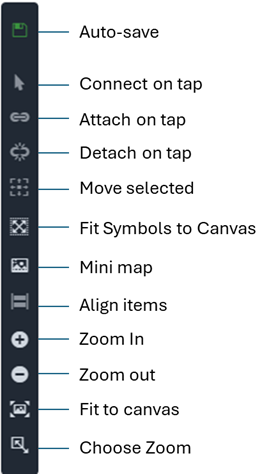
You can also zoom in and zoom out using the CTRL key + mouse wheel.
Auto-save
A green icon indicates that auto-save is enabled, automatically saving all changes to the working copy of the display every five minutes.
A red icon indicates that auto-save is disabled. You must manually save the working copy using the Save to Draft button on the status bar.
Click the icon to toggle auto-save on or off.
Connect on tap
The Connect on Tap feature allows you to create connections between symbols by simply tapping on them. See Connectors Manipulation for more details.
Attach on tap
The Attach on Tap feature allows you to attach symbols together by simply tapping on them (e.g. attach a meter to a flow). See Attach and Detach Symbols for more details.
Detach on tap
The Detach on Tap feature allows you to detach symbols that are currently attached together by simply tapping on them (e.g. detach a meter from a flow).
Move Selected
The Move Selected feature allows you to move the selected symbols on the canvas. When clicked, the Move Shapes dialog is activated, allowing you to set the number of pixels to move the selected symbols in the desired direction (up, down, left, right).

Mini map
The Minimap is a small overview window that provides a scaled-down representation of the entire display. It helps users maintain spatial orientation and navigate quickly within large display schemas. The Minimap shows the full extent of the display, with a highlighted rectangle indicating the current viewport visible in the main Display panel.
Align items
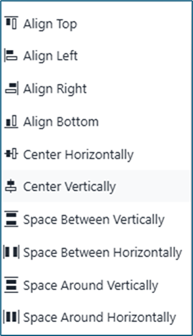
The Align Items feature allows you to align selected symbols on the canvas. When clicked, the Align Items dialog is activated, allowing you to choose the desired alignment option (e.g., left, center, right, top, middle, bottom).
Fit to Canvas
The Fit to Canvas feature allows you to automatically adjust the zoom level of the display to fit all symbols within the visible area of the canvas. When clicked, the display will be zoomed in or out as necessary to ensure that all symbols are visible without the need for scrolling.
Choose Zoom
The Choose Zoom feature allows you to select a specific zoom level for the display. When clicked, a dropdown menu is activated, allowing you to choose from predefined zoom levels (e.g., 50%, 100%, 150%, etc.) or enter a custom zoom percentage using the zoom setting on the Display Status bar.
