Edit Display
SFHub Visualizer allows editing a display to change its graphical design as well an assets Model. To open a display in authoring from the Displays List, click on the edit icon of the display to be modified.
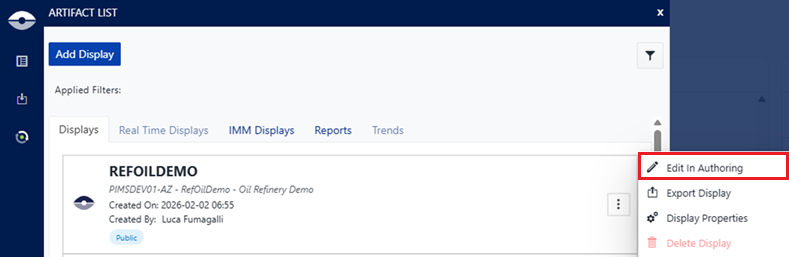
Editing a display is allowed to the users having the Display Edit claim enabled.
Select a Model Version
If the display refers to multiple versions of a Model, then Display Options dialog allows to select the Model version.
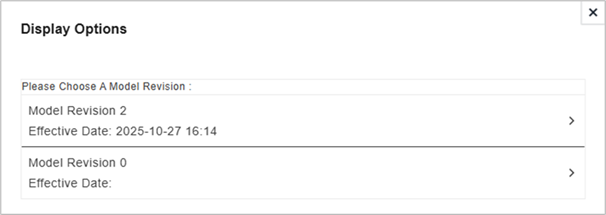
Each model version listed in the dialog shows the effective date and time.
This dialog is not shown when the display is bound to a single Model version or the display is a Whiteboard display.
Open Display Version
If the display has multiple versions, then a Display Options dialog window is activated allowing the selection of the specific display version to edit.
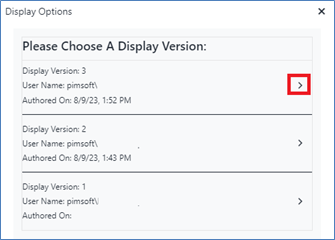
A previous display version could be opened to view the former content or to restore this version to the current version.
Open Display Working Copy
If the display you want to open in authoring has a working copy available, then the Display Options dialog window shows that working copy at the bottom of the dialog.
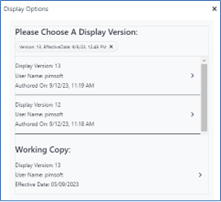
The user can open the working copy to continue the display editing starting from the last Save to Draft or Save and Close made by the user himself or from the last 'Auto Save' carried out by the system.
If the user chooses to open one of the listed display versions, then a dialog box will ask for confirmation.
The confirmation will override the current working copy by a new one, losing all changes previously made on the display.
Any changes previously made to the model will not be discarded as an ‘undo checkout’ is not performed. The user can optionally decide to include these model changes in the new display authoring session or to discard the model changes by performing an ‘Undo checkout’ from the Model Status panel (see Model Status Panel).