Model Status Panel
The Model Status button is available when working with AF Display:
- Check in the Model with all changes made to it and is available to check out by other users.
- Check out the Model to allow changes and reserve it in lock mode for the other users.
- Undo check out resets the Model to its content before it was checked out.
- Refresh the Model status.
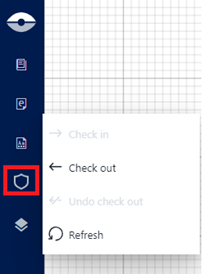
Model Available for a Check-out

The model is available for a check-out.
Model Checked-out by me

The model is in Checked Out state by me. The model enters in this state when:
- You changed the model configuration as a result of a change action on the display (e.g., add or remove elements, AF layers configuration changes)
- You checked out the model from an external application
- You checked-out the model from this panel
Model Checked-out by someone else

The model is in Checked Out state (by someone else).
When the model is in this state, you can open the display but any change on the display that implies a change on the model raises an error.
Model Status Actions
Almost all of the actions on the Sigmafine Model (check-out, check-in and undo check-out) are performed transparently when you publish (save) or discard a display. Any way you can use the Model Status panel to perform specific actions on the model as needed.
Actions performed on the model from your authoring session using the Model Status panel require some cautions:
Undo Check-out
It allows you to discard all changes made by you or by other users on the Sigmafine model.
The undo check-out performed by the Model Status panel allows to free up a model reserved by someone else as well as discard all the model changes made by someone else.
The discard of model changes you made during your authoring session followed by a display save may lead to a misalignment between the display and the model. In such case a Display Sync with Model will be needed.
Check-out
It allows to manually reserve the model by you.
This leads to reserve the model in advance before to make changes in your display.
Check-in
It allows to manually commit the model changes you made by the authoring session.
The commit of model changes you made during your authoring session followed by a display discard action, may lead to a misalignment between the display and the model. In such case a Display Sync with Model will be required.