Elements Panel
The Elements panel shows all Elements defined in the Sigmafine server database referenced by the display. It is available when working with AF Display.
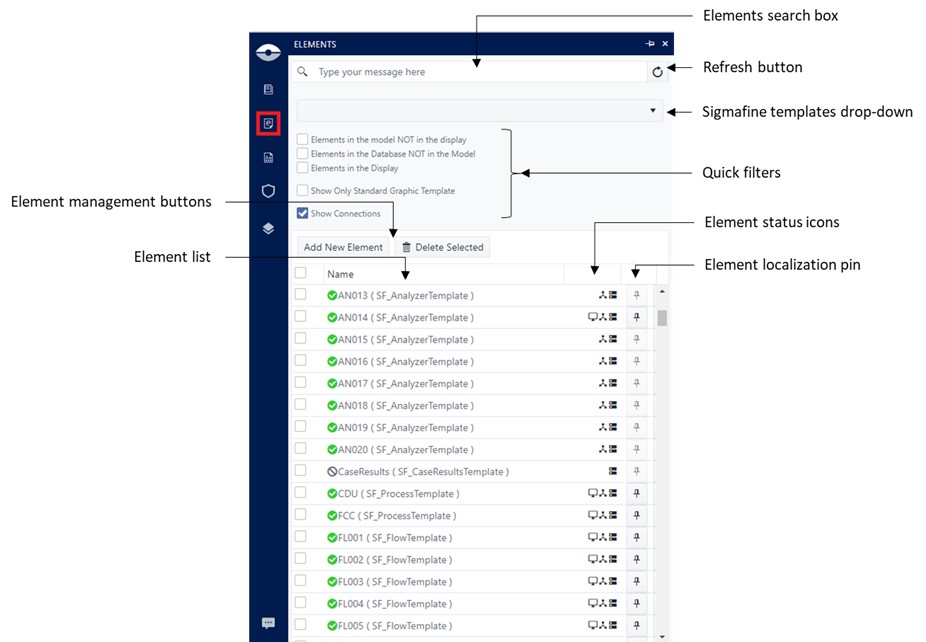
Elements Search Box
Search and filter the Element list by Element name.
Refresh Button
Refresh the Element list.
Sigmafine Templates Drop-down
Filter the Element list by Element template.
Quick Filters
This is a set of filtering options allowing to narrow the Element list according to:
- Elements in the Model that are not yet in the display.
- Elements in the Sigmafine database that are not in the Model.
- Elements in the display
- Elements that are associated to a Standard Graphic Template
Element Status Icon
Each listed Element may show a combination of the following icons:
 The Element is in the Sigmafine database.
 The Element is in the Sigmafine Model.
 The Element is in the display.
Element Management Button
Buttons allow to create new Sigmafine Elements or delete an Element from the Sigmafine Model.
Add New Element button: Creating a new Element in the Sigmafine database and adding a weak reference to the Model.
Delete Selected button: Deleting an Element only to remove it from the referenced Model (the Element still exists in the Sigmafine database).
Element List
Shows the assets defined in the Sigmafine database according to the applied filter if any.
Each Element is associated to an icon indicating whether the Element has a Standard Graphic Templated associated.
Green checkbox indicates that a standard graphic template is available. If green checkbox is not shown, that means that a standard graphic template has not been yet associated to the Sigmafine Element template.
Element Localization Pin
Clicking on this icon allows to localize the graphic symbol on the display associated to the Sigmafine Element.
Add New Element
To add new element, click on the 'Add New Element' button.
A dialogue will be shown where you can fill out the following fields:
Template (Mandatory)
This drop-down selects the Sigmafine Element template for the new Element.
Parent (Optional)
This drop-down selects the parent Element when creating a child Element.
Name (Mandatory)
Name assigned to the new Element.
The name can contain the character % when you want to create multiple Elements. The % placeholder will be automatically replaced by the sequence number according to the number of Elements to be created.
Description (Optional)
Element description.
Add Multiple Elements (Optional)
Multiple Elements can be added in one shot. This checkbox, if selected, enables the textbox on the right where the number of Elements can be specified.
Child as Separated Element (Optional)
Indicates this is a child Element under the selected Element.