Layers Panel
Layers are managed through a dedicated panel that can be opened using the specific command bar button. The Layer panel looks like the Element panel but contains both Model Elements and Graphic Symbols allowing the user to:
- Create / edit Layers.
- Assign / reassign Graphic Symbol to a Layer.
Although Layers are Model entities, for compatibility reasons, graphic Layers are supported in SFHub displays.
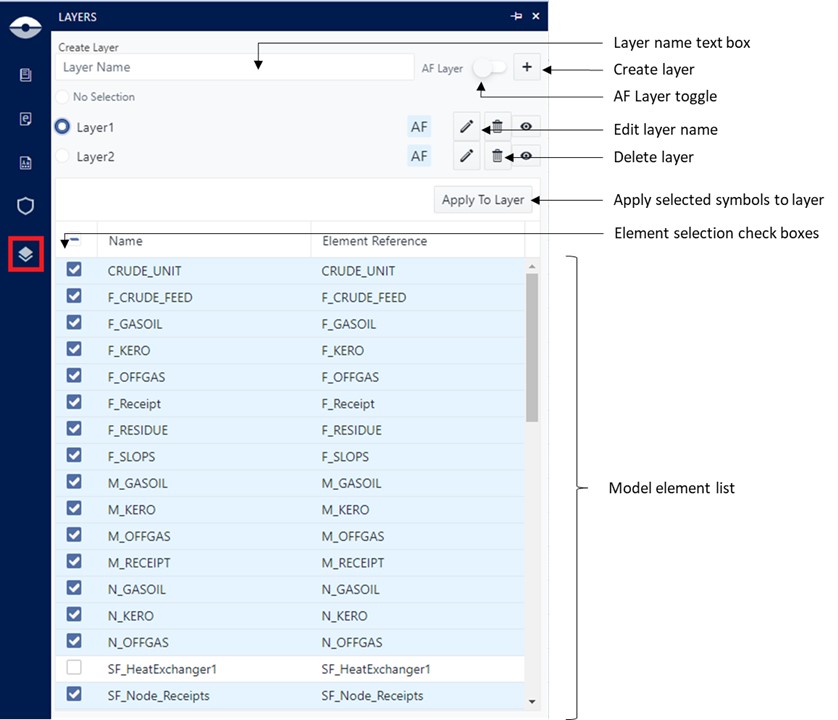
Layer Name Text Box
Specify the name of the Layer to be created.
AF Layer Toggle
This toggle allows to set the kind of Layer to be created:
Toggle off: Graphic Layer only. Toggle on: Model Layer.
Create Layer Button
Create a Layer according to the previous settings.
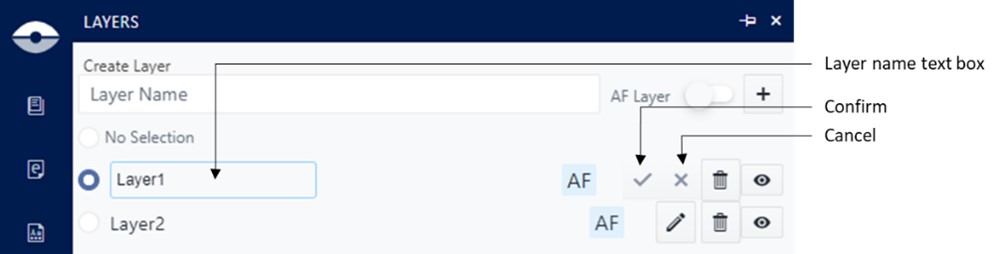
Edit Layer Name
Edit the Layer name text box to change the name of the layer.
Delete Layer
Delete the selected Layer.
If the Layer is a Model Layer, then it is removed from the Model as well.
Model Element List
When a Layer is selected, then the list is updated by the Model Elements showing which Elements are included in the Layer (check box selected).
You can check or uncheck the Elements you want to include or exclude from the Layer.
Apply to Layer
Update the Model Layer according to the selected Elements.