Report
The following table provides information regarding the 'Report' SFCodeBlock.
Report SFCodeBlock
| Category | Analytics |
|---|---|
| Description | Report is used to generate "Insights" in the SFHub Database. Report allows you to assign a classification based on a severity and a diagnostic code to the message. This code block allows you to format a message using either static or dynamic parameters, likewise the Debug Print. All the Insights created by an analytic are integrated and visible through all SFHub web apps (such as SFHub Visualizer), and services with the objective to extend the set of Sigmafine Case data with “Digital Information”. As an example, SFHub Visualizer can search for “Insights” through the search panel using the SFHub Analytics button, and then selects the severity you are looking for. (See Search Boxthe Search Box section of the SigmafineHub Visualizer Users Guide.) The Report code block should contain inner Action SFCodeBlocks, tailored to generate “Actionable Insights” based on the detected condition. (See the Action code block.) |
| Input | |
| Parameters | None |
| Pattern Support | Yes |
| Returns | None |
| Configuration | You are required to configure the Report. You can add as many reports as are required. Add a Report To add a report: 1. Click the Add button. Report - Add  2. Enter the report information in the configuration panel. 3. Repeat steps 1 & 2 for each report you need to add. 4. Click Save. Edit a Report To edit a Report: 1. Click on the report placeholder, to open it in the configuration panel. Report - Edit  2. Modify the information as needed. 3. Click Save. |
Multiple patterns are treated as OR.
Report Configuration Panel
The Report configuration panel allows you to configure all the information needed for a required report.
The following table describes the configuration options.
Report Configuration
| Item | Required / Optional | Description |
|---|---|---|
| One instance of the message only | Required | If enabled, a single message is generated, regardless of the number of elements. If disabled, a message per each element, in the current working space, is generated. |
| Severity | Optional | A drop-down list that allows you to assign a severity to the Report. Notice that severity can be used for fast search, in all SFHub web apps and can have a dedicated icon associated with it. |
| Diagnostic Code | Optional | A numeric diagnostic code can be associated with the message. The diagnostic code can be used by the analytic or the calling analytic, for filtering out the messages. |
| Format | Required | The message text. According to SFHub Expression composite format string (reference the paragraph) the text can contain fixed string as well as dynamic values. Variables of complex data types (table, table row, array, list and dictionary) should be used, referencing a specific column or index. See the Debug Print code block for more details. |
Example: Report Configuration
In this example, a Report is created for all the meters having a BAD VALUE on the i_Temp attribute.
Example - Report SFCodeBlock
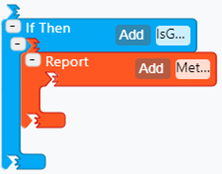
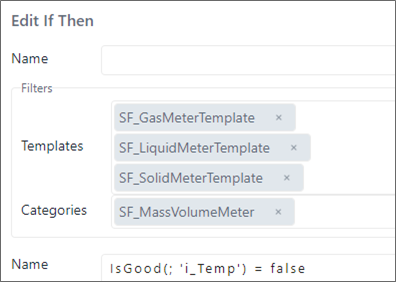
The 'If Then' is configured to check if the i_Temp attribute of the Mass Volume Meters contains a BAD VALUE.
Report Configuration - Edit If Then statement
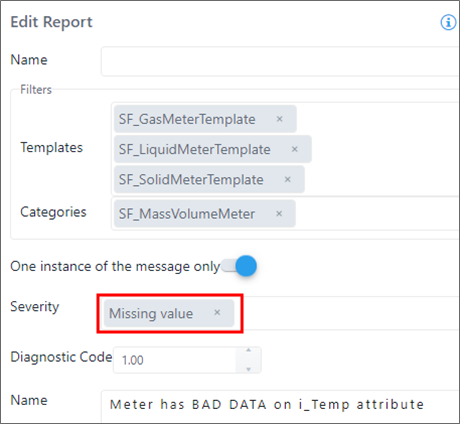
If a BAD VALUE is found, a Report is generated to show the message, by assigning it a Severity of 'Missing value'.
Report Configuration - Edit Report
Refer to the DebugPrint code block for more configuration examples.