SFCodeBlocks Pattern Support
The majority of SFCodeBlocks support multiple patterns. Patterns are powerful features that allow the definition of different actions based on element template or category, helping a lot in creating complex analyses with a fairly minimum set of SFCodeBlocks.
SFCodeBlocks supporting pattern make available the ADD button in their shapes, allowing to add and configure one or more patterns.
Add new pattern - define new pattern
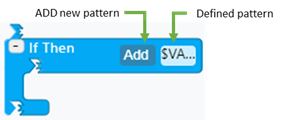
SFCodeBlocks supporting patterns must have at least one pattern configured for them.
Add a pattern
Click the Add button in the SFCodeBlock shape to add a new pattern.

In the configuration panel, specify the expression or select the required parameters for the new pattern. The expression and parameters to be configured depend on the type of pattern and the type of SFCodeBlock.
Example of pattern configuration
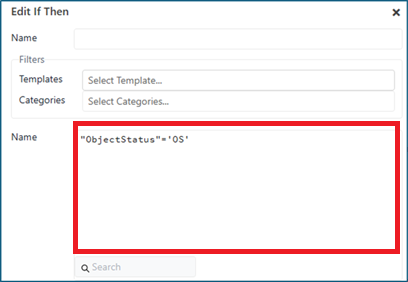
Select the element categories and/or templates to which the pattern applies (optional).
See the section Configuration Panel for Pattern Support for more details about how to configure the category and template filters.
Click Save in the configuration panel.
Click again the Add button to add more patterns if needed.
Edit a pattern
Click on the pattern placeholder to select it for editing.

In the Configuration panel modify the expression or modify the required parameters for the pattern you want to change.
Click Save in the configuration panel.
Save button

Remove a pattern:
Select the pattern to be removed.
Click Removein the Configuration panel.
Remove button

When Using Patterns
Patterns are very useful to restrict the scope (number of elements) and in all the cases the instruction to be configured is based on the element template or category. Patterns simplify the logic aggregating in a single SFCodeBlock different actions, without requiring the composition of a sequence of IF THEN to condition the actions.
Pattern Execution
Pattern execution depends on the SFCodeBlock type:
Cycle SFCodeBlocks (While, IF Then, IF Then Else) -- are defined as OR patterns.
Using multiple patterns in SFCodeBlocks such as IF Then, While, IF Then Else, with or without configuring any category or template, is equivalent to an OR condition across all patterns.
All other SFCodeBlocks -- Based on the number of configured patterns, the SFCodeBlocks are executed in sequence or in parallel. Using multiple patterns in a SFCodeBlock without selecting any template or category, will result in the execution of each configured pattern.
When using patterns in the SET SFCodeBlock keep in mind that they are not necessarily executed following their definition sequence, in some cases (according to system resources) they are executed in parallel.
Pattern configuration
Every pattern allows you to configure the list of templates or categories to be matched (this is an optional configuration).
When templates or categories are selected in a pattern, they become unavailable in the other patterns helping the user from configuring different actions for the same template or category in case of wrong configuration.
Configuration Panel for Pattern Support
SFCodeBlocks supporting patterns have a common section in their configuration panel that allows to select the element templates or the element categories to which apply the logic implemented by the SFCodeBlock pattern. All information: Name, Template and Category are optional.
| Information | Required/Optional | Description |
|---|---|---|
| Name | Optional | A name can be assigned to the configuration; typically, this is left empty, though you can use it for comment or description. |
| Templates | Optional | This is a drop-down list that allows you to select the element templates. Element Templates drop-down list example 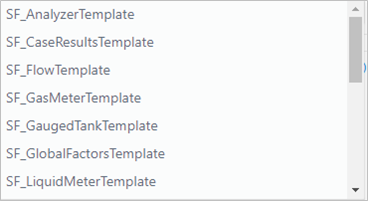 The listed Element Templates are those that are configured in the Sigmafine database on which the SFHub project is linked. If no element templates are selected, it is assumed that all the AF Elements in the working space are involved in the configured pattern. |
| Categories | Optional | This is a drop-down list that allows you to select the element categories. Element Categories drop-down list example  The listed Element Categories are those that are configured in the Sigmafine database to which the SFHub project is linked. If no element categories are selected, it is assumed that all the AF Elements in the working space are involved in the configured pattern. |
Whenever one or more element categories are selected, then the Templates filter is overwritten by the Element Templates belonging to the selected categories as well as when a category is removed from the filter, then the template filter is cleared accordingly.
If multiple actions are to be executed for the same Element Template or Category, additional SFCodeBlocks need to be used.
Configuring filters for a pattern is optional. Filters allow you to restrict the SFCodeBlock logic to specific elements in the working space based on their template or category.
Filter confuguration supports following options:
Configure category and template filters
Click the Category filter to open the drop-down list of available categories.
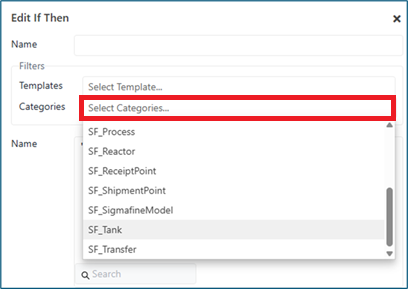 Note
NoteThe listed categories correspond to the Sigmafine database in use. These are typically the standard element categories supported by Sigmafine.
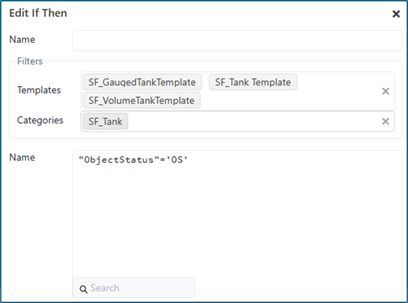
Once a category is selected, the Templates filter automatically populates with all element templates belonging to that category.
 Note
NoteThe listed templates correspond to the Sigmafine templates configured in the database in use.
You can narrow down the list of templates by selecting only those you want to include in the filter.
The SFCodeBlock logic will be applied only to the elements in the working space that belong to the selected category and have one of the selected templates.
Configure template filter only
Click the Template filter to open the drop-down list of available templates.
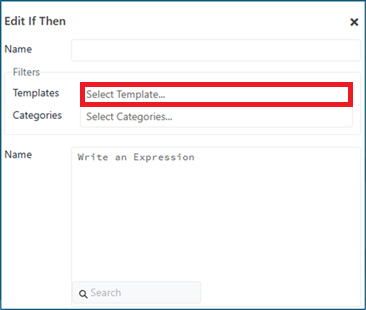
Select the templates you want to include
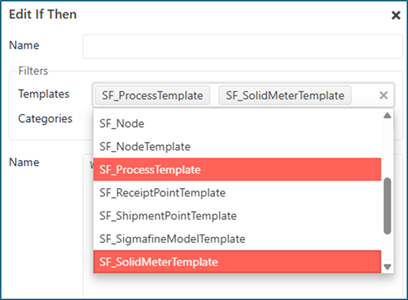
The SFCodeBlock logic will be applied only to the elements in the working space that have one of the selected templates, regardless of their category.
Configure category filter only
Click the Category filter to open the drop-down list of available categories.
Once a category is selected, the Templates filter automatically populates with all element templates belonging to that category.
Unselect all templates in the Templates filter to clear the template filter and keep only the category filter active.
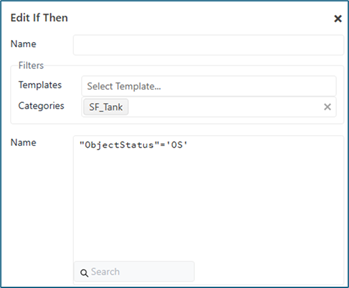
The SFCodeBlock logic will be applied only to the elements in the working space that belong to the selected category, regardless of their template.
NoteThis is the most common way to use the pattern, as it allows to include all current and future templates belonging to the selected category without requiring any update to the pattern configuration.
Example: Using a Pattern
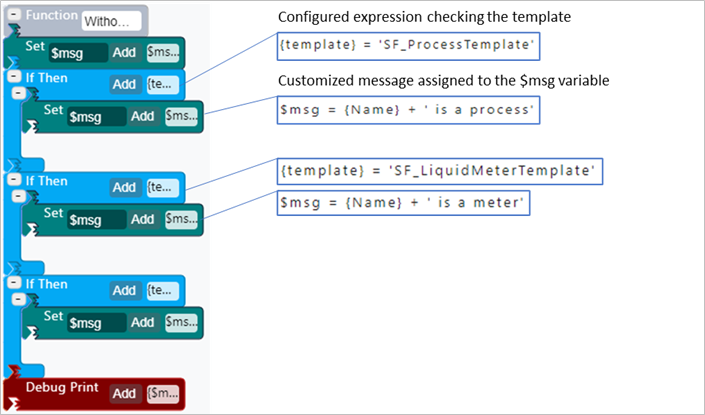
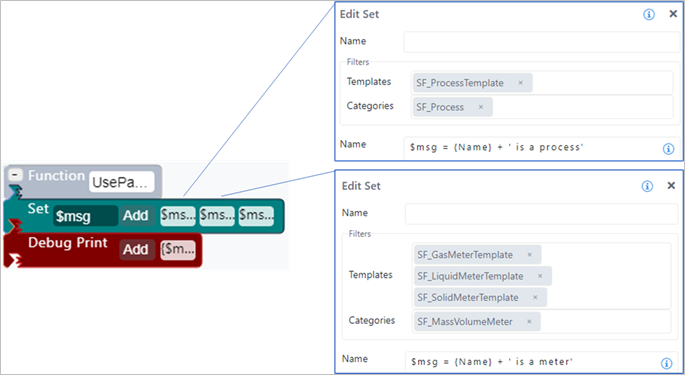
In this example, we want to create a logic for printing-out a customized message for each element of the working space; the message is customized according to its template.
Without the support of the pattern, the only available approach would be to create a sequence of 'If Then' SFCodeBlocks (one for each element template) and customize the message in each one, as shown in Figure 6.
Example without using a pattern
Using the pattern feature in the 'Set' SFCodeBlock, the logic becomes much simpler and faster.
In the below example, the 'Set' SFCodeBlock uses multiple patterns, one per each element template, to compose the message. As a result, the logic is simpler and faster.
Example with using a pattern
Using Patterns
The following table provides a description for each pattern and how it is used by the SFCodeBlock supporting it.
SFCode Block supporting Patterns
| Pattern | Description |
|---|---|
| Action | Allows you to customize the Action, based on elements whose template matches the templates selected in the configured pattern. Using multiple patterns in the 'Action' code block, without selecting any template or category, results in the creation of one Action for each configured pattern. |
| Debug Print | Allows you to customize the printed-out message, based on elements whose template matches the templates selected in the configured pattern. Using multiple patterns in the 'Debug Print' code block, without selecting any template or category, results on the execution of the Debug Print for each configured pattern. |
| If Then | Allows you to customize the conditional expression, based on elements whose template match the templates selected in the configured pattern. It also allows you to split complex conditional expressions into smaller pieces. Using multiple patterns in a 'If Then' code block is equivalent to an OR condition between the configured patterns. |
| If Then Else | Allows you to customize the conditional expression, based on elements whose template matches the templates selected in the configured pattern. It also allows you to split complex conditional expressions into smaller pieces. Using patterns, without specifying template or category, is equivalent to an OR condition between all expressions. |
| Report | Allows you to customize the Report record, based on elements whose template matches the templates selected in the configured pattern. Using multiple patterns in the 'Report' code block, without selecting any template or category, results in the creation of one Report for each configured pattern. |
| Set | Allows you to customize the declaration and/or the value assigned to the variable, based on elements whose template matches the templates selected in the configured pattern. Using multiple patterns in the 'Set' code block, without selecting any template or category, results in the declaration and initialization of the variable for each configured pattern. ::: CautionImportant Important Note: If the same variable is used by multiple patterns, the value recorded in the variable is unpredictable (overwritten by the last executed pattern). ::: |
| While | Allows you to customize the execution of the loop, based on elements whose template matches the templates selected in the configured pattern. To "Specialize" the execution of the loop means to change the expression that is evaluated, to control the execution of the loop. Using multiple patterns in the 'While' code block, without selecting any template or category. is equivalent to an OR condition between all patterns. |