Analytic Web Editor
SFHub Studio comes with a Web-based visual code editor that uses interlocked graphical SFCode Blocks to represent the analysis logic. The SFHub Studio visual code editor is intended for developing analysis on the Sigmafine server only, therefore even though it comes with standard programming concepts like variables, loops, logical expressions, function calls, etc., the SFCode Block programming set is specifically designed for, and limited to, the scope of SFHub Studio. The SFCodeBlock set is neither designed for, nor intended for use in developing applications. In addition to the code blocks, the SFHub Studio Web visual code editor comes with a debug environment, that allows you to test and evaluate the performance of SFHub Studio Analytics.
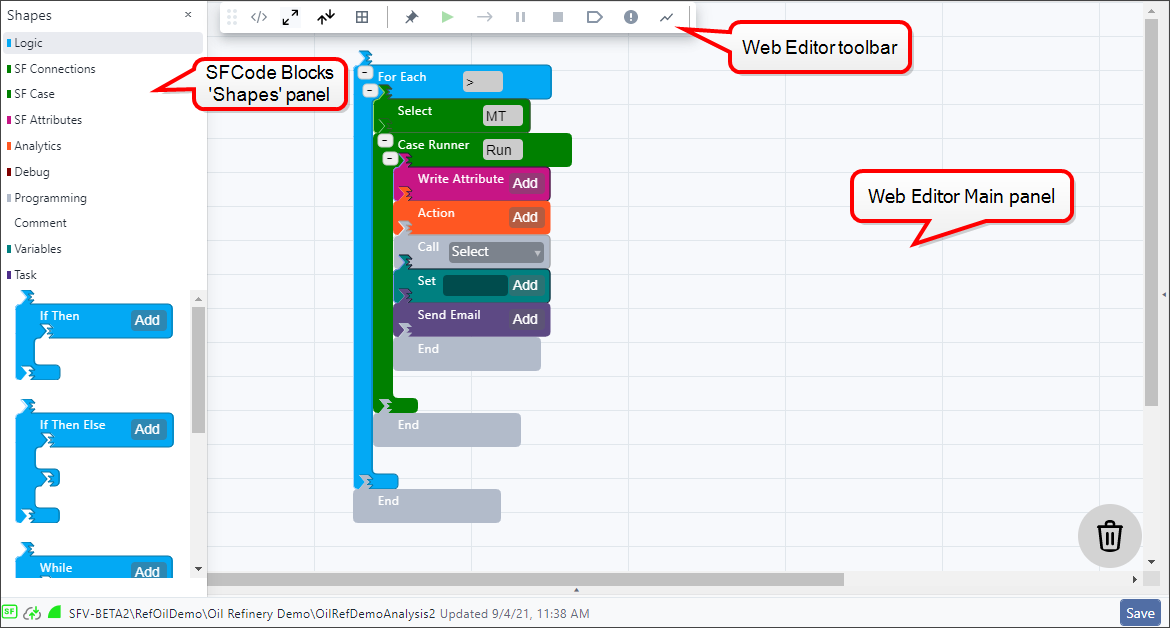
The SFHub Studio Web Editor consists of three panels:
SFHub Studio Analytic Web Editor Interface
Main Panel
The Analytic Web Editor 'Main' panel (also known as the "Editor" panel) is used for configuring the logic for your analytic, using the SFCode Blocks.
SFCode Blocks Panel
The SFCode Blocks Shapes panel is used to select the SFCode Blocks you want to use in your analytic.
SFCode Blocks panel

SFCode Blocks are grouped by categories (as shown in Figure 1). They provide the instructions and the constructs that are typical of traditional programming languages. Some of the SFCode Blocks are Sigmafine specialized in order to improve and simplify the access to Sigmafine data (e.g., connection enumeration).
Web Editor Toolbar
The Web Editor is found at the top left of the Analytic Web Editor panel. It includes several icons that allow you to more easily work with the code blocks in the Editor and to perform a preliminary run of your Analytic as you build it.
Analytic Web Editor Toolbar
Move
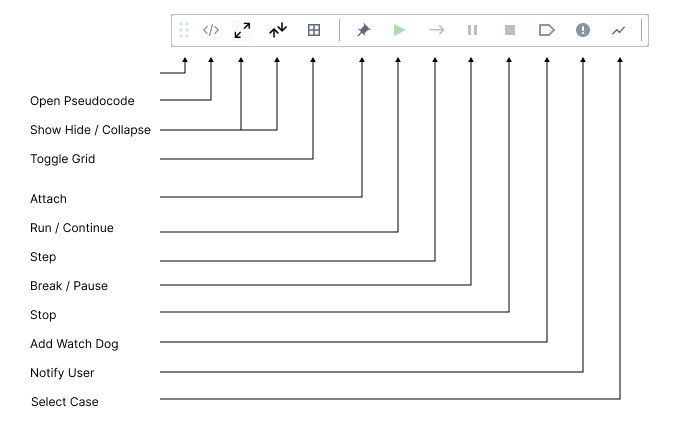
Move icon allows you to move the toolbar anywhere within the Web Editor panel.
Open PseudoCode
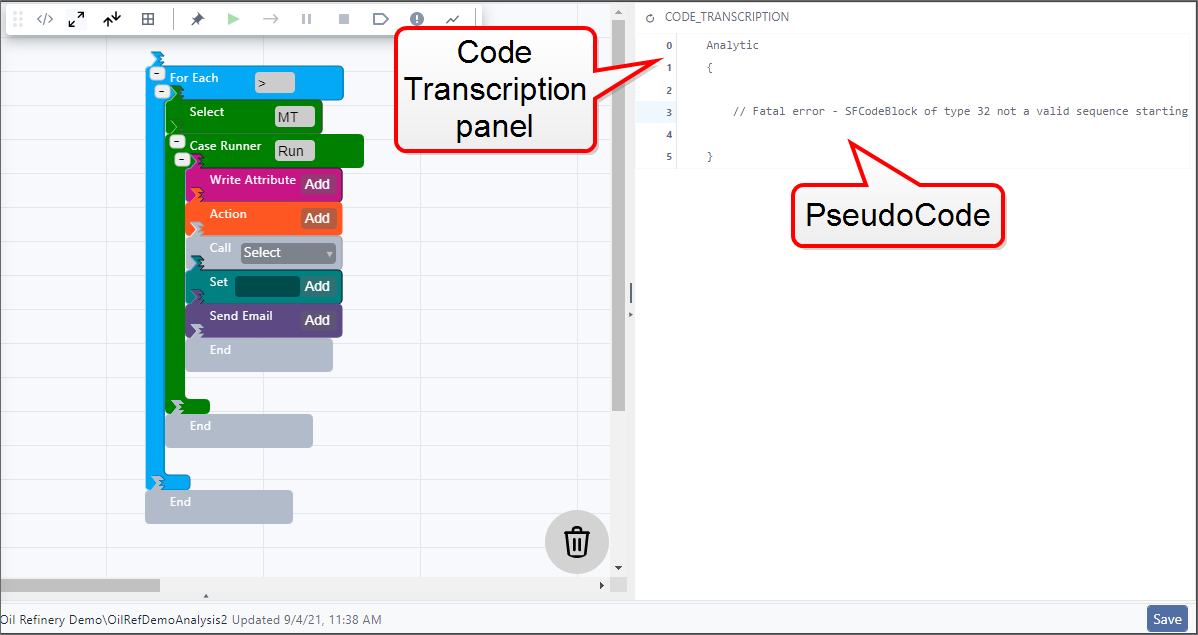
Open PseudoCode icon allows you to open the Code Transcription panel that displays the analytic's pseudoCode. The icon works like a toggle, meaning that you can use the same icon to both open and close the panel.
Show Hide / Collapse
Allow you to show and hide the collapse and expand icons and capability on all SFCodeBlocks that contain nested code blocks.
This icon indicates that the expand/collapse icons are currently visible on SFCodeBlocks that contain nested code blocks. Click this icon to toggle the expand/collapse icons to be hidden, which in turn prevents expanding and collapsing nested code blocks.
This icons indicates that the expand/collapse icons are currently invisible on the SFCode Blocks that contain nested code blocks. Click this icon to toggle the expand/collapse icons to be shown, which in turn allows expanding and collapsing nested code blocks.
Toggle Grid
This icon indicates that grid lines are currently visible. Click this icon to hide the grid lines.
This icon indicates that grid lines are currently invisible. Click this icon to show the grid lines.
Debug controls
Attach
Allows you to attach to an executing instance of the same analytic for debug purposes. Basically, you are attaching to the execution instance of the same analytic that has been activated by you, by another user or by a report.
Run / Continue
Allow you to either start the execution of the analytic, or when in break mode, it allows you to continue the execution.
Step
Allows you to execute the next SFCode Block displayed in the currently open analytic.
Break / Pause
Allows you to momentarily pause the execution of the analytic at the current SFCode Block. To restart execution after you've paused it, click the Run icon.
Stop
Allows you to halt the execution of the analytic.
Add Watch Dog
Allows you to enter element names or parts of element names on which the execution should stop. The execution automatically stops immediately before executing an SFCode Block referring to one of the specified watch dogs.
Notify User
Works like a toggle to enable or disable notification messages to users when the analytic is executed. If disabled, all the Debug Print code block messages are not printed out on the debug panel.
Select Case
Allows you to select the Sigmafine Case on which to run the analytic. When you click on the icon, a Select Case panel opens, allowing you to locate the Case by date, Analysis type and Name filters.
