SigmafineHub® Studio
This document provides a preliminary introduction of the SFHub Studio and how to work within its environment.
What is SigmafineHub Studio?
SFHub Studio is a Web app that was designed to considerably enhance your experience when working with Sigmafine. It provides an environment in which you are able to improve the operation and control of the Sigmafine system while running in a Web app, and supports full interoperability with all other SFHub Web apps. SFHub Studio delivers completely new features that provide an additional level of information based on multiple cases analysis rather than a single case, and it is . In addition, the application is aimed at optimizing the operational performances and reducing required effort, to minimize overall operational costs.
SFHub Studio is comprised of 3 unique products:
Analytics: Analytics is the basic component of Studio that supports SFHub automation and the configuration of custom analytics on top of Sigmafine.
Dashboard and Report: Dashboard and Report is a Studio component that allows for the configuration of dashboard and reporting, based on Sigmafine data. This component requires the Analytics component.
Workflow: (Not available yet - coming soon ...) An additional Studio component that allows for the modeling of the operational processes and their execution. This component also requires the Analytics component.
About SigmafineHub Studio Projects
SigmafineHub Studio Projects
SigmafineHub Studio is organized by projects where each project is a container of the Analytics, dashboards and workflows configured for work on a well-defined "Sigmafine context". A Sigmafine context is simply a level at which you want your project to be built, which can be at the database, model or analysis level. When choosing the level, you must always choose the preceding level meaning that if you want your project to be built:
At the Sigmafine database level - you need to choose both a Sigmafine server and database
At the Sigmafine model level - you need to choose a Sigmafine server, database and model
At the Sigmafine analysis level - you need to choose a Sigmafine server, database, model and analysis
Project Ownership
Each project is owned by the creator of the project, who has the ability to determine who else can access the project. Project access is controlled through User Claims, which allow the owner to decide how they wish to share their project. Owners can share an entire project or just part of it with other users by setting.
When SFHub Studio is activated, its home page shows the list of configured SFHub Studio Projects that either you have created, or that others have created and shared either publicly or with you.
The following image shows only a single project, because no other projects have been shared with me at this time, and I have only created one project.
SFHub Studio home page showing available projects
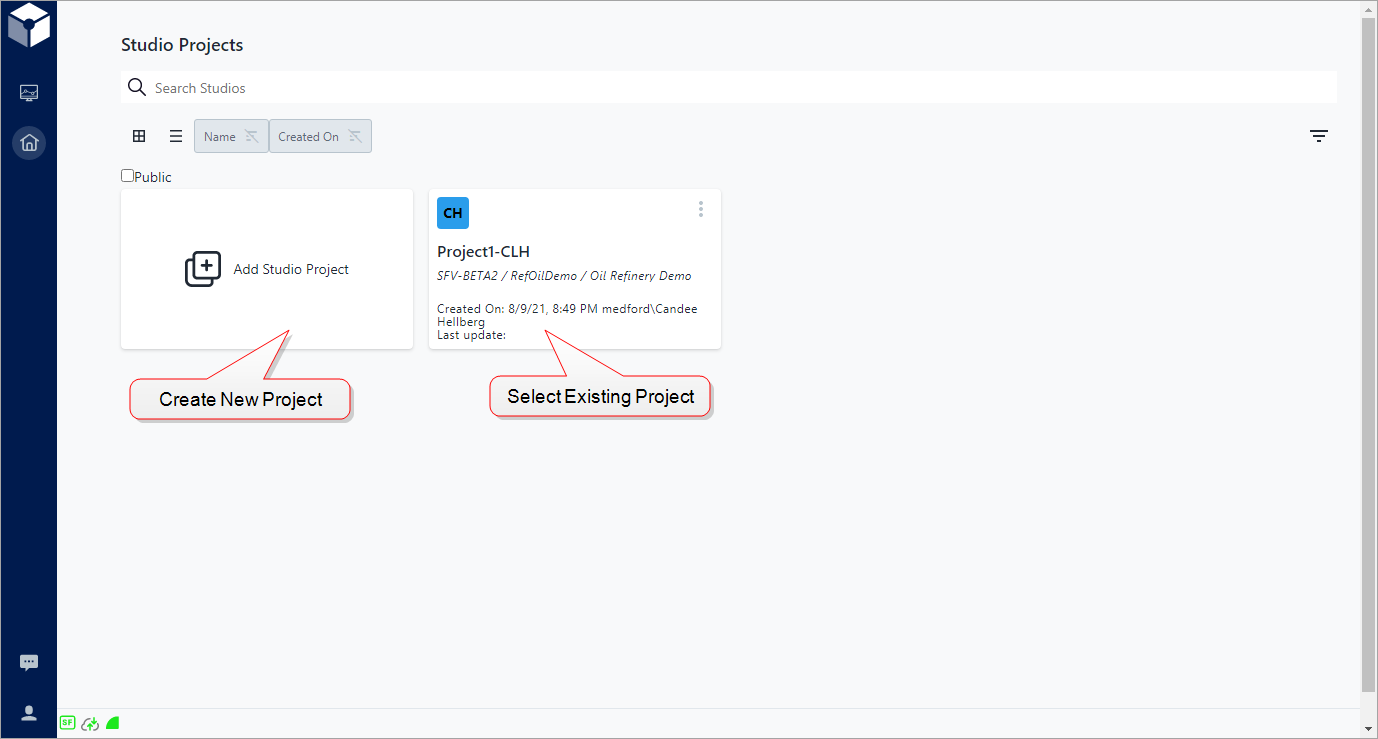
Though you may see several projects on your Studio Projects dashboard that others have created, the capabilities you have with each is determined by what rights where shared with you. For further details regarding project rights and sharing, see Access Control.
Concurrent Access to Analytics and Reports
All the SFHub Studio entities (analytics and reports) that are contained in a SFHub Studio Project are accessible by the SFHub Users, and may be subjected to changes during their life cycle.
In principle, every time a SFStudio Entity is changed, the following actions are performed by SFStudio:
- The entity configuration is saved on the SFHub database.
- All SFHub Users having the same entity open in edit are notified about the changes.
- For Reports only, all SFHub Users using a report that has been changed in the meantime, are notified. The Report viewer should ensure they advise the user that a refresh is needed to see the new version.
The Analytic Web Editor and Report Web Editor both support concurrent access, when multiple users work together on the same entity.
When an analytic or report is opened by the Web Editor, and someone else is viewing or working on the same entity, that person's avatar icon appears in the command bar (as shown in the following figure).
Concurrent Access - person's avatar icon in command bar

The number of avatar icons that displays is limited to four. However, additional users who are working on the same analytic can be listed, by clicking on any one of the avatar icons.
Should other users make changes to the entity, SFHub Studio notifies you by displaying a toast message on the upper right corner of the browser showing who has made the changes. The message remains visible, so that you don't miss it, and can be closed by clicking on it.
Toast message
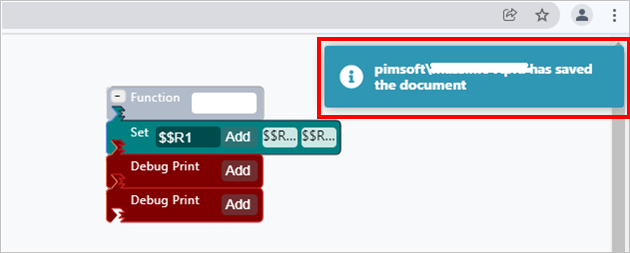
Once you are notified that another user has changed the entity, you can view the changes by refreshing the browser page, or you can close and re-open the analytic.
If you are modifying an entity and receive a message that someone else has updated that entity, we recommend that you refresh the page (browser Refresh button) and make your changes on the updated version of the entity. If you simply Save your changes without first refreshing the entity, the changes made by others will be overwritten.