Display Property Panel
The Display Property Panel allows to view and change the graphical properties of the display as well as to manage the display.
- View the display properties and sub-display configuration.
- Manage the display views.
- Change graphical properties of the display.
- Synchronize and publish the display.
General Tab
The general tab exposes display`s information as well as the configuration feature that allows the user to link a main display to the sub-models.
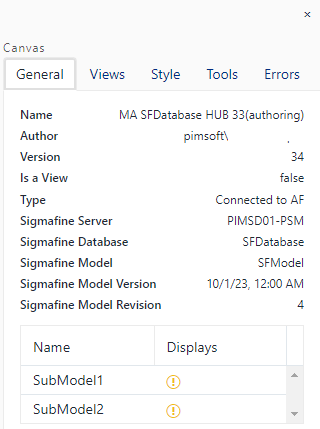
| Item | Description |
|---|---|
| Name | Name of the display. |
| Author | The SigmafineHub user who created the display. |
| Version | The version number of the display. |
| Is View | Indicates if the display is a display view. |
| Type | Type of display: - Connected to AF - Not connected to AF |
| Sigmafine Server | The Sigmafine server name referenced by the display. |
| Sigmafine Database | The Sigmafine database name referenced by the display. |
| Sigmafine Model | The Sigmafine Model name referenced by the display. |
| Sigmafine Model Version | The effective date of Sigmafine Model version referenced by the display. |
| Sigmafine Model Revision | The Sigmafine Model version revision number referenced by the display. |
| Sub-models list | In the case that a display is associated with a main Model, then a list of sub-Model names is presented allowing the user to select which sub-display shall be associated with each sub-Model. The list of displays, for each sub-Model, can contain neither or several display names depending on how many displays have been created. (see Sub-display management for more details) |
Views Tab
The Views Tab is enabled only on the main display, shows the list of views, allows to add or delete a view and to open the view in a new browser tab in authoring mode.
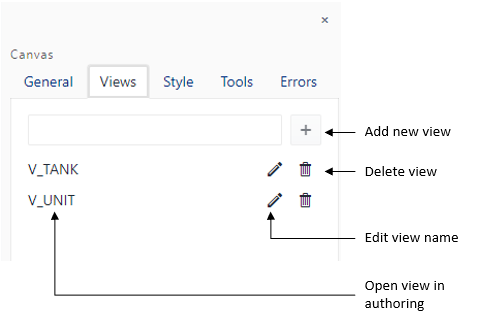
- To create a view, simply enter a name for your view and click on the add button.
- To open a view, simply click on the name of the view you have created.
- To rename the view, click on the edit view button, enter a new name in the field, and click the confirm button.
- To delete a view, click on the delete button, then click on confirm to delete the view.
See Display View management for more details.
Style Tab
The style tab allows to add customizations to the display canvas.

Background
Apply a background color to the canvas.
Grid
Allows to choose the width and background color of the canvas grid.
Move Shapes
Allows to move the whole display content by a distance set by the number in the direction chosen by the directional buttons.
Don't use this feature to move a multiple selection of graphic symbols - you can use the 'Move Selected' button available in the Display Toolbar.
Fit All
Allows to automatically shrink or expand the canvas to be able to fit all Elements present on the canvas.
Magnify polyline
Allows you to magnify all lines making the selection easier.
When this option is active, a size parameter is set overriding the definition of each individual line - If a line has a larger size it is made smaller.
Tools Tab
The Tools tab makes available a set of functions allowing to:
- Synchronize Model with display.
- Synchronize display with Model.
- Create display on new Model version.
- Publish display.
Errors Tab
The errors tab will contain a list of all errors that have occurred during the authoring session.