Sub-Display Management
Sub-displays are standard Displays connected and synchronized with a Sigmafine Model (sub-Model). This type of display is tailored to graphically represent specific areas of a production plant.
The sub-Model is a standard Sigmafine Model (SF_SigmafineModelTemplate) containing a sub-set of the assets that are defined in the overall Model and are designed to represent a specific area of a production plant.
Sub-display brings a visual representation of “parts” of the overall process and eases its viewing.
Enable SigmafineHub to Work with Sub-Models
SigmafineHub is not enabled by default to work with sub-Models requires some configuration steps to enable the feature.
The following configurations can only be made using PI System Explorer.
1. Change the SF_SigmafineModelTemplate
Add a new Boolean Attribute Template named SupportSubModels to the SF_SigmafineModelTemplate and assign its Default value to False.
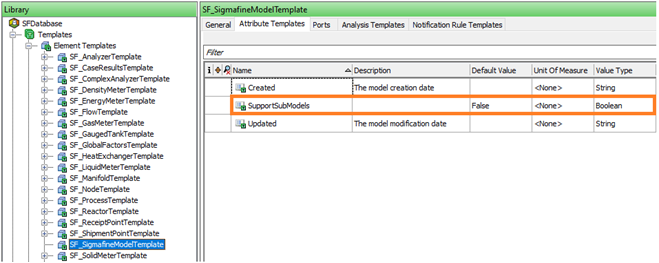
2. Setting up the SupportSubModels Attribute
The new attribute should be set to True on the overall Model only and False on the sub-Models. The following actions are performed when SupportSubModels is True:
Sigmafine Analysis Case:
- Every time a new Case is created on the overall Model, then the same case is created in all the referenced sub-Models,
- Every time a Case is deleted from the overall Model, then the same case is deleted from the referenced sub-Models,
- And every time a Case time-range is changed on the overall Model, then the same time-range is set up for all the referenced sub-Models.
Sigmafine Case Runner:
- Every time a Collect Input is performed on the overall Model, SigmafineHub Visualizer searches for eventual adjustments on the referenced sub-Models and replicates same adjustments on the overall Model.
- Every time Run is performed on the overall Model, SigmafineHub Visualizer replicates the results on the sub-Models.
3. Creating Sub-Model References on the Overall Model
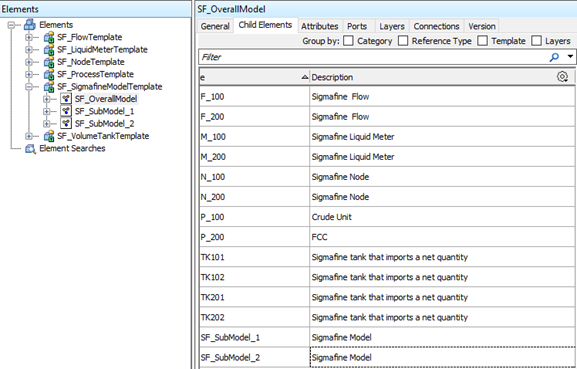
SigmafineHub Visualizer performs actions on the sub-Models according to sub-Model references that are defined in the overall Model. Sub-Model references can be created according to the following steps:
- Select the overall Model where the references will be created.
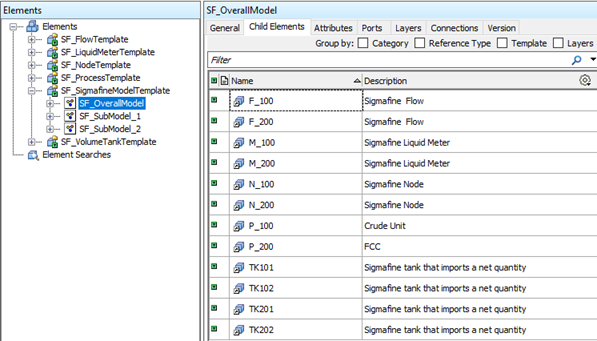
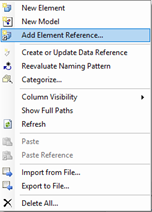
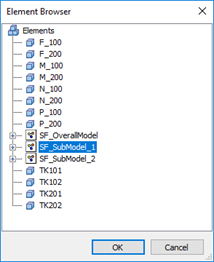
- On the Child Elements tab, choose Add Element Reference from the context menu.
- Choose the sub-Model to add as an Element Reference.
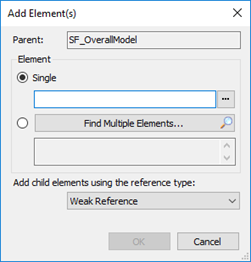
4. Configuring the Analysis Rule
To enable the SigmafineHub Visualizer to work properly, it is mandatory that the same analyses are configured in each Model (overall Model and sub-Models). In this context, the same analysis means:
- Same analysis name.
- Same analysis rule.
- Same time rule.
Create a Sub-display
The creation of a sub-display is like creating a normal display. When creating a sub-display, the correct Sigmafine sub-Model must be selected to be associated to the sub-display.
Link a Sub-display to a Main Display
To link sub-display to main display, follow the steps:
- Open the Main display in authoring (the one referencing the overall Model).
- Select the Display Property panel and then select the General tab.
- A list of sub-Models is shown and allows to assign it to link it to sub-displays.
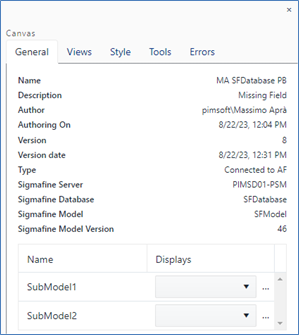
- Publish the display to save the settings.