Display Administration
The display’s Tools tab makes available a set of functions that allow to perform essential display administrative tasks.
Functions dedicated to assure the correct synchronization of the display with the Sigmafine model:
Functions dedicated to assist SFHub users to manage the display and model versioning:
Synchronize Display with Model
Synchronizing a display with its associated Model will make the application run a scan and make sure that the display contains the latest data available on the Model.
This task takes care to:
- Remove from the display all graphic symbols referencing elements that are no longer in the model.
- Remove from the display graphic connectors referencing model connections that are no longer in the model.
- Add to the display graphic connectors referencing model connections that are not on the display.
- Inform the user of eventual model elements that are not in the display.
- Align the references (unique id) of all the graphic symbols and graphic connectors with the model.
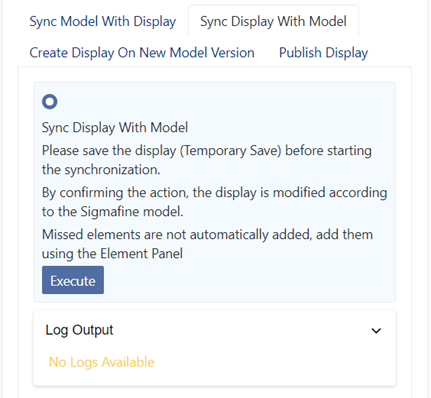
- Open the Display Property Panel and then navigate to the ‘Tools’ tab.
- Select the Sync Display with Model.
- Click on the Execute button to start.
After completion, logs can be found by expanding the ‘Log Output’ component underneath the Execute button.
Before executing this action, a Temporary Save of the display is required only if you changed the display by the current authoring session.
Below you can find the various Sync Display with Model actions:
Graphic Symbols contain a reference to a Sigmafine Element, but the Element is no longer in the Model.
The Graphic Symbol is removed from the display.
Model Elements not in the display
An informational message is reported in the logs. No actions are performed on the display.
Model elements not assigned to a Sigmafine template are skipped out. A warning message is reported in the log.
Graphic connector between Graphic Symbols containing a reference with a Sigmafine Element, but the connection is no longer in the Model.
The Graphic connector is removed from the display.
Model connection not in the display
Two actions may be performed:
- If the source and destination Elements of the Model connection are in the display, then a graphic connector is added to the display between the two respective Graphic Symbols.
- If the source or destination Elements of the Model connection are not in the display, then a message is reported in the logs.
In the second scenario, the user may take advantage of the auto-draw feature that will take care to draw the missing connector as soon as the user places on the display the missing Sigmafine Element.
Synchronize Model with Display
Synchronizing a model with the current open display will make the application run a scan and make sure that the model gets the latest data available on the display.
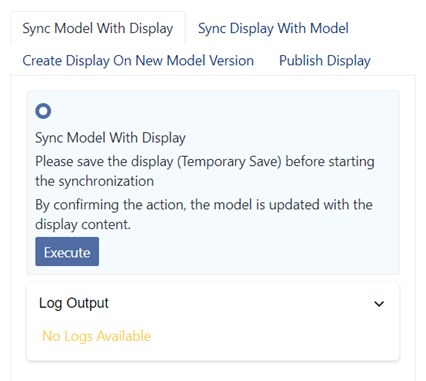
To perform this task:
- open the ‘Display Property Panel’ and then navigate to the ‘Tools’ tab
- Select the ‘Sync Model with Display’.
- click on the ‘Execute’ button to start.
After completion, logs can be found by expanding the ‘Log Output’ component underneath the Execute button.
Before executing this action, a ‘Temporary Save’ of the display is required only if you changed the display by the current authoring session.
Below is a summary of the actions performed on the model by the Sync Model with Display:
Model element is not referenced by a Graphic Symbol in the display
The weak reference of the element is removed from the model.
The element is not removed from the database.
Graphic Symbol containing a reference to a Sigmafine element was not found in the model
If the element exists in the database, then a weak reference to that element is created in the model.
If the element does not exist in the database, then the element is created in the database and a weak reference to that element is created in the model.
Model connection does not match with a graphic connector in the display
The model connection is removed.
Model connection of type undirected does not match with a graphic attachment in the display
The model connection is removed.
Graphic connector between Graphic Symbols containing a reference with a Sigmafine element, but the connection is not in the model
The model connection is created between the two model elements.
Attached Graphic Symbols containing a reference with a Sigmafine element, but the connection of type undirected is not in the model.
The model connection of type undirected is created between the two model elements
Create a New Model Version
Creating a new Model with the current display will create a new version of the Model of the currently open display, and it will automatically assign a copy of the display to it.
- If the display contains display Views, a copy of the display Views is performed.
- If the display is a main display referencing sub-displays, then:
- A new version of each sub-Model is created.
- A copy of each sub-display is performed.
Creating new Model version is not allowed from sub-displays.
To perform this task:
Open the ‘Display Property Panel’ by clicking anywhere on the canvas (not clicking on a symbol).
Navigate to the Tools tab where is the display administration methods.
Select the Create Display on New Model Version.
Open the date picker and choose a date for the new Model version.
NoteThe effective date of the new model version is according the below format:
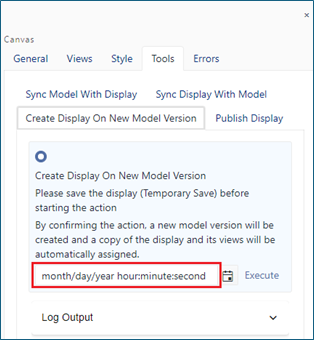
where the hours must be written in 24-hours notation (00 to 23).
Important NoteThe effective date entered is relative to your SigmafineHub Time-Zone Setting configured in the Visualizer Localization Settings.
If your time-zone setting is different from the SigmafineHub Server time-zone, you must pay attention to the time shift when entering the effective date.
An easy approach in this scenarion is to temporarly set your Time-zone Setting equals to the same SigmafineHub Server Time-zone.Click on the Execute button to start the action.
After completion, logs can be found by expanding the ‘Log Output’ component underneath the Execute button.
NoteBefore executing this action, a
Temporary Saveof the display is required only if you changed the display by the current authoring session.NoteIf the model version already exists for the specified effective date, then a new display version bounded to that model version will be created.
After the display is created and assigned to the new model version, you will need to proceed with synchronizing the display and display views with the new Model version as well as the synchronization of all the sub-displays with their new sub-Model versions.
About Display SynchronizationThe synchronization of the new display is required since all the model connections replicated on the new model version change their unique id as well as for all the eventual configured layers.
The original display may require again a synchronization just to align model revision number incremented by the new model version creation.
Publish Display
The publish display action allows users to create a copy of the currently open display on a different server, database, and Model.
- If the display contains display Views, then all the display Views are published.
- If the display is a main display referencing sub-displays, then all the sub-displays are published.
Publish of sub-displays is not allowed.
This task enables you to build and modify displays in a Sigmafine development or test environment and then publish displays in your production Sigmafine environment.
The publish of a display requires the "alignment" of the Target Model configuration with the Source Model configuration (assetts and connections). The Model alignment could be performed by exporting the Source Model and importing it into the Target Model using the Import-Export features available in PI System Explorer.
For more details about to accomplish this delicate task see Export and Import Model Configuration.
The display publishing takes care to create a new version of the target Model to guarantee the consistency of the new displays towards the Model versions enabling in this way SFHub Visualizer to open the right display version.
To perform this task:
Open in authoring the Display you want to publish
Open the display Property Panel and then navigate to the "Tools" tab.
Select the Publish Display function.
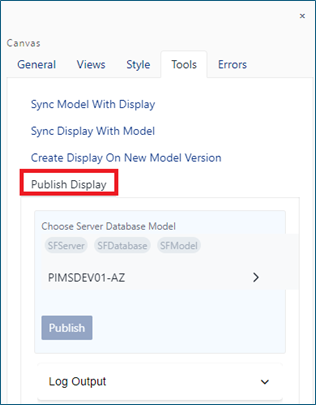
Select the target Sigmafine Server, Database, Model where you want publish the display.
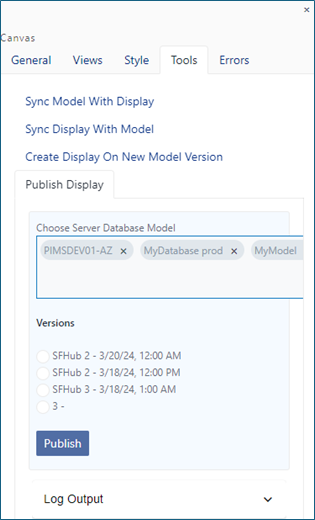
The target model selection shows a list of existing model versions with their Effective Dates and revision numbers.
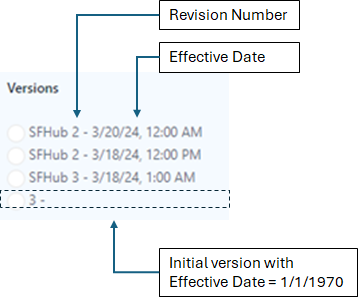
(Optional) Select the Target Model version where you want to publish the display.
At this point, we can face to two different scenarios:
The target model version already exists.This is the case where the target model version has been previously created. In such case you can select the radio button of the target model version where you want publish the display.
If the existing model version was not yet aligned, you have to take care to align the model configuration after the completion of the Display Publish.
The target model version does not existsIn such case you can skip the selection of the target model version. The Display Publish will use the effective date of the source model to create the new target model version.
You have to take care to align the model configuration after the completion of the Display Publish.
- Click on the Publish button.
After completion, logs can be found by expanding the ‘Log Output’ component underneath the Execute button.
Before executing this action, a Temporary Save of the display is required only if you changed the display by the current authoring session.