Elements Manipulation
Create New Sigmafine (AF) Element
You can create new Sigmafine Elements using the Elements Panel (see Elements Panel).
When a new Element is created, it is added to the Sigmafine database, and a weak reference is created in the Sigmafine Model. The Elements panel is updated with the new Element to be selected and positioned on the SFHub Display.
Add Element to Display
It is possible to add Elements to a display and the referenced Model in three different ways.
Using Elements Panel
An Element can be added to the display from the Elements Panel by selecting and dragging the Element to the display.
This operation is allowed only if the Element has a Standard Graphic Template associated to the Sigmafine Element template.
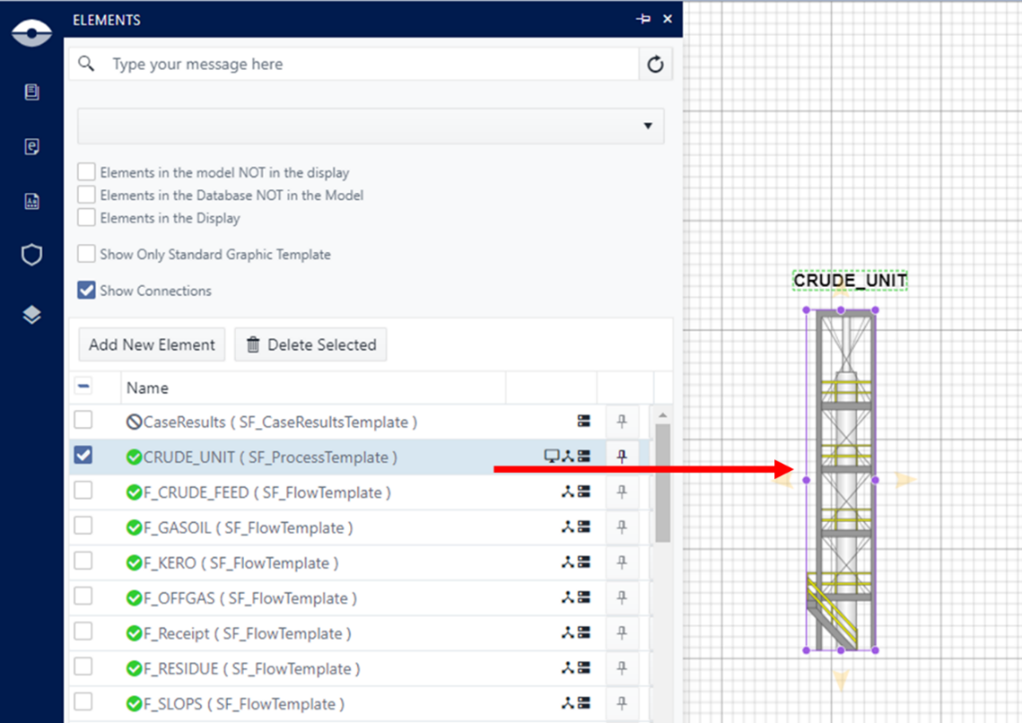
When an Element is added to the display from the Element Panel, one of the following scenarios will be applied:
The Element is not referenced by the Model
A weak reference of the Element is created in the Model and a new instance of the graphic symbol is added to the display referencing the Element in the Model.
The Element is already referenced by the Model
A new instance of graphic symbol is added to the display referencing the Element in the Model.
The Element is already referenced by the Model and is connected to another Element
A new instance of the graphic symbol is added to the display referencing the Element in the Model and a graphic connector is drawn to the two other graphic symbols.
The Element is already referenced by the Model and is already in the display
A new instance of graphic symbol is added to the display referencing the same Element in the Model.
Using Templates Panel
An Element can be added to the display and Model by following steps:
- Open the Template Panel.
- Drag the Sigmafine Element template to the display.
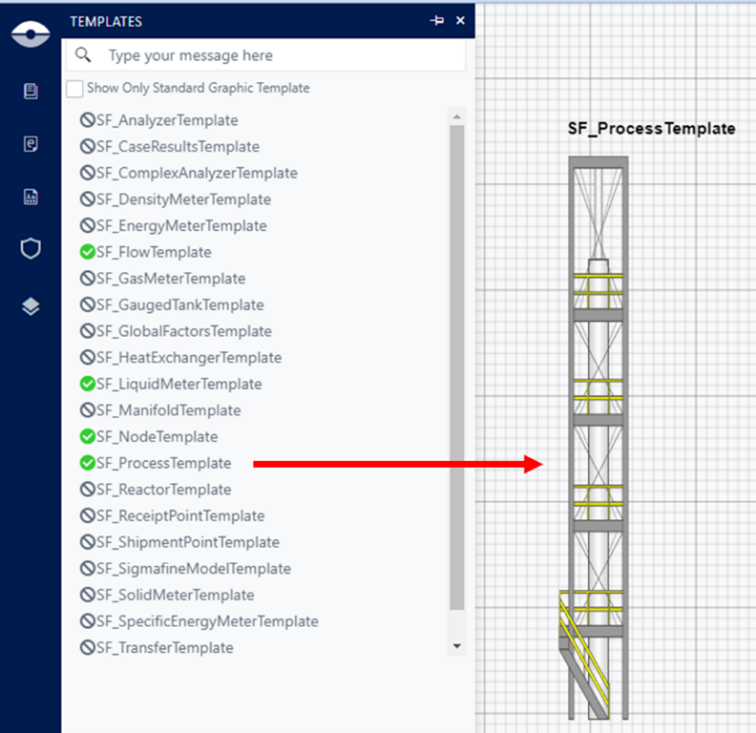
- Select the graphic symbol to activate the Symbol properties panel.
- Select the Sigmafine tab.
- Open the Element drop-down to select the Sigmafine Element to be assigned to the graphic symbol.
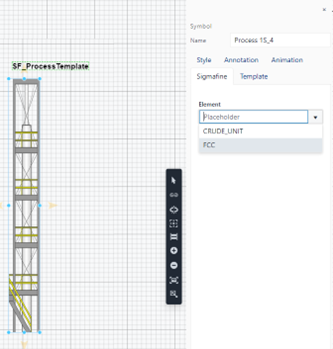
Using Symbol Library Panel
An Element can be added to the display and Model by following steps:
- Open the Symbol Library Panel.
- Make visible the Graphic Template Library to be used.
- Open the library section containing the Graphic Template to be used.
- Drag the Graphic Template symbol to the display.
- Select the graphic symbol to activate the Symbol properties panel.
- Select the Sigmafine tab.
- Click on the Element drop-down to select the Sigmafine Element to be assigned to the graphic symbol.
This method adds graphic symbols to the display using a non-standard Graphic Template from your library.
Remove Element from a Display
An Element can be removed from a display by two methods:
- Select the graphic symbol on the display and press the DEL key.
- Open the Elements Panel, select the Element to be removed and then press the Delete Selected button.
When an Element is removed from the display:
- The graphic symbol is removed from the display.
- If the graphic symbol has connectors attached, then all the connectors are removed from the display.
- The referenced Element in the Model is removed from the Model together with the connections with other Elements in the Model. The Element is not removed from the database.