Layer Management
Using Layers functionality, you can organize objects inside a display and a Sigmafine Model. You can include or exclude selected objects in a display and/or in a Model as needed.
There are two types of Layers:
- Model Layers: exist both in the display and in the Model, each change of this type of Layers is reflected both in the display and in the Sigmafine Model.
- Display Layers: exist in a display only as a visual overlay and allow to hide/unhide graphical objects. Changes on this type of Layers are not reflected in the Sigmafine Model.
Based on the Layer type, when selecting a Layer from the Layer panel, it shows the list of:
- Model Layer: All the Elements in the Sigmafine Model with the associated symbol names
- Display Layer: All the symbols in the displays
The checkboxes indicate whether the Elements/symbols are in the Layer or not.
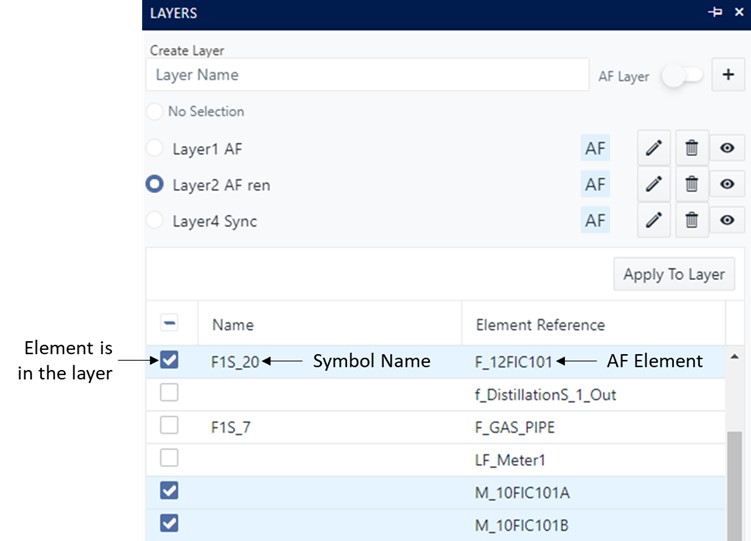
Add Model Layer
To add a new Model Layer:
- Click on the Layers icon to open the Layer Panel (ref. Layers Panel).
- Type the new Layer name in the “Layer name textbox”.
- Set to On the “AF Layer toggle”.
- Click on the +(plus) button to create the new Layer.
The new Layer will then be visible in the Layers list with the AF icon next to the name:
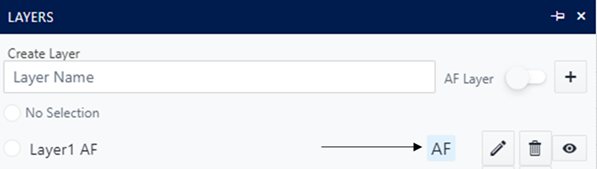
The AF Icon indicates that the Layer is a Model Layer.
Add Display Layer
To add a new display Layer:
- Click on the Layers icon to open the Layer Panel (ref. Layers Panel).
- Type the new Layer name in the “Layer name textbox”.
- Leave no Off the “AF Layer toggle”.
- Click on the +(plus) button to create the new Layer.
The new Layer will then be visible in the Layers list without the AF icon next to the name, this indicates that the Layer is a Display Layer only.
Add Elements to Layer
To add Elements or symbols in the Layer:
- Click on the Layers icon to open the Layer Panel (ref. Layers Panel).
- Select the Layer where you want to add the Element.
- Scroll the list until you find the Element.
- Select the Element using the checkbox.
- Repeat step 3 and 4 for all the Elements you need to add to the Layer.
- Click on the Apply to Layer button.
Remove Elements from Layers
To remove Elements or symbols from a Layer:
- Click on the Layers icon to open the Layer Panel (ref. Layers Panel).
- Select the Layer from which the Element is to be removed.
- Scroll the list until you find the Element.
- Unselect the Element using the checkbox.
- Repeat step 3 and 4 for all the Elements to be removed.
- Click on the Apply to Layer button.
Rename a Layer
To rename an existing Layer:
- Click on the Layers icon to open the Layer Panel (ref. Layers Panel).
- Locate the Layer to be renamed.
- Click on the (pencil) icon in the Layer row to enable the edit of the Layer name.
- Type the new name for the Layer.
- Click on the V button to Apply the new name or the X button to discard the rename.
Remove Layer
To remove an existing Layer:
- Click on the Layers icon to open the Layer Panel (ref. Layers Panel).
- Locate the Layer to be removed.
- Click on the (trash bin) icon in the Layer row.
- Click on the V button to confirm the Layer delete or on the X button to discard the Layer delete.