Search for a Single Element
To search for a single element by name:
In the Search box, start typing the name of the Element you want.
Search for a single Element
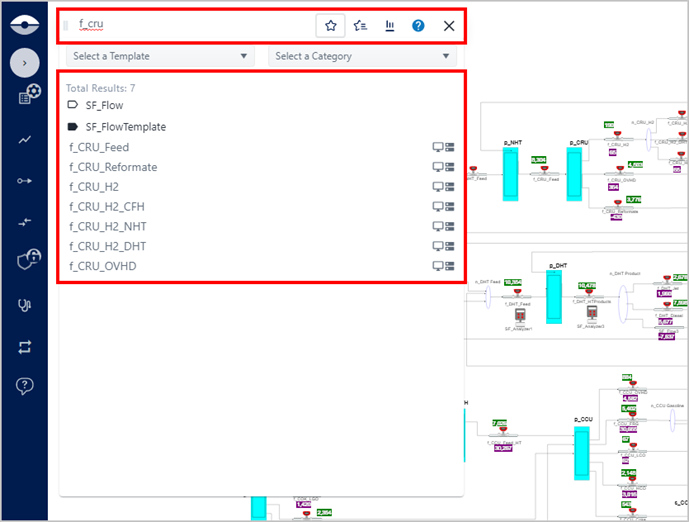
As you type, the list changes to display all the templates, categories and elements that have the characters you have typed. Each of the Elements display with one or two icons,
 ,
indicating whether the Element is in the Display and whether it is
in the database (selected database or case). For information about
the format of the search results panel, see Search Results Panel.Note
,
indicating whether the Element is in the Display and whether it is
in the database (selected database or case). For information about
the format of the search results panel, see Search Results Panel.NoteNote that you can also refine your Element search by template and/or category, using the Template and Category filters.
(Optional) To filter the list of resulting elements by a specific type of template, click the Filter by template down-arrow and select the template to use.
(Optional) To filter the list of resulting elements by a specific category, click the Filter by category down-arrow and select the category to use.
As the list narrows, you can either stop typing or continue to type the remainder of the element's name, depending on how defined you want the search results.
To select the Element you want, click on its name.
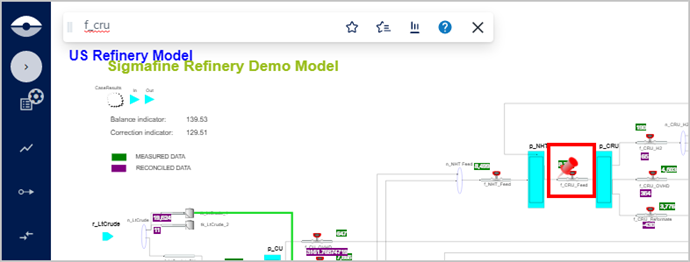
The Element is flagged with a red stick pin (as shown in the following figure). The stick pin indicates that the Element is selected. In our example, we chose f_CRU_Feed from the Search results list.
Selected Element example
For information about search results format, see Search Results Panel.