Search Box
The Search box is available in the upper left corner of the SFHub Visualizer panel. You can use this box to write a search expression. (See Using Expression Operators in Search, for more information.)
Search Box Options
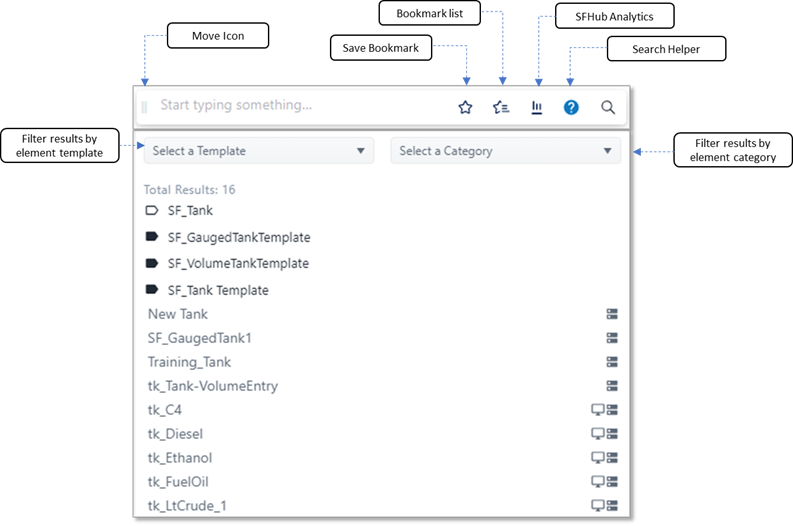
The following table provides descriptions for all the options available in the Search box.
Search Box Options
| Item / Icon | Description |
|---|---|
 Move icon | The Move icon allows you to move the Search box horizontally along the top of the Display panel. |
 Save Bookmark icon | The Save Bookmark icon allows you to store the current search expression in your personal SFHub Visualizer favorites. This feature is useful to record complex queries that could be easily reused in case of need. To save a bookmark, click the icon; the icon turns blue, to indicate that the term has been bookmarked. |
 Bookmark List icon | The Bookmark List icon allows you to view the list of your personal bookmarked favorites. When you click the icon, show the list of the stored bookmarks. Bookmark List example 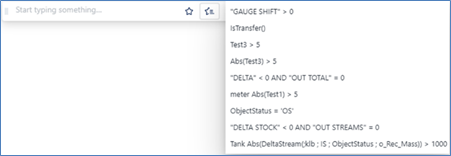 When you select one of the bookmarks, SFHub Visualizer copies the recorded expression into the Search box. The search engine is activated immediately, and provides the results for the expression. |
 SFHub Analytics icon | Whenever SFHub Studio Analytics are configured and running on your SFHub system, this option allows you to easily look for the elements having a diagnostic message generated by one of the Studio Analytics. When clicked, the SFHub Analytics list displays all of the available diagnostics generated by the SFHub Studio Analytics for the current Sigmafine Case. As you select an option, SFHub Analytics triggers the search engine to look for the elements having the selected associated diagnostic. SFHub Analytics options 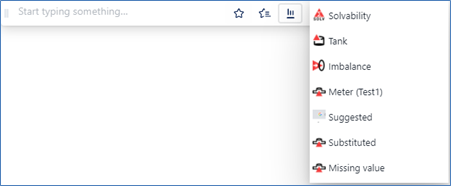 |
 Search Helper icon | The Search Helper icon opens the search helper where the operators and keywords that can be used in the search expression are listed. When you click the helper search field, it opens an additional panel where you can view the SFHub Studio expression helper. This panel allows you to look for all the built-in functions and special keywords that are made available by the SFHub Studio project builder, as well as the list of all the attributes grouped by "Sigmafine Element Template" that you might want to use in your search expression. Search Helper list example 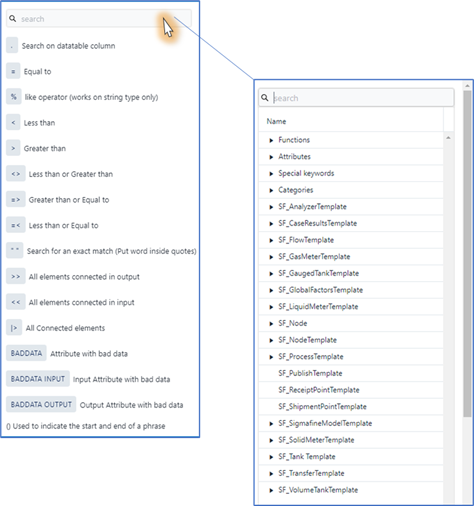 |
| Filter Results by element template | The Select a Template option allows you to narrow the list of elements returned by the Search, to a specific element template. Click the option and select one of the entries from the list. The results are limited to only those elements of that selected template. |
| Filter Results by element category | The Select a Category option allows you to narrow the list of elements returned by the Search, to a specific category. Click the option and select one of the entries from the list. The results are limited to only those elements of that selected category. |
Once the search results panel is populated with the returned elements, then the <ENTER> key with the focus on the search box, will trigger the SFHub Visualizer to highlight by the yellow stick pin all the elements on the display.
SFHub Analytics icon
The analytic results are only visible if analytics are available.