Search Results Panel
After performing a search, a Search Results panel opens, displaying all matches for search term(s). The panel is laid out in a logical format that divides the results into three sections; Categories, Templates and Elements in which you search term(s) can be found or that are associated with the search term(s), such as that which is shown in the following figure.
Search Results panel
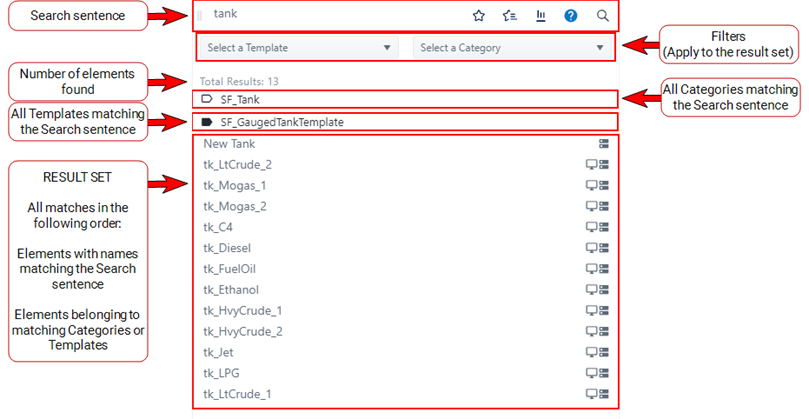
The search result set panel first displays all Categories and Templates relative to your search term, followed by all Elements.
If we searched on the keyword "tank" it would find not only all Categories, Templates and Elements with the word "tank" in them, but also find all Elements of the "tank" "type". As you can see, the search results panel in Figure 1 shows all Elements preceded with "tk_" indicating that those Elements are "tank" Elements.
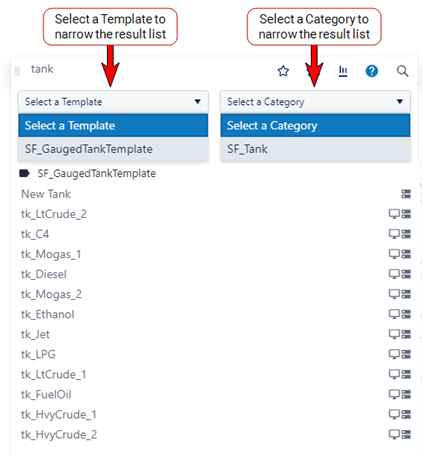
The Filters can be used to narrow the result set list as shown in the following figure:
Search result set Filters
Once the search results panel is populated with the returned elements, moving your mouse back to the Search sentence box and pressing <ENTER> on your keyboard, triggers SFHub Visualizer to highlight each resulting element on the Display with a yellow stick pin.
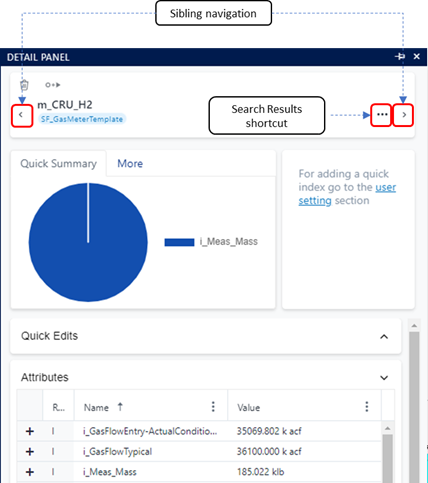
If you click on one of the stick pins, the Element Detail Panel opens and displays additional control buttons:
Element Detail Panel with additional control buttons
The following table provides descriptions for the additional control buttons.
Additional Control Buttons
| Control Buttons | Description |
|---|---|
  Sibling navigation buttons | Sibling buttons allow you to navigate through a collection of elements returned by the Search. The left button allows you to open the element before the currently selected element, while the button of the right opens the element after the currently selected one. As a different element is selected, the Detail Panel updates with the data of the new selection and the new element is localized on the display with the red stick pin. |
 Search Results shortcut button | The Search Results shortcut button is visible only when the sibling buttons display. This button allows you to open the collection of elements you are navigating through and select one of the other elements. As an element is selected, the Detail Panel updates with the data of the new selection and the new element is localized on the display with the red stick pin. |
Search Results shortcut example
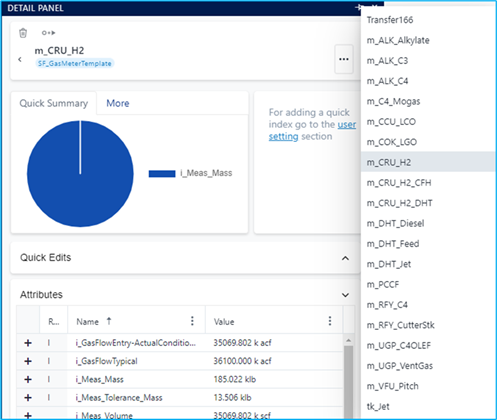
After the element has been selected, the Element Detail Panel is updated with the data of the new selection and the element is localized on the display with the red stick pin.