Search for Multiple Elements
There may be times when you need to find all the elements in a Case that use the same template or that belong to a specific category. In these types of instances, you can use the filter search features to accomplish the task.
To search for multiple Elements:
In the Search box, start typing the name of the Element you want.
Search for multiple Elements
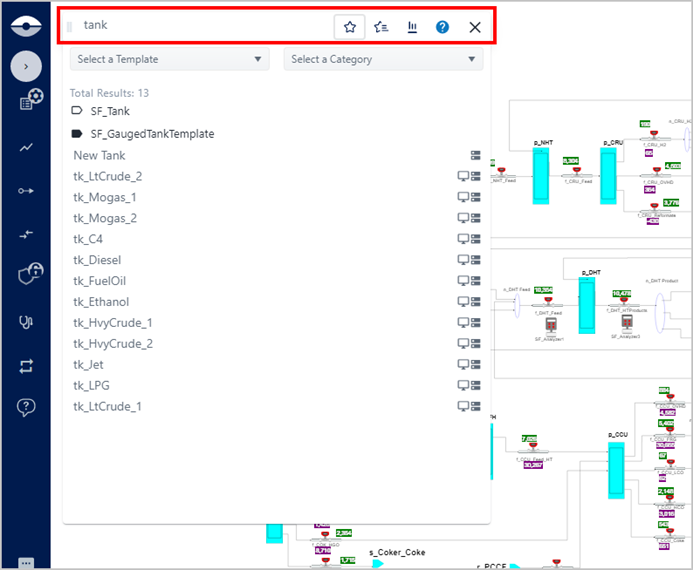
As you type, the list changes to display all the Elements that have the characters you have typed.
For information about the format of the search results panel, see Search Results Panel.
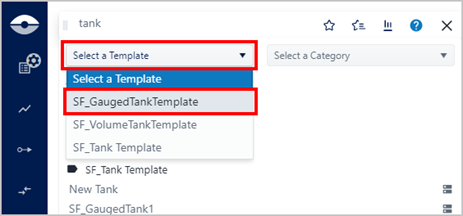
Click the Select a Template arrow to select the template used by the Elements you want to flag in the Display.
Select a Template
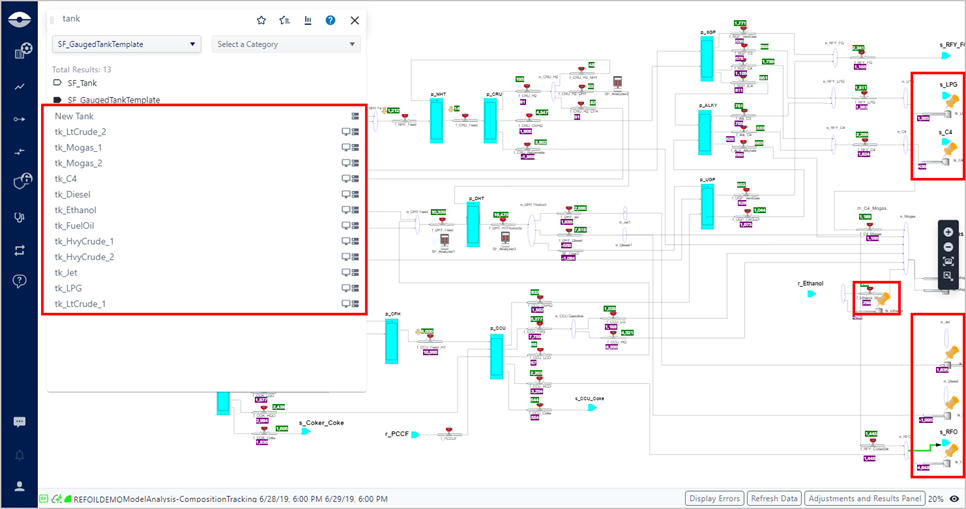
The Search panel refreshes to show only those Elements associated with the selected template and each one is also flagged with an orange stick pin in the Display, as shown in the following figure.
All associated Elements are flagged
To view the details for any one of the Elements, click on its orange stick pin.
The Element Detail panel opens, and the stick pin in the display turns red to indicate that the Element has been selected. In addition, a browse feature appears at the top of the Element Display panel (for more details on the browse feature see Browse Multiple Elements).
Browse Multiple Elements
There is a "browse" feature that is available when multiple elements are selected through the search and the 'Template' filter is used to find Elements. The feature allows you to browse through the list of the Elements using the "Previous" and "Next" buttons shown in the Element Details panel.
Click on the orange stick pin of an element in the Display panel.
The selected Element's stick pin turns red to indicate that it is selected, and the Element Details panel opens.
Element Details with "Browse" feature
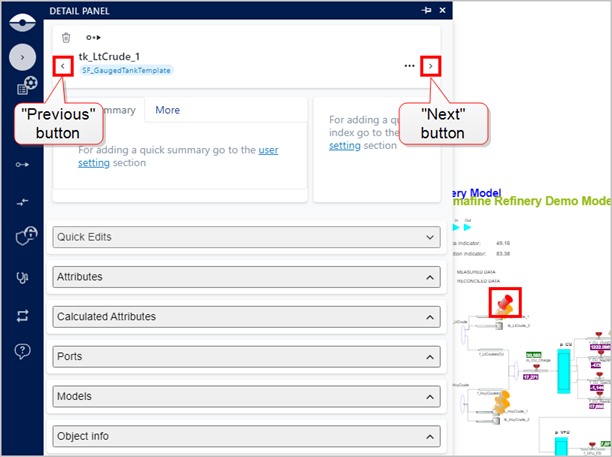
Depending on the direction you want to move through the Elements, do one of the following:
- Click on the Previous button to move to the previous sibling Element.
- Click the Next button to move to the following sibling Element.
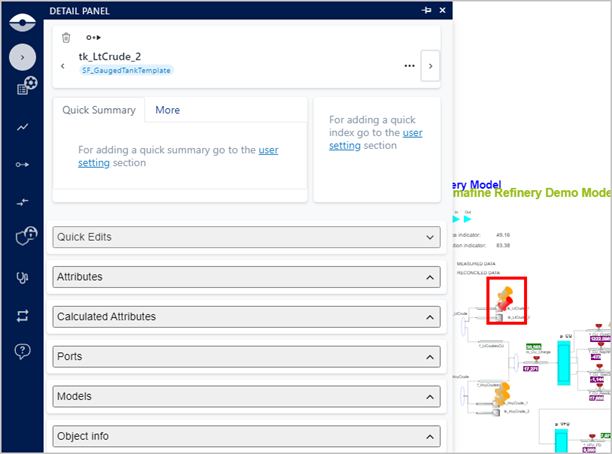
The newly selected sibling Element is highlighted with a red stick pin and the prior Element's stick pin returns to orange. The new Elements details are displayed in the Element Details panel, as shown in the following figure.
Element Details panel - new sibling Element selected
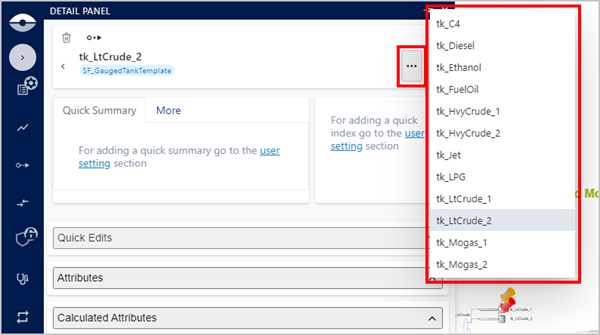
(Optional) Click the
 (ellipsis)
icon to display a list of sibling elements from which you can select
the next one you want to view.
(ellipsis)
icon to display a list of sibling elements from which you can select
the next one you want to view.Display list of sibling elements