Search for Multiple Elements Using Expressions
When using expressions to search for elements, the search is applied to Element Attribute values, including the content of "complex" attribute values such as "Data Table". To successfully perform this type of search, you must enter the Operand (Attribute name) an Operator and the Attribute value.
The available expression operators are:
 = Equal to                 > More than                                     <= [or] =< Less than or equal to
 < Less than                >= [or] => Greater than or equal to             < > Less than or greater than
To search for one or more elements using an expression:
In the Search box, type part or all of an Attribute name followed by the operator you want to use, and then the Attribute value, with no blank spaces.
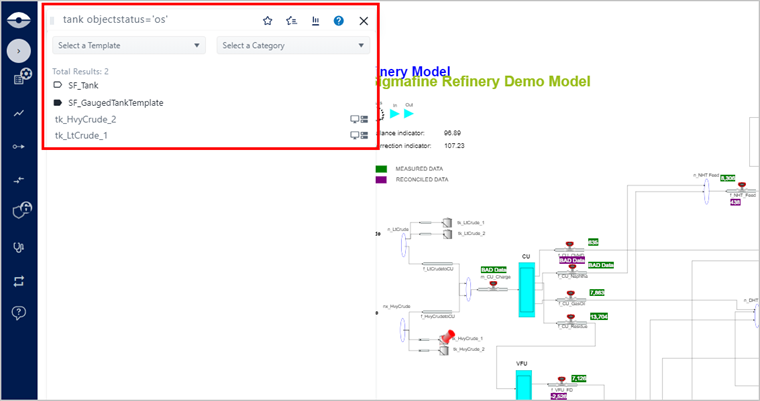
<attribute><operator><value>EXAMPLE: Search for all Elements with an Object Status of 'os'
objectstatus='os'Search using an expression
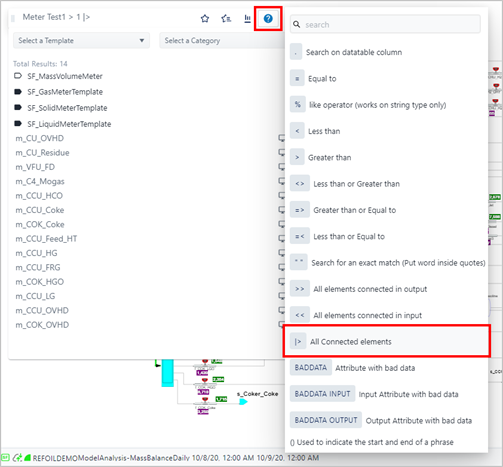
In lieu of typing the expression(s), you can roll over the
 Helper icon to select from a list of available expressions,
operators and keywords.
Helper icon to select from a list of available expressions,
operators and keywords.EXAMPLE: Using the Helper to select operators
Select an operator from the Helper list
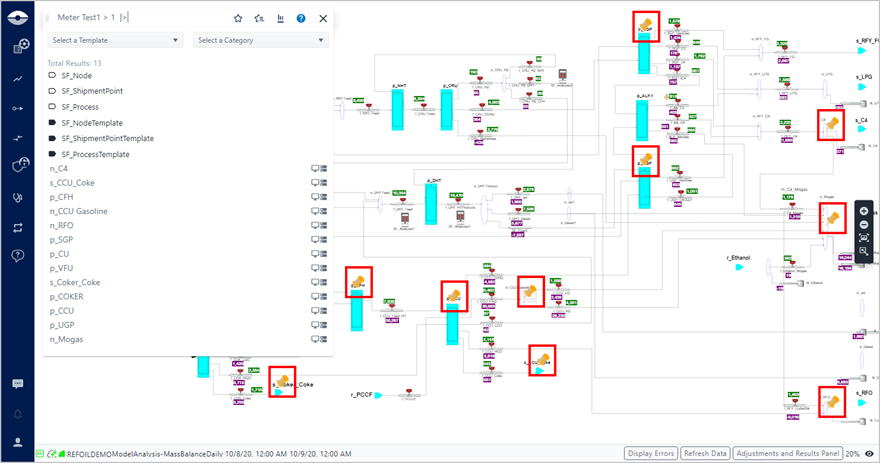
When you finish the expression, the list changes to display all the elements that match the expression. In the Display panel, each selection is designated by a gold stick pin, as shown in the following figure.
For information about the format of the search results panel, see Search Results Panel.
Element designations in the Display panel
To view the details for one of the Elements, click on its gold stick pin.
The Element Detail panel opens, and the stick pin changes to red to indicate that the Element is selected.