Using the Tank Volume from Gauge Data Reference Wizard
Use the following steps to configure the data reference with the wizard. You can use either the System Explorer or the Modeler. Although you can do the configuration at the template or Element level it is recommended that you do it at the Element level since the configuration uses parameters that are peculiar to each tank.
Though the following steps are for System Explorer, the options and settings are the same for Modeler.
In the System Explorer navigation pane, click on Library.
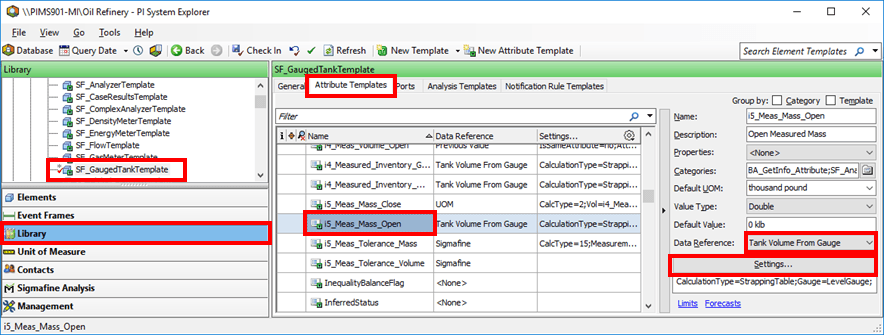
From the library trees, select the tank Element you want to configure.
Click on the Attribute Templates tab.
In the Name column, select the Attribute to be configured.
The unit of measure for this Attribute must be in units of mass or volume.
Click on the Data Reference down-arrow and select Tank Volume From Gauge.
Click the Settings button to open the Tank Volume From Gauge Data Reference window.

Select Calculation Type you want to use.
Click Nextto complete the configuration.
To continue configuring the Tank Volume From Gauge Data Reference with the wizard, refer to the\ topic below that coincides with the Calculation Type you have selected.