Configuring - Tank Volume Calculation Based on a Polynomial Equation
Note: The polynomial equation option is available only for individual elements, not Element templates.
To use the wizard to do a tank volume calculation based on a polynomial equation:
In the System Explorer navigation pane, click on Library.
From the library trees, select the tank Element you want to configure.
Click on the Attributes tab.
In the Name column, select the Attribute to be configured.
The unit of measure for this Attribute must be in units of mass or volume.
Click on the Data Reference down-arrow and select Tank Volume From Gauge.
Click the Settings button to open the Tank Volume From Gauge Data Reference window.
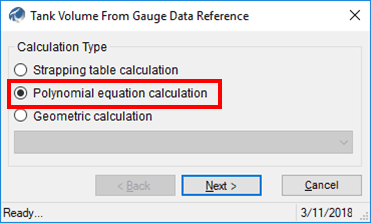
Under Calculation Type, select Polynomial equation calculation.
Click Next.
The Tank Volume From Polynomial Equation window opens.
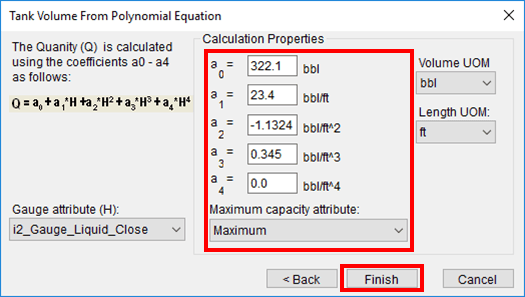
Enter and select the Attributes using the following table as your guide.
Inventory Quantity from Polynomial Equation Window
Input Box / Button Description Gauge attribute (H) Select the gauge Attribute to use in the data reference. Calculation Properties Coefficients a0 to a4 Enter coefficients for the equation. Volume / Mass UOM Select the unit of measure to use in the data reference. Length UOM Select the length unit of measure to use in the data reference. Maximum Capacity Attribute Select the Maximum Volume or Mass Attribute to use in the data reference. When finished, click the Finish button.