Configuring - Geometric Calculation
Note: The tank geometry option is available only for individual elements, not Element templates.
To use the wizard to configure the data reference for a tank volume calculation based on tank geometry:
In the System Explorer navigation pane, click on Library.
From the library trees, select the tank Element you want to configure.
Click on the Attributes tab.
In the Name column, select the Attribute to be configured.
The unit of measure for this Attribute must be in units of mass or volume.
Click on the Data Reference down-arrow and select Tank Volume From Gauge.
Click the Settings button to open the Tank Volume From Gauge Data Reference window.
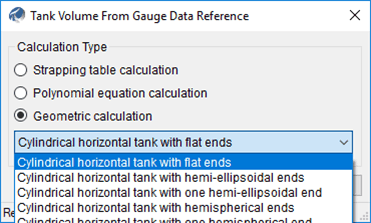
Under Calculation Type, select Geometric calculation.
Click on the down-arrow (directly under the Geometric calculation option), and select the tank geometry.
Based on the tank geometry you have selected, the Calculations and Data Reference Configurations differ.
Refer to the following \topic the corresponds to the tank geometry you have selected.
- Configuring - Spherical Tanks
- Configuring - Cylindrical Horizontal Tank with Hemispherical Ends
- Configuring - Cylindrical Horizontal Tank with Flat Ends
- Configuring - Cylindrical Horizontal Tank with Hemi-Ellipsoidal Ends
- Configuring - Cylindrical Vertical Tank with Hemispherical End
- Configuring - Cylindrical Vertical Tank with Conical End
- Configuring - Cylindrical Vertical Tank with Flat Ends
- Configuring - Rectangular Tank with Flat Ends
- Configuring - Elliptical Horizontal Tank with Flat Ends
- Configuring - Cylindrical Horizontal Tank with One Hemi-Ellipsoidal End
- Configuring - Cylindrical Vertical Tank with Hemispherical End