Grant System Explorer Permissions
After TES users have been defined and assigned to their respective groups, the Operator users may need to be given access rights and permissions to System Explorer.
To grant users permission to the Sigmafine System Explorer:
Open the System Explorer and choose the database to which you have connected TES.

Right-click on the database name and select Security > Database.
The Permissions for [database name] window opens.
![Figure 1764: Permissions for [database] window](data:image/png;base64,iVBORw0KGgoAAAANSUhEUgAAAXAAAAG8CAMAAADw7Q7CAAAA4VBMVEX////Us3G20MgwLnEAAAA6bqULKG3U0MiAgIBAQECWuuUcOHssSYmBotA6V5NmhrpyksNVcqqOsNwAAIGlyfCfw+r/3ZLc//95mso6OpBJaKGHqtZdfbJ7Mw5Vk8p3s8gnbbbXtKdCYpq3sm8wLqYZADAzAACX0cg4kd78+Nu3xqRZChIAQpTYkkS2di3V0I9suvvf243U0K2RvI0zAFdkIoa4//+R2////bUAAlhdAFuTd1mgWgO1gJF0lW76vGVzWIL+4cD/xrAwAIqHkaqOOUQdL0Lao5GsscE/ZlHK/7YHoUScAAAACXBIWXMAAA7DAAAOwwHHb6hkAAAgAElEQVR42u2d+VcbV7bvv3VKQwmJkgRYEwIkECDATjw76fi2O169VvIXv3Wz1lud+27Hndg3iblOMLixZQYzCAmNVRpKNbwfqjQCNqMM9t6wClHDOac+tbXPsPc5xdlB0k+xgRGEPgqzAXXC0DcRYAPgJBD9NCkAjGOefBx7z33oO3XE/pH2x9qBg9Ujk3N3fC6fpEhC+6N8yGHxyKxrHyjF+2iW2/fvu0hTzjp+PyiH3RBccMHVeYPNn66bGTyct9EDWgCEdjYyDiYm9mTemfcB1G4zFbnzCXPv13AAk67C1kI1NbKhHK3fDTTsaNgb9ob9kLviDM7gYMA4mJnOdPMXYNAZ9APgR7LIWjou1CAcgF51VVF1NbXNLQOQ3bJbBuQmp0GTeXmwjMFyGzRnGBwAg7MKVoNQs6h3aKcM2S0DgFgSS2Kp1KHgrmoVVs41obOAQg2ADLcMN+TO58UZppZne5TG3fUNr/oySylkx45WvQZgB+ywww40er60hvljmF9g878O4mA6mM506AcUfQQYQbZtU2pN7RM6C1t1ocXbukvZLbs7vs1lYBCDZZQHLdtiFsDgALNUnJVqTUCthlpTx82H5oYMN4ASSihBLKFk4XZV4ULVZT4qoNYsoFlKt1kSuFsabjSzA+DsFKHXpFb/lgkDofea8AYaMH+7ddywvkccmrfX+lZFJekbNHkzMOg9qWZ7VEHosS02zVtFFVXzrpvI3U2lbH2TB4EyygdNudFtxE0NFyBYGcluwC1DdltJiRAhliyr4kK16oKl4RbnNnnLkrjlJnmrwuB6rNiRddgkRjv+URRF+UbrVnG7qeOwj8kPO4+MyQ+bOt5TR4XEb//2BNAB3fphiJRKpdJwpFQqlUZ587RIKZVKOfPNqxxR78xBI17tsJwy3GhpuOfdu3d2AF4hcs9ED69QLBaLxUijWCwWqogVCoVCtVPDm8/TfGhte1BCSSxBLDVNmanhLV2ooasCaJZCbqVhoOvbrWntbS/wJbzousdv+eSPj454Tpvun97zb4eo69yvPVlFVh6LorgPPBbFLa1pSx5PxnKh8SMVo9rVXJCbZtcNGWD5ub/ffxtnwka61Vop1rwDcHq3ZzDn9blii3M+n8/VqeHd1Z7stoCJEFGC2DTilnq74DKtSVvDrWrAMiVWSVoa3tI6HhqggT+qlTa61NVgCBrapKIo32gR/zeRKbdn3COPD8vy/dqY/ADTsiw/NLdj8gOMybL8EGPSmFu6dxcJSZK+AUKB9D+ku1FJkq5hyH1vaOwuALzttSlmUcLL67qcSqWcCD5b/i/vvLa9ve0EsJzPhzDoyOfzPmAmn8/7EMzn86GmXg2lUysKnum1ZMu49Mi/kWpbLMuGC+i04U1gJZRMa1JqNgpdVZf5uFuNG8Fk3zTizS9Kl4a3dJyH1sm7B7jY01ZNO8by3zmSP/4d2K0CwHhyOeG++eNfAIwtfud2/2RuAYytPHbf/OE2EJq7+aMWXfzO43kC7O4Fv/3b7spjz823t4Bdq1P7tlQaBvAP80+HeY0z92Tswdup9P25vxVf8pHYg7dTwJz/5rKvrPj9999en3ga9/sLg/m4P7ns62kAH94eXy4WvppB3bIoVq0ntFpClg1vAROBUsuGw2V+t1ytSqWl4a3HZdUklgnv1XCARyfvDuCp3nL/qK08/lFI/6CsoAFg/I0Xod87ez8/yA9bWwhooAY7YJmQH6Rv2kplHcLc5q/AduI+8PYu8FgU97t6PADE1NrT5ufAdvNzDTFM5PPPAOBt3oeh9Nv8CmKAfFinpVvD57y+X9bGg0A9bBZGQE2otSpnd7eGoySi04abrfBq88vR0nDLorjNJqG1PUzDTZNyEHjK5C2O+jpsuOMnAN85HI6fgNDvvWY8CfzwwNweuOd3SeCH+717rSbQ3ooYCxqVHosCCHgrLsYnm6kFFuORdsoTi3H/A2A9Cby9CcT9fv8i3G73BzXcxFj3DQZxF0ANNQE1od3B6tFwq1nYsuFNI25pdlPDLYsiW0/qaA3XwPOdxFkPDvFAWTe+PLLijAWbW6AGO4R28/ydx9x9yCHTWHEDvV16fWeu4ES72egEHNZHLxxOq/WZ9o8HUYNwB4BblmUAueBk0oH7bQU/tMc5lcavTT0VamjblC4NFyH22nBUrWaKgIOtFOtJHanhmmlStAM9TYw2d975rbOYqVhuGfju1cEbGFuB/K1ubgFsJv+Bxe9+sjpO0RVI3+otdf8HFuPPm2gnF4FS/NdIU8FHsgDwD2Bu15++/wxVQFGWl+cGzc/AMp5++8x7/xnWgYlF5OcWMZ5bBuIFUyt1//Iy4m+ZsILl5Xiu3K3iy4Dz5lNg0bnTaojXhFat2WHD5WbHp8eGNxviNaEmCK2GTq3FWwZkt9sizpm97g4Lji4jztlZ3WkAC8DAbuqvQGEAv33Sg1dCDUJNaFd8cgfuZte+ZVOqrqqr2tHHRa135MHs87aHGEzYnAEg2zUMy3FulDmOtRrh+H17slAqSWfjfSRkBgZ2oKc5lCyVSqVS6csPpHDo4JXuyOffvXv3Lt7k3dHjKX7dgbur31cTuu1Ctw0vvdeGo6sd3u7z9tpwK0euU3o0HFi49l8fGJxtwN6wHz54ZY1dNX8OEDcHrnQLvn6Imo9Yg1c14YASNZWsQ9FaOtnW8NYYSucgEmeA6x68shRcqL1Pw8WShbxHw7sKJ9SaJrxXwy2bIh/4NpY5rg28U+78dhB2p4Y3jlD2JmsTehd4ppvjKdDZYbzbJqVm3o91V+YAStVl3nk3brfcZVLKaA0UdkPvGcAUas3+T1NDu5ADEEu94+GdRqVduNbIpVtu15rvHQ8/Cvilt+EtPpfBAeGWuxunRmeteShwcnz1S9qVJkmfhIATcAJOQsAJOAkBx+WNvGrKiaIMqfV+ZuAn6wExneidzaScsMdpUNRtn224i+hRpXklgSsTmqYFCc3FCM9zmlVxtv4WDJsqaTwUQ+twxnX/B3CcQfhw4tFC2+EHvnDvr7V85iQXrOEc+O1t8ZY9w435XJISd81tGsbANYlXtclczCWRhp9Bww8DnigYU+41Vi0gP1eW5vmNbcbUxnBBv2nTK5myZVkI+KmAd3h8mn8VZtgBhRkGMww2W2a7ynQKbGzNMKZTQFzZta6lns/52fCm3MqMvDJuqBKvGAAgTq1hg7BdYDt8yf+vMTu8Aq7zAG6lq1BuxIjaWXT8/SbFriSUXcy+BFiCE3OC+qppUciknJsNP/a1BJy89jSWQkLACTgBJ0F/fJonFHL5HFtc+tmBGwa5kY/dGiSTQjacgJMQcAJOQsAJOAkBJ+AEHABmNE0zGoSoX8BnPFM8P2sj4hfu07QkwHYJz7l51vT3BAJZUizyAKA8tseGXbm7zj1D4xVj/JY9c9dZAKBM5u469x7bY86CYmi8Ymjze8aopEzmYq6ctTtUMsLyvU3DCOcf2zNjrpJ1XJrdM0al5ISz8LkANz4MXAc/s2dwsWLVkdEqIstw4DXOV6xWRJYDFmxaRWQZVl0tQOPAa1xSFLKJAK9XMuV4sbpagJbQKqqk7TKmSvFitTCiF8rTgl7JlKdFIZsYeL1TwGcH/GiToprBErE1M1yCxdZa2zvlNSitnbA+z5Z3ojvKdAqIh5+0dxtGM26LGQaL8SkgLu7tRHc+T5Ny9Hh45Ggb/tw4bF2JFTsfDSvc1Bo2XnfUxUmuGbcFoBW8xUfDuTWQx6dDfB5hLamuAriV4dI3dP7B/tr1V7hVXruhrzZ3LjHADG6+/mqMKZVMIM1BuWMsdiTkVXG9tWaW0zxeUioZRs3CLvm39EarDGsAlt4J2srLFemNFtYwZGgrL1s7Ld2W3mhh7a1r6wX/59Cglsh0Lrm3Ir3Rltv/DQ1qicyfrq0X/G7yToyahR8SMw6O5NQ2nLr2l9xrT9NQaPCKgJMQ8KtgwzmCcxapOU9caRLxM4h+mlaKtUaic6r+BrRKSt9sOJvyhwQC1T/gcT/wEPj+71S/9gU4C7l+RhV/qz35+/eEqy/Nwu0kAK1x21rmVpnQaHmPCwU+PAbX9/vAP63/3+g8z6cJ3QUB1+269JsNfuA2VZ190XAdwH+uA/jtPzv2KuMhKOMhZUIbDymPEto0cC+sTGi3Y4oa0LQglAltPER8cYz1UlpjuCoA3HH8GklG/CowsQbABi1RMIy7A4GyNM8P2iyXcWF8IGR38FpFZJmEVlEl01ncvYbQZyVdNI/lROa4KoA7bmCg4kbjyaTP9X8BZ9MFobDZMttouYzvbXiNpU5nM9+x0sfnKF00j+VERudrW36038afuq+kdy/sYbqEXzOgKHo3uy6klT5OP1pYAQL84LIOYbBnYQ9zPY/bAJjxbPNWJIobcynLWUwrfZwK+H8POJ45HA3chQ7U8D2AKaZpWhh/xA0stVzGK/6IvcuvPDSoJTJrBBjHdiKbNtyU71+WNMbBYKgckU7SvU90j2PDP9hKAQC8/jpUbmgc6335dEtmXnLvCPJ5tFKa4vxW/QlOlqfh2TNq+HGB03h4n5qFAOb2R5/TggYnFOfpm4XO/UzpGyKIvgUCJT3TyAPfq/8k7e5Hx8cpbec8fgg1lZEDoj+hbkIIQNgptd6z92h76CkABHj9tMPiX7GCmgKuLwZ43fApa5iTvJl0wJfC9UXgK6Y+w8NfEF2ztlZeAV5PP3qC+NDTr7SN9NmL8hVTn10+4CFPA3lnDO1xKG20d0yqeb/W387bPxyFzGf54XQgHTQAbPqC6X0f8FXZowZs98vSr/eAwJvhoWjw7ZvhoWjwafvCR8rtZ0U8+OVGOH32ovzyaPvyaXgdkkcCHK9Dof+2Wi0u+2Cwu+R7PX+PoVoAMMnUNQC+STU9N7CIFJ/F3h6Arzhgbn0tPVw3t+0Lhxy1Z9ibW4dbC6bPXpS96cCzyzYejoBN+W1nhvegOfjHylLAtRUYLVbHfZloZXywMsPEae7mNvtCF92TOTbO0hOjmegCV2FsjE9PcO7R4oNIoxZdmNhhM1kAU++W3MyQlWIBzABb9mS9tbIxrIrmS+6jnL4lsiy8isKy8CpZwM0MGW7mq3NbQDUcfTos7p69KNlI9YIGkG1H9TQ/CHzebsPYRMEDwBp/nRz40125pnu3/6PKuwP1gUBdiUgeztgeqUSk20awHmZMLoUDv5R0fcQIGPKQ7t325xvhALhg/Vp0CxBZ1u3dZqHQKzczwBL7f61rkrE2KlemprdM4EE9i6DO61kE9Szg9m4zVh3ndwoycMOmb01ymnz2oniV7CUDPu+CWoIjzNQNr14GgLlSimUDzlJZrtY8uTzUPJhH8uTKspt5pFp2dfQFxwyoeTkwWqyO85JRQVmGHsnlWXZ19MUWgKCedTdc5dwW3MwAsyVeSzlmyNmSfqPIyQeAJ7fHGw1XWR+pebz+LUDxcFvvhsXdsxclqPcbODvGy3pSbvfeIsZf1AecAPZ5VZ0OH3VdblMd+dp8v/FX1/zq0H7nweVNdeTr+4dctLvta1YZ4oRlrWuAVzC3P6nNkcianwMwl30GuO3BCyjKpZgBcR1YxpMRJ9y1OhBsAMu2sm3YbGL0SEQc2o8qeQCAV8XcPoBhaTgdLG/xCHiH9qMlAEPr3VelFxiAG+U1OPczFhE+OORqmNsOiAF2/1lgO7gG/HIjrJ25KF7psnV8fqv64c828NdgBZDF7wHdCyA9MlixhfcPnr8t/La6aR+aHAF+Kf9ue4Lw0ORgvWIzqgD2hN9WN58CqEe6lWvv12cA/ojabMqA1ejYm9pfXX1qbjvO/H+O321es+3tbtTOWpQ5l+NyOiCY4DacefjlWu18sr3BL16Gbt+j9bWLGrw6arTweBGa+l/vID/gl++eV3ncA/cvAe+vGgFcTg0HnN+qAH6qgeRsGn5SBwRJX0wKCc1iI+AkBJyAkxBwAk7ASQg4ASch4ASchIATcAJOQsAJOAkBJ+AkBJyAE3ASAk7ASQg4ASch4AScgJMQcAJOQsAJOAkBJ+AEnISAE3ASAk7ASQg4ASfgJAScgJMQcAJOQsAJOAEnIeAEnISAE3ASAk7ACTgJASfgJAScgJMQcAJOwEkIOD6rtw3q9DrevgKn1z30GTjpN9lwAk5CwAk4CQG/5G/9vryinV9SPACgfm7pufRPETjU88LTOOe2MPdpavh5AeLIhlOlSULACfjlkZnxEABAURut7alEmdA0TQsS8A+IN3Fe9eAbnee1rQYBf68suPaunSOjLx5ME/D3yvOfjd0xKBMaz1vbM8mLp6vKhDYeUh4ltNGAFoYyod2OKeMhKOMhZUKz7Ncxe1g8p1ltce3KtckN/fAiz3Nvo8qETask92cErZLc19+PnON0djgCLVEwjAeucZteyZTjxWphRC+UpwWtIrLiTFma5wdteiVT1vgDKRqH/vu+l1Bfha69emiRFzI7ABtbM+wKi60ZdoUZ9g8Ab/CHI1CYYV/IcJvTKSAefmIYzDCaaRpstsw2plNAXNk9+Ajx+byE+nme578Ijp5Xcks+EeIUz2/8s3v/rcjI9qZ5ZPfzNinzvIRMNOv2yvO5gNMrz+dOb1I48Lg2GNhTZeVmeBfgAC7o9MrzI4VM9Pexyhd7qqzcHCgc26TYPj0FT6oGgD/uGGUttLRiTGuhJSTd+4J7X3Dvr50iQX6TG1K3E5kNyxysGNPaimrHHwkFS0l1O5E5gYZ/ijb8xHK0DT99ip+TDaeuPQkBJ+Agn+ZVEI6A91VcV+8BXm3gjcv+AD8x4Px5J6hTpUmtFBICTsBJCDgBJ+AkBJyAkxBwAk5CwAk4ASf5+MCVidNGRt/rvuz8Y6xxqoBxRY2eJlD89BxOquFv9MMiozuj2w+PdE/qU+kDMdZ8Glc1YPyNzn9hBPvjgPjiYKiS44jPbXnxodhJfJSA8Y0zXL+knNs9HR1bqHHgt7f3tclczJV7bM98a8+MuUqjOUOb3zNGpdk9YzRnaNpk7q5zzwiVjLA8u2eMSkgO79937k3m7jr3HttjzoIZnwcl7pKUuCvXTG42h3tGruNqZTIXc0kXA3wrPbznK3K+ArTJ3F1nYMIZmnCGfI7jZKdx4LEQd+1N5mKunBEqGeF5dw73DOkkgVit2ML3AE8UjCn3ZCsympnB0fFCUhSyicCAkE2Ed5OCVhFZJqFVVGlaFLKJgUJ2l3s3btMqIsuw6mrBirG+OxBoh1PHi9XC+EDI7uA7rhYODbQ+H5nn3kaVIucrmOV17GqO/3Wt7hf54wIP7vh5vZIpx4e1iirZBgdCdqVwKuBHxxaa3yKlKzLaMFhsbba8E91ZyOxEd5rh1+Z2trwT3TEvNFhzdyshKO1w6vATw35vw2sssfbVMf7QQOvzsShWwHhszQrt/svGOPs9Xt45VqXJDDuS7nq5WXKFGX/Z8BqrOEWo4TGiZ8WpNWy87qxbV+x8NJzb46NhZREH9q8dldCtzMgro51cUfRuHszoYizKczePhcxou2jFhaw8Vz+By/gFi/k7QBwo/Pl57W+lOSh3jE6ycaZUMnFdqWTicEa49A19ibX2Mwtue3er4pn919jOQis5pj5TO09zpjkod8prFwH8RmkHS7NuwCrvKtuQd+7Z6if4inDeThBMfabaL6LSBDJj9sxUeYUzQ9EBzlfIj6bSvpVQKu17wWVLwdx+Ghx4jcuPptK+XUDjsJ9v7m7OkzFGpZ0pTWolx2enjEom3746G7NnpsrvLoJ3UlMkYIcreQtmeflgHrKnnjrW1VqiYKTFdLvkGof8lFEBztmGX7AkTxccfznkpIXvsOEfa8rJzEvu3ZXlfeLCfyqz2K6M0AwIGi0ExYdrBOciIk1tF7+g1OchPRUga3yaMyAukXR1o4RPdcrJ1VvwjCpNaqXQLLZP82bV/l1LGo6PtzrrcTX80fbQ0wAf2tXT+CTWTrVdzLUaPuSzOq6Ga6NFUt9j6bd2Lho+57IPBg0iehx78n4dPybw/aoryt4S0rPPGz0m8CC/aGsQ0b61w+cKf9qWbaOEq1/A93lVnQ5TE7JvHZ9gA1i2RbeJ19EinCdw3QsgXR8mrGduXx/t09RU6tqf4NoD4+H8KSOvSEDj4R/jpSgqjYfTeDgJASfg1PEBeXxAHp/PXsMDvhSA64u9u/mr5gC6aI/PuWl4eVhVh9JBMqT9zHqSqWni3cdWSurtemDGNv0AD202200EZmy54SvJ2nYFHvZgyoYprRwtqUUp+BMQSM9JA+qj/Suo3arto8apHj3lxOiYVeduuMqzWede/SWrBsON0WJ13Fkqy9WaIV+tTofOwAAVYCddZ7bjgkOvtXXha7035cCUk+OblOXJAsTbqrrKXfOrQ1dQt1tNDfWK1B/1iO+PYQTGh5iKuf2abTgdNDJXj7hNvSpd++Lm9mjD5uX/T/l32xPk6hVbeP8zfnH1KYU8Pud0rbMLX+vNQDSLjQavPhmPDw1e0Xg4CQEn4FRpUrMQ5PH55DV8bHgRNzzas6/K9kWa49MHj4+vhrnQIoeUywEEwrfCQVLVC9Xwof2gtzBdxNz6GrCHC1pdkFopLamLE87Mbg05IcCP2RzOzLWg6fwhuRgNL0ZLOV9Ic4VKucmhOj+iZoZM50+aCF4I8GVbaaZUjJZkA1IJALCvpWy5+BABv6B2+FA0u5G2rdfXAs094u1nWCV+FwW8npXTGFLbcebD6WEExtkzIngxwIuSG6jPesz/woqoecs2L/+UAII8PuTxISGPD8jjQz1NEgJOwEmo0iSPD8l5z/GZi27br4pD6JOY4xPYZOQQ6uMcnzmH6CKHUB/n+AQ2n5FDqI9zfOYcIjmE0Mc5Pgvb/4use39CKwUKNr2g5sE8klExz9y6dHN88L55OrgCc3zmHCKAofnC2vLu+nbbHyHeVtVVGi4//zk+gc0Vcgj1cY7PnYYIAMWSANRnveaJ4aHJwdGGzcsTb5DH58I8Pt0vXeZoVbdLYirI43NO1+p1Z9ePjQavLlZ6eDtptPCCpYd3nYCThn+eGk4en3O6tlfDNdLwq6ThAV+q7fC5emu59cPjc84aXh5Wp/dv9jwFcuxcaCtluZ4mwO9dzbrzx3U+LjbDl4oPvQUCvlScVXaSMHyp+BCNwl7Mgu3F6MaXJbUoje4ORUtqkQ+RY+cUC7afALhX5tdTtlycQbD+0kwfXJSLjRkylKLPFdnUcxrzWH8NBCKbem4LV2cZPXxsF9vxNXxOGq5JwwiMV/LNv+TYuUiv/er1RXxVtnn5LJ+Ll21eXuRopg8Oe3spTx6ffs3x0Zq8aY5P/97vyJPHp49zfPgPhvmRhvf5HaYEnKacEHASmuNzCef4CAT8qgUC2ei7fYJrG2fOluaNUKVJwEkIOAEnIeAEnHqa+BxjG85TXDoBx+ljG04s3ClMijKhaVr4+HkoauPcy32cNC8i349jUt4YduwcAwoz7Cc55zjnn+khMcNghnHBuXxEG+444TmOvtyXA1e0laJMaLdjyqPE7Rgwq2lh5VFCux2DMqGNh5BMaFpQURv3NE0zAz07DyuPEtqjhDYa0MKK2pjVtLCZgtowE1UDmhbErGW3OjMy01MmNJ6Pj4egjIfuaZoWtK5IJqyj4yHzHMAsG5QJbfx6lPv7PGeLqlHzbGVC04zG7ImsIz5K5JWWKBh3h3mtIrIMq64WkPQI2UQ4Xa2ILGzTK5nydFGpzNuTm9hlTJXiBfDQWPtwvFgtsGphRC+U44WkKGQTgQEhmwjvJgWtIrJMQquo0rQoZBMDBSzY2hlhmzFVmha0SnI/N1eW5vmNbcZUKT6sVVTJzDXC65VM2TxH582yBXi9kkkPF1IZTs9zPvNsQauoSFq5HBDt0G/4jNslAYBifHjpl8PPaYVaoTfy6ui4FIUZdijMsCsstmbYgYXMTnRHYYZduWOUU0A8/MSwmzZzOgU2ttY8v33YsOxpbG22vBPdsVKIrTUTVdhseSe6Y+XWzAhKMz2FGQabLbPdjj3mOcp0swQKM+xW2aY7sz0sl0PC6A/be29weec01dMhgSg4w0zkJfDRsLII4HnMP7WGjdeWPUpyEq90PNGewwCAFTsfDef2min07F/ryiipdqR3KzPyyrihducAQOzKwiwbdyDb9+RytCy49q5t2D9OpXkrw6Vv6EsMAJSEUsnEb5XXbuiONAfljrHHpZPq8BN4VVx/ZV3QcbiTbJwplUxcVyqZOJyRdqJxplQyrDsjMz1nhEvfWFGXZv81ttOZgzPCpZOq0CrBjRXVKlvgYLZwRrh0O5fjyXP3zO7YrjKd4tkYU3aVhDL2CxDZZJEdRNJJ9RUiaWU6FVfMc9TzsuEceGTywdx+Ghx4gA+l0r4X1wu5/fT+mD0zVU6N2TMZ5x9c1vdvI8t5C+ChdRxe4QDr11fIj6bSvpVQKu17wWVLzUQ1Lj+aSvt20ZVRVvy3keX2SsHcjTfgd6Y0ydzjLYDXuGzMnsk435olyJvnmGVLjdkzU2XH0FTANxXY9Zlnl4I5xudGU2nfbnLCWTiODZ/n3kaVCdsJqpBzseGnanUrl7H5O2OY705IOn6zH8OGL2R2cMIq5GJs+JWUpPoKNcWy5LAfz6LwWMiMrp2gCjkXk3LE+Yw/w+H+SzbHWFE68vBh9zzPS8hEs26vPJ/T96O/j1VGBhuFuZxp0YJOr5z0je2psnIzzLzyfO5kJoWGZw98JzQDwB9DAUELacAfcQMr0httudngGRrUlsp/Dg1qicyf78xzzmdFoB6b3GmrZmrK7tnaqZdnSYILGi080oZ/UMPjhwzGeRMcfRMuyuPz1mY/rGPQIHTnDdwcI0JcbVifkEwYDQB4/rOxO3aysSWSD7dSmDky5SskrTGqpCHJ/Dl1DC6LaLaLsuEn7/io5shUbK3V1E+unlvH4POtNI//hMUv92RJuRsAAAVySURBVMw53hfbMeizcJfH4xOxRqas0aLhJ4Zxx7UG4EZpB0uz704ytnRpxXWJbLg1MuUrmKNFf3Bw+BsuCUlNkYCdKbd+3LGlhYODRpdFjAsTnNPgFcmZTDp17SnUjYCTEHACTkLACTgJASfgBJyEgBNwEgJOwEkIOAEn4CQE/FMGHhn7YHTVMU45rRya9AXmd1U1/ExIzu3iy/xgPpmA/O2OaPtt2K9gqNsgy/NA5MucY0j6uuBw+L2+mDwxW3D4ZQBfFxwOP2OTsiNSiHyZc0QGfPt8xDe8M5nmraPyQlhubc107hcdw+YGQPtAZMC3UHD4AzuTfk9MnpnJOSIayzfT8foWCuaJdX+GR8QXa2Y6JPpi8kRUHp6Uh0Xf/tfN1EXf/lg7WbmZIT6i1/7YAfkjryXR3vhZkkSHa2JPDKYk0dEAYO1JS/N1jKxK89Y6GLL/pb15tMGnpYlgyNyOvJZE+1RtRJy6XhsRp2IArAOr0nwdEylJdMj+l9WJPYm1k7NySUmiozGyKt0FAEzsSfN1s2CuiT0xuCdO7Yk2F5Kt1IeAjmSnmhleBQ2PhDYc9do18ctc3W/k1n2ldb6l+XW/kVvnjSmxsM4bNkHL84OM1/I8rKPD8jqfSYv1dT6TFkMbjnqNc285Xu4FtxwvC0Ck3jxs2ITcunmxr7Q+Vm8m15HLIAvK67yi53kMltZ5Y0r0bjjqtZn1dV9p3Vda9zFeW400U7exoNxOdjViZng1NBwjkiQNj7yWxFrn3oX2nvXqgWsWDpxvprP7Qop5Yi+kmOd4CndYOmhmOiJJ0puuna3Uh3Bw/xVppWyXqog85CBgRuhdanVGwMQ0ouobfxRRVfBPd5wjYEZY8Uex8IVubktVRB5efxj6eXLsYejnyRqw3TocVTuf2Xbnnna+K/4oogIAK9NSFZGHXWSTrdT95tlWIkkrw0sPfMLv8YS1oKf0+k8h6/m169iStSfryW8gO+3JbywJWc9WDX5/rHVUC3rW07utben1n4rkyfxTkTyZXTQPZ6c9+Q0rVb9/CEB7z1JnvtlpT74GAC+jnvwGtKCn9DrXWaaVVupvOhMx9+/i0r9m/bJKhE/ZgSsbW3h0O9xzSQtfgv80l0m47B0fCSQ0eEXASQg4ASch4JejlUIT6PsL3EU0+gtcJxpkwwk4CQEn4CQEnMIkcJ7vX7BeuHD5E/zIcSnO817z5PInSCaFbDgBJyHgBPwiZEbTxkPma3oWAsbpw2FnW28EwTm+BIjDKVcru7TAZzxT/GtHCAAw4OVOHRkxu6LzC4PBi2/U1q92uPJCprQLh+DcBTD7TLWfPp3wLlbOvXicIRiflkl5HhQA/CnEgLg7fvrIn+fbmwCsVwMdsljr6RW8DnAcxzW3zdcvXNmA/OeGHfjCAUyl1iNnT+5/eChbk3yNV7ZmcxyfVK/t1fnXbHLtlAoOQzCAGiAY1haoO48RvXZpbfitaQAvFMAYnds9+wwSc9nhN+8A1LffYeX1764tjZ8cPcMSqnUATifqze3VtuG30gzA9doaUsbNIL9z6nQybBc9rwbC2RdrFT65ZuGSLxKDUisDwNI7+6mN7ZJ/p4Fk4pVXwHW+uVhrFMnE7XQVyo3bp7QotVqt1gvdEDjjCjcL/y290RLmmw/gcEVip03nVZJpS2XjiLc4/H5ai+J0OlGHwHEGrC2A2jECkDvClXFVl5JuBgP3L0HzQF2oAXByNQBO1J1czXmWcGUSfGBg2dnxARBg0EuoL1iMji2MOpwEvF+ajmN7K2i0EDRaCHIi42q8f+HyJ/hRgbs+vwQ/LnD980uQbDhVmgSchIATcBICTsBJWu1wgSj0FTjpeF/l/wM89T4XnfebSwAAAABJRU5ErkJggg==)
Click the Add button.
A Select Users or Groups window opens.
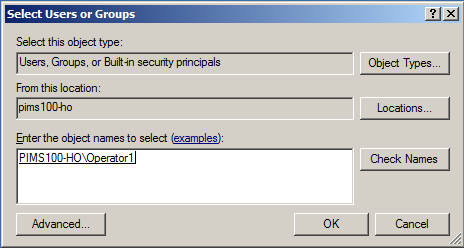
In the box at the bottom of the window, add the user's name.
You can click the Check Names button to ensure that you have entered the name properly.
Click OK to add the user and return to the database permissions window.
The user you selected is now displayed in the 'Group or user names' box, as shown in the following figure.
![Figure 1766: Permissions for [database] window - new user added](/DocumentDepot/DocSFHub/docs_2026/assets/images/grant-sys-explorer-permissions_permissions-for-db-new-user-b16c1e6dd2fbe68d09d5d04b6739d63b.png)
In the Group or user names box, select the user name you just added.
In the Permissions for [user name] box at the bottom of the window, check the Allow checkbox for the following permissions:
- Read
- Write
- Read/Write
Click OK to save your selections and close the window.
Use these same steps to grant permissions for "Elements" and Transfers" as well, by selecting "Security > Elements" in step 2 and then "Security > Transfers" in step 2. These additional processes provide the user with access to the specific tables in the database, which is necessary for them to create and save AF transfers to the selected AF database.
When finished, you will have performed these set of steps three times (1-Database, 2-Elements and 3-Transfers).