Create a New User
As an administrator, one of your responsibilities is to manage TES users. This involves adding the users through the PI System Management Tools.
To add a user:
Open the PI System Management Tools console.
Connect to the PI System that hosts the AF Databases.
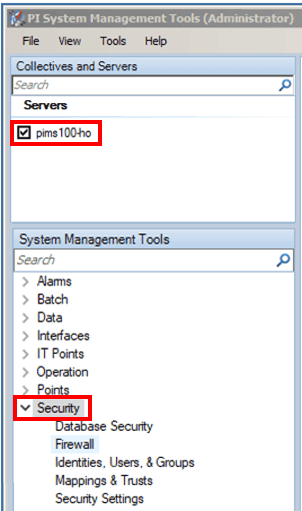
Under the System Management Tools section, Click on Security to expand the list.
Click on Identities, Users, & Groups, to open that list on the right (as shown in the following figure).
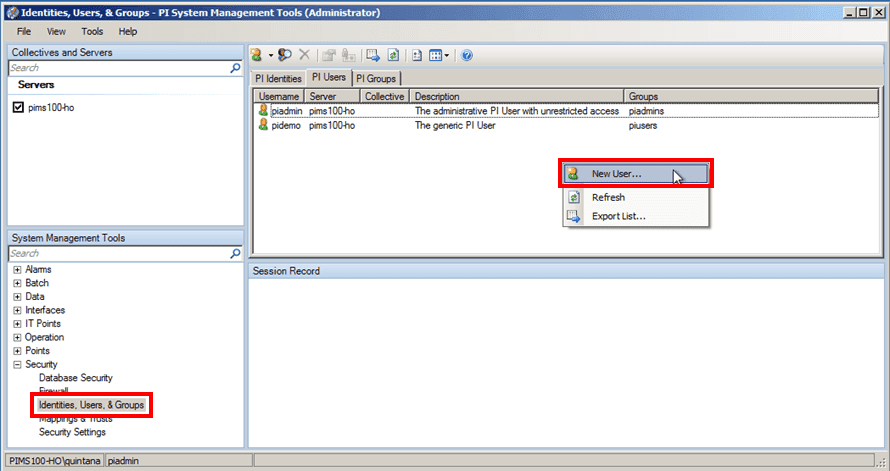
Click on the PI Users tab to display the PI Users panel.
Right-click inside the PI Users panel and select New User.
The New User window opens.
In the Username box, type the name of the user you need to add.
(Optional) In the Description box, type the full name of the user or some other identifying name to indicate who the user is or their position.
In the Password box, type a password for the user.
In the Confirm Password box, retype the password to confirm it.
Click the Create button.
The user appears in the list of users.
Repeat steps 2 through 11 for each user you need to add.