Assign Users to Groups
Users who require access to TES for either administrative use or to create and save AF transfers in the AF Database must be assigned to the appropriate TES group. All users who are responsible for administrative tasks in TES should be assigned to the "TES Administrators" group, while all users who are responsible for creating and saving AF transfers should be assigned to the "TES Users" group.
To assign users to either group:
Open the PI System Management Tools console.
Connect to the PI System that hosts the AF Databases.
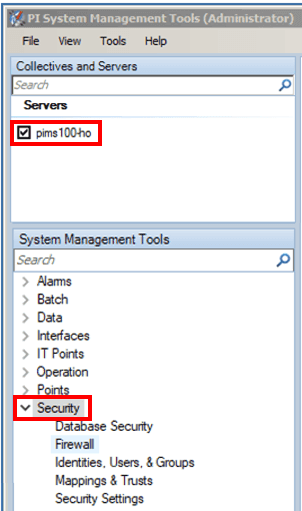
Under the System Management Tools section, Click on Security to expand the list.
Click on Identities, Users, & Groups, to open that list on the right.
Click the PI Groups tab to open the PI Groups panel.
Depending on which group you want to assign users, double-click on the TES Administrators or TES Users group.
A Properties window opens for the selected group.
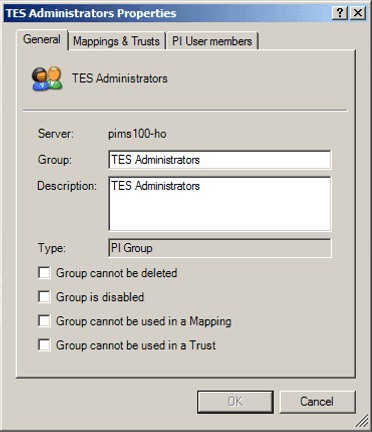
Click on the PI User members tab to open that panel.

Click the Add button.
The Select Users window opens.
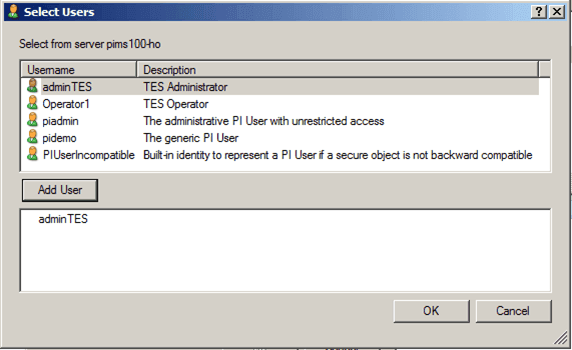
In the top section of the window, select the name of the user you want to add to the group.
Click the Add User button.
The name you selected is added to the bottom section of the window.
Repeat steps 9 and 10 for each user you want to add to the group.
When finished adding users, click OK to save your selections and return to the properties window.
The name (or names) you added now displays in the properties window, as shown in the following figure.

Click OK to save the updated group and close the properties window.