Edit the TES.Products Table
The TES.Products table identifies the materials that can be applied to elements that are selected as sources or destinations of tansfers. By editing this table, you can limit the materials that can be applied to the elements.
Note: If an element is not included in the TES.Products table, Operators will be able to select from all the materials found in the materials table.
To edit the TES.Products table:
In the TES tree, click the TES Tables expand icon, to expand the list of tables.
Click on the TES.Products table to open it.

This table displays three columns; IsSelected, Element and Product.
The 'IsSelected' column is used to determine whether a material (product) should be allowed to be applied to an element. The Element column contains the names of the elements. The Product column contains the values for the material codes that are applied to the elements. Each row in the table represents a material that can be applied to an element.
To add another material for an element:
In the Search By section, select the Element option.

Click on the Search By box down-arrow and select the element for which you want to add another material.
Click the Show button.
A Selected Items window opens.
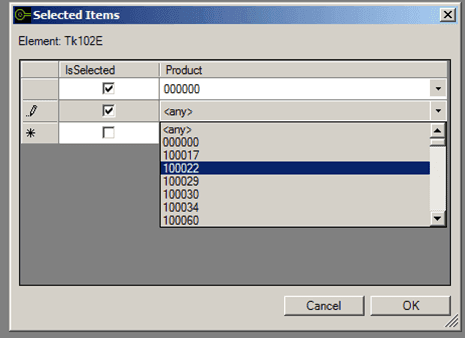
Click on the Product down-arrow and select the material code (product code).
Check the IsSelected checkbox for the material you just added, to ensure that it can be applied to the element.
Repeat steps d and e for each material you want add.
When finished adding materials, click OK to save your changes.
To prevent a material from being able to be applied to an element, uncheck the IsSelected checkbox for that material (product) in the TES.Products table.