Configuring - Transfer Calculations
This configuration is done for an individual transfer.
In the System Explorer navigation pane, click on Event Frames.
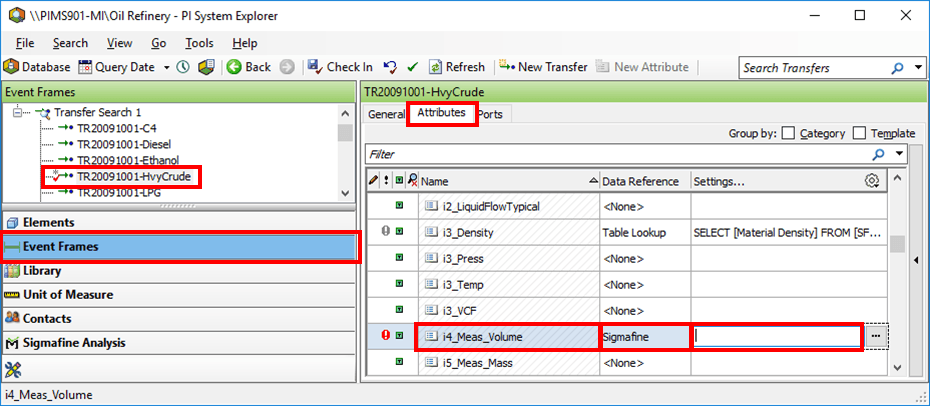
Under the Transfer tree, select the transfer (i.e., TR20091001-HvyCrude).
Click on the Attributes tab.
In the Name column, select the Attribute for the Net Volume (i4_Meas_Volume).
In the Data Reference column select Sigmafine.
Double-click on the Settings box to open the Sigmafine Data Reference window.

Under Calculation Category select Tank Inventory.
Click Next.
The Tank Inventory window opens.
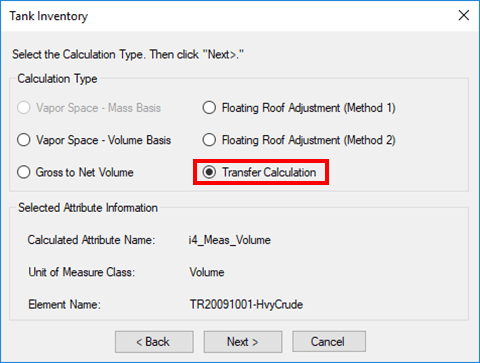
Under Calculation Type, select Transfer Calculation.
Click Next.
The Transfer Calculation window opens.
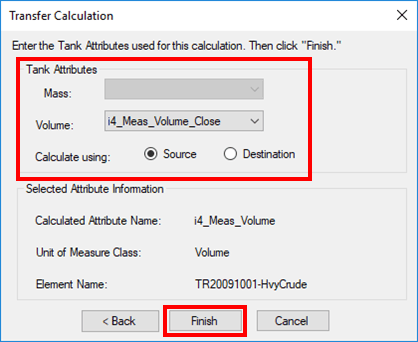
Using the following table, select the Tank Attributes.
Tank Attributes
Input Box / Button Description Mass Select attribute; units = massThis field is available if the calculated Attribute has units of mass, density or specific gravity. Volume Select attribute; units = liquid volumeThis field is available if the calculated Attribute has units of volume, density or specific gravity. Calculate Using Select option, Source or Destination, to use for the calculation. When finished, click Finish to complete the configuration.
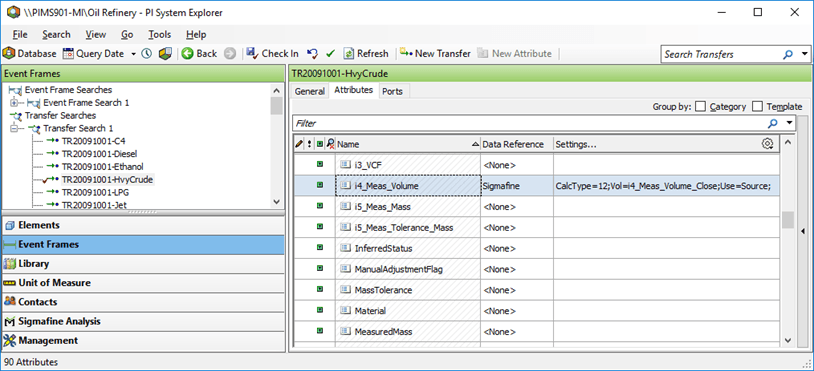
The following sample displays the configuration in the System Explorer window.