OLEDB Dataset
The OLEDB Dataset is used to run queries and send commands to an OLEDB data source, such as SQL Server or Oracle. The connection needs to be established in order to send or retrieve any data from a relational database. In order to use OLEDB Dataset, an already valid OLEDB Connector must be defined. The OLEDB Dataset uses the connection parameters and the credentials defined in the associated OLEDB Connector object that you select. For further information about the definition and parameters for OLEDB Connector, please see OLE Connector.
Prior to defining a OLEDB Dataset we strongly suggest to:
- Test a trial data request over the target OLEDB system by using the same OLEDB driver and provider.
- Verify that the credentials used in the definition of the OLEDB Connector have enough rights to access the requested data through the OLEDB Dataset.
IMPORTANT:
- The OLEDB Dataset checks for the query syntax before running the query. Therefore it is important to check the SQL query or command syntax prior to testing the Dataset.
- When defining a query the following limitations apply:
- Maximum of 3000 characters for a query or command
- Maximum of 20 input parameters or placeholders
Defining 'OLEDB Dataset' Parameters
When you select to add or edit an OLEDB Dataset, the dataset configuration parameters display.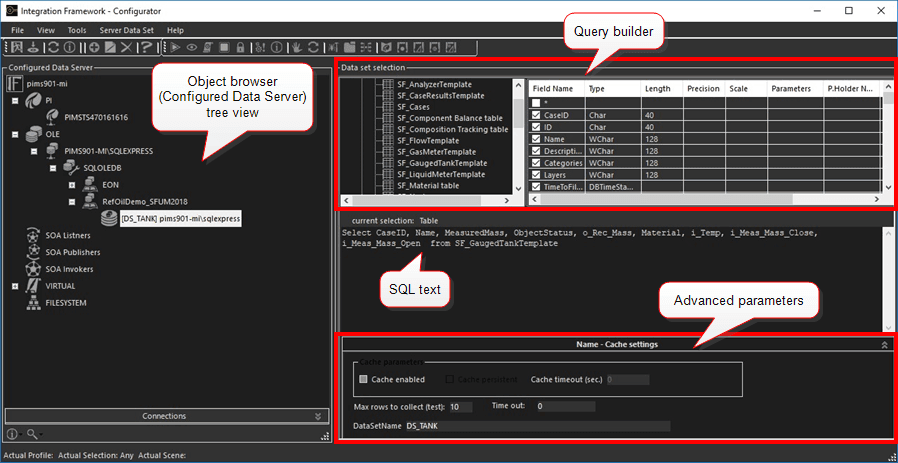
The OLE Dataset has a smart query editor that lets you quickly write the query for getting data from the OLEDB data source. The OLEDB Dataset is divided into the following sections:
Object browser (Configured Data Server): A graphical, tree view representation of the objects configured for integration with a server. This is the section in which you select channel, connector, dataset, etc. objects to configure.
Query builder: The table in the upper right corner that displays the query definitions for the object selected from the Object browser tree. All the details for the object itself are displayed in column format, with a few columns named 'P.Holder Name', 'P.Holder Value' and 'P.Holder Format' following the Parameters column. These 'P.Holder' columns are used as placeholders for "smart parameters" which are simply parameters for which you can define dynamic values. For more details regarding these placeholders see Inserting "Smart Parameter".
The Query builder implements the following features:
Quick edit and fast insertion
Courier font for character spacing and dimension
The ability to Copy and paste from an external editor (e.g. TOAD or TSQL Query Builder).
Query text: The section directly below the Query builder. It displays the object "type" name at the top followed by the actual SQL query code based on the 'Field Names' selected in the Query builder section. This section can also be used to add "Smart Parameters." See Inserting "Smart Parameter" for more details.
Name - Cache settings (Advanced parameters): This section is directly below the Query text. It displays the advanced parameters and the name of the dataset.
To define the OLEDB Dataset parameters:
- Do one of the following in the IF Configurator window:
If adding a new dataset: In the 'Configured Data Server' list, select one of the object types (Table, View, etc.). This is required, as Integration Framework must save the type of query prior to running it.
If editing a dataset: In the 'Configured Data Server' list, select the dataset you want to edit.
The object "type" displays in the SQL query text section, directly above the query statement, in
Current Selection: \<object name\>format.
Using the Query builder section and the following table, limit the output results by checking only those Field Names of the parameter values needed for the selected object type.
To include a parameter, check the checkbox next to it in the Field Name column.
IMPORTANT: When defining a query through the OLEDB dataset, you must select one of the types of the object (Table, View… etc.) in the database since Integration Framework must save the type of the query before running it. The indication is “Current Selection: \<OBJECT>.”
Define Parameters
Parameter Description Field Name Represents the name of the column for the output results. Type Represents the "type" of column (numeric, varchar, datetime, etc.) Length Represents the length of maximum length of a string (e.g. varchar, char) type. Precision Represents the precision of the number (single or double) for numeric and datetime types. Scale Represents scaling options for special OLEDB types that include scaling abilities. Parameters The value is usually 'KeyField'. P.Holder (Name, Value, Format) Allows you to enter the values for advanced placeholder "smart parameters." To insert values see Inserting "Smart Parameter". Using the following table, define or change the advanced parameters.
Advanced Parameter Settings
Parameter Description Cache enabled (Optional) When checked, this checkbox enables the cache manager for the selected dataset. Cache persistent (Optional) When checked, this checkbox enables the persistence of the cache. Cache persistence is cache that is permanently stored through a file.The cache is created only in the following cases:The first time the query is executed. (A change in the query, either in parameter value of syntax, causes the recreation of the cache).Every time the IF Server is restarted. However, the associated file for the cache is not present (deleted). Note that the cache file cannot be deleted when the IF Server is running. Cache timeout (Optional) Indicates the time span until the data cache's validity expires.Possible settings are:> 0: The number of seconds before expiration occurs. After the number of seconds is reached, the cache is destroyed. The cache is rebuilt when the first call is made after the expiration has occurred.<=0: Indicates that there is no expiration (unlimited). The cache is rebuilt only during the first activation or when Integration Framework is restarted. Max rows to collect (test) Indicates the maximum number of rows to be returned in the preview area.An entry of "0" is used when you want all rows to be returned. Time out Indicates the maximum number of seconds to wait for a query execution. DataSetName (Required) The name of the Dataset. You must specify the name before you can save the dataset. If adding a new dataset, ensure that you type a name for it in the DataSetName box.
In the toolbar, click on the
 Test icon to test the dataset and preview the results. If there are no SQL passing or executions errors, the result are displayed in the main working section.
In the toolbar, click the
 Save icon to save your parameter settings.
Inserting "Smart Parameter"
The smart parameter row lets you setup parameter placeholder information. Parameter placeholders are objects that allow you to setup dynamic values inside the SQL queries or commands. These parameters are added directly to the SQL statement displayed in the Query text section. Once added, the remaining placeholder definitions can be added directly in the table. A dynamic parameter consists of three columns; P.Holder Name, P.Holder Value and P.Holder Format.
- P.Holder Name: The name of the dynamic parameter/placeholder.
- P.Holder Value: The value of the dynamic string parameter/placeholder.
- P.Holder Format: the format for a dynamic numeric or datetime parameter/placeholder.
To insert a dynamic parameter:
In the SQL statement, insert the placeholder P.Holder Name by typing the following syntax (see Smart Parameter Rules for important additional information):
**??**\<parameter name\>**!!** EXAMPLE: Smart Parameter Syntax
In this example, we want to query the DEMO_Analysis table and return all results where 'A.SamplePoint' is equal to 'myTank'. The syntax we used for the parameter name is as follows:
??myTank!!The following figure displays the text where we entered it in the SQL query as well in the P.Holder Name column in the Query builder table.
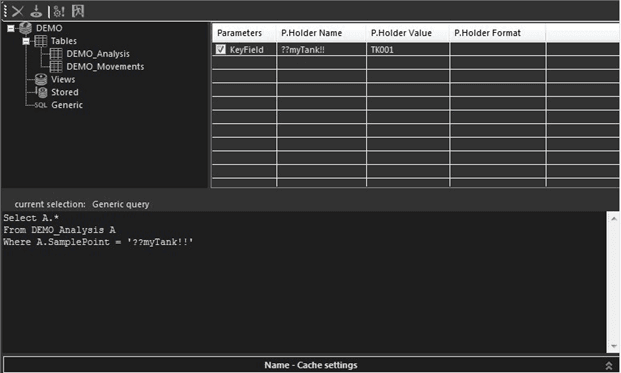
The "P.Holder Name' entry creates the parameter, which is automatically added in the P.Holder Name column of the Query builder table.
In the Query builder table, click on the P.Holder Value cell for the new parameter and type the value for the dynamic string type parameter. Only used for "string" types.
This value gets stored within the OLEDB definition in order to have a default value if the Dataset is used in Integration Rules or by an AF Data Reference. Only used for "date and time" types.
In the Query builder table, click on the P.Holder Format cell for the new parameter and type the format for either the dynamic numeric or datetime type parameter.
Smart Parameter Rules
Please keep the following rules in mind as you define the parameters for the OLEDB Dataset Placeholder parameters.
\<parameter name\>has some limitations:- It cannot be a SQL keyword or a name already used in the objects (e.g. a column name of a table, or a table/view name or another OLEDB specific reserved keyword, like “OR”, “AND”, etc.).
- It cannot contain any special characters, such as: * . , : ; @ # $ ! ” ‘ ? ( ) & % / \ ^ [ ] { }
- It cannot be a pure-numeric value (e.g. 123). Names like “Prm_123” are OK.
- The same parameter can be repeated along the query in order to use the same value in multiple points.
- String placeholders must be included in single quotes like:
**'**??prmUnit!!**'** - DateTime placeholders must be managed with proper management functions (e.g. TO_DATE() for Oracle, CONVERT() for SQL Server, etc.).
Following are two samples of valid queries with parameters:
Sample #1:
Select *
From table1
Where UnitCode = ‘??prmUnit!!’ and WorkingDay = Convert(datetime, ‘??prmDay!!’, 102)
Sample #2:
Select table1.code, table2.mass, table2.volume, table2.density
From table1 inner join table2 on table1.ID = table2.tankid
Where Table1.Area = ‘??prmArea!!’ and table2.Area = ‘??prmArea!!’ and WorkingDay = Convert(datetime, ‘??prmDay!!’, 102)