Editing a Dataset
In the Configurator, you have the ability to modify a Dataset request or query parameters. Changing a Dataset's parameters can heavily affect its behavior since a different set of input parameters can generate different results based on the changes. In addition, changes can heavily affect all the Integration Rules and other objects (AF Data Reference configuration) defined by using the edited Dataset.
Note: If you need to remove a Dataset that is used inside one or more Integration Rules, please refer to the Rules for Editing a Dataset used By Integration Rules section below.
To edit an existing IF Dataset:
Run the Integration Framework Configurator.
Click on your Windows Start button to display the list of installed software applications.
From the list of software applications, select Integration Framework > Configurator.
The Integration Framework - Configurator window opens.
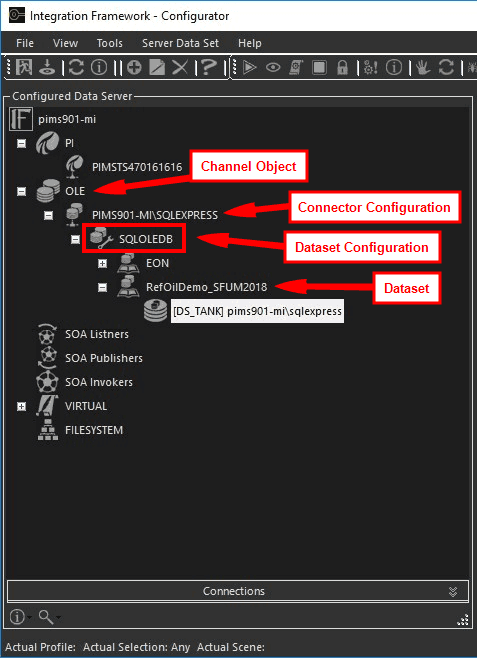
From the Configured Data Server list, click on the Channel Object to open its list of Connectors.
Click on the Connector to open its list of Datasets.
Right-click on the Dataset you want and select Edit.
Based on the dataset selected, IF opens a parameter window so that you can edit them. The window displays all the parameters according to the latest "save" action.
Enter all the parameter changes you require.
In the toolbar, click on the
 Test icon to test the connection.
When finished with your changes, click the
 Save icon in the toolbar to save your parameters settings.
Rules for Editing a Dataset used By Integration Rules
If you need to edit a Dataset that is used inside one or more Integration Rules, you must do the following:
- Prior to editing the Dataset, stop all the Integration Rules using that Dataset, by disabling all the triggers associated to the Integration Rule(s).
- After editing the Dataset, edit and test all the Integration Rules using the edited Dataset.
- Restart all the Integration Rules that you had stopped by re-enabling the trigger objects. In some special Cases you must restart the Integration Framework Server in order to apply the changes. This is required because some special objects can remain in memory and need to be downloaded again in order to take effect.