Custom Classes and XSD Classes
One of the key functionality of the SOA Listener Dataset is the capability to interface external SOA Clients or a System by defining custom classes. Custom classes are mandatory when the external system has its own XML schema or can react and interface with only pre-defined XML schema(s). In this respect, Integration Framework allows the definition of complex custom classes by activating the XSD-classes manager.
Important Information On Custom and XSD Classes
When defining custom classes and CSD classes, please keep the following information in mind.
- Custom classes are serialized through the standard Microsoft .NET WCF data-contract schema. Please review the “Use Data Contract ” option for SOA Listener Dataset (see the table under step 2 in the SOA Listener Dataset \topic.)
- Custom classes are shared among all the SOA Listener Connectors and Datasets defined in the IF Server. Meaning, a change in one class is shared along all the SOA Listener objects. A class deletion can heavily impact an SOA Listener if used on more than one object. Therefore, please use the edit and delete features with care, in order to avoid dangerous changes that can affect system stability.
- Due to internal structures and constraints, a change in a custom-class shared on multiple objects may sometimes require the restarting of the IF Server in order for that change to take effect.
Working With a Custom Class
To create, edit or delete a custom class for an SOA Listener Dataset:
In the 'Configured Data Server' list, double-click on the SOA Listener Connector containing the Dataset you want, to expand its list of Datasets.
Right-click on the Dataset you want and select Edit.
The Connector Source configuration window opens, displaying the configuration details for the selected dataset.
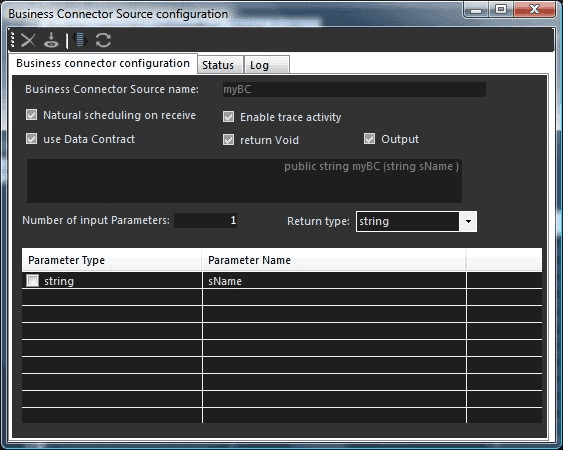
Note: In lieu of creating a custom class manually, you can create and import it from an XSD File (
XSD = XML Schema Definition). To do this, follow the steps under Adding an XSD Class from a File.Click on the
 XSD Classes Manager icon to display sections in which you can create the custom class.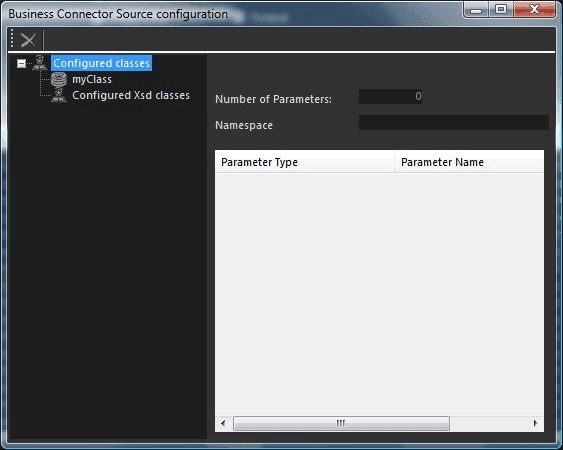
Perform on of the following set of steps, depending on the action you need to take.
Right-click on Configured classes in the tree.
Select Add New Class.
Click on Configured classes in the tree to expand the list of custom classes.
Right-click on the custom class you need to edit, and select Edit Class.
Click on Configured classes in the tree to expand the list of custom classes.
Right-click on the custom class you need to delete, and select Delete Class.
Note: A class deletion can heavily impact an SOA Listener if used on more than one object. Therefore, please use the delete feature with care, in order to avoid dangerous changes that can affect system stability.
The window refreshes, displaying the parameter settings for the custom class. If you are adding a new class, all the class data/definition are empty. If you are editing an existing custom class, the current class data/definition is displayed, as shown in the following figure.
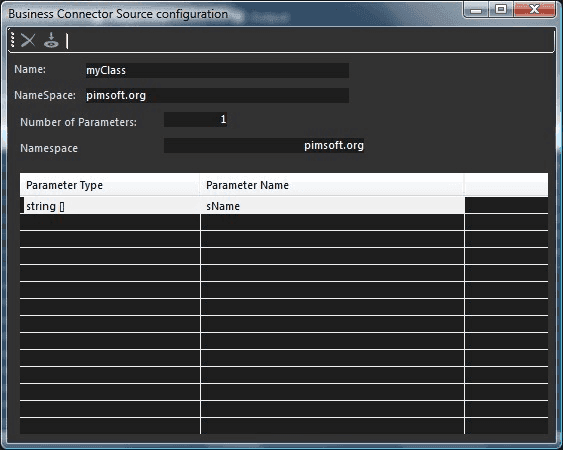
Using the following table as a guide to define or edit the class definition.
XSD-Class Definition Parameters
Parameter Description Name The name for the custom class. This must be a unique identifier throughout all classes used by the IF Server. This name has the same limitations as that of a parameter name. See Parameter Name Rules under SOA Listener Dataset. NameSpace (for class) The Namespace for the custom class.XML namespaces provide a simple method for qualifying Element and Attribute names used in Extensible Markup Language (XML) documents, by associating them with namespaces identified by URI references. Number of Parameters The number of parameters included in the custom class (used to prepare the list of the parameters). Namespace (for parameter) The Namespace for the parameters. In very special Case it can be different in order to exclude something. In the parameter table, declare the parameters.
The Parameter Type column should contain the type of parameter.
The Parameter Name column should contain a unique name for the parameter type.
When naming the parameter type, please refer to the Custom Classes and XSD Classes section under SOA Listener Dataset.
Note: The name and the type of the members have the same rules as the SOA Listener Dataset (SOAP method) input parameters.
In the toolbar, click the
 Save icon to save your modifications.
 Adding a new class
Adding an XSD Class from a File
To add an XSD Class from a file:
Open the needed SOA Listener Dataset.
In the toolbar, click on the
XSD Classes Manager icon to display the Configured classes tree.In the tree, click on Configured classes to expand the tree.
Right-click on Configured XSD Classes and select Add New XSD Class from File.
A standard Find window opens.
Locate and select the XSD file stored on the machine where the Integration Framework client is running.
After selecting the file, it is imported into the Integration Framework Server.
- If the XSD file is correct, a new class with the name and class-member names/types defined in the XSD file is automatically imported, and a new class is created in the XSD-classes manager tree.
- If the XSD is malformed or invalid, a specific XML-parsing error is displayed by Integration Framework.
- (Optional) Review the results of the XSD import action by selecting the class from the XSD-Classes manager window and manage it like a standard custom class.