Editing a Connector
In the Configurator, you have the ability to modify the connection parameters (and credentials) for a system connected with the Integration Framework. The Connector impacts the base external system references and credentials for Integration Framework, thereby heavily affecting all the Datasets and other objects defined for the connector. For this reason, we recommend contacting Pimsoft Technical Support if you are unsure about how to properly edit the connector.
To edit an existing IF Connector:
Run the Integration Framework Configurator.
Click on your Windows Start button to display the list of installed software applications.
From the list of software applications, select Integration Framework > Configurator.
The Integration Framework - Configurator window opens.
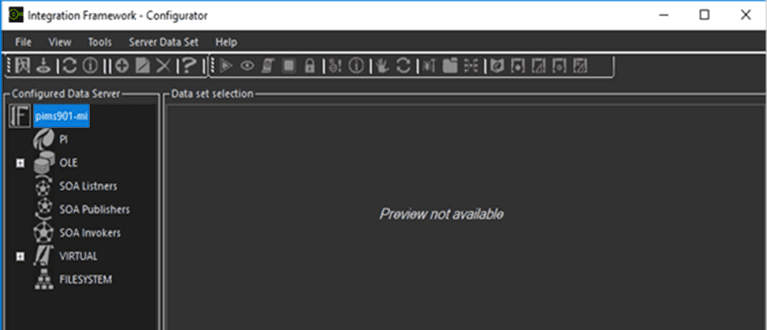
The Configured Data Server list displays all the possible connector types for each server, based on the license stipulations. For example; if you have a license for only OLEDB and Sigmafine, then only OLE and PI/AF connector types are displayed.
From the Configured Data Server list, click on the Channel Object to expand it's list of connectors.
Right-click on the Connector and select Edit.
Based on the connector type, IF opens a connection parameter window so that you can edit them.
Enter all the parameter changes you require.
In the toolbar, click on the
 Test icon to test the connection.
When finished with your changes, click the
 Save icon in the toolbar to save your parameters settings.
Note: If the Connector is used by one of the "belonging" Datasets (e.g. inside an Integration Rule) you must restart the Integration Framework Server in order to apply the changes. The restart is required because the connector object remains in memory. You have to clear the current setting in memory so it loads the updated connector on restart.