Adding a New Server
Before you can configure and connect to an IF Server, you must first add that server to the list of IF Servers, using the Configurator tool connection 'Add' feature. There are two way in which you can add a new server in the Configurator; from the "Configurator" window or from the "IF Server Connections" window. Most often the Configurator window is used, as that is where you initiate the bulk of your tasks in IF. However, if are managing other server connections in the IF Server Connections window, it is more convenient to add a server directly from there rather than backing out to the main Configurator window.
Adding a server involves entering a set of parameters that are required for connecting to the server. Those parameters are as follows:
- Server name: The logical name of the server (is the machine/network name) of the server where IF server is running
- Protocol: The parameter used as the transport protocol for communication (default is the 'http' protocol).
- One of the following options for the IF Server login:
- Current logged in user: The user who’s running the Integration Framework Configurator tool.
- Predefined Windows user: A pre-configured Windows user name (with password) set in the configuration. This setting causes the IF Configurator to use the setting of the user who is currently logged in the system.
The entry of these parameters results in a proper connection.
The following \topics provide steps on how to add a server through each window.
Note: The first time you run the Configurator tool after installing Integration Framework, a message appears stating that no servers are configured for Integration Framework. After closing the message box, an "IF Server connection setting" window automatically opens in which you add the server and define its connection parameters.
Add a New IF Server
To add a new IF Server:
Depending on which window you are working in, open the "IF Server connection setting" window.
In the menu bar, click on File if not already selected.
In the Configured Data Server Connections pane, click on Connections to open the IF Server list.
In the toolbar, click the
 Add icon.
Alternatively, you can right-click on any server in the list and select Add new Server.
 From the 'Configurator' main window
In the toolbar, click the
Add icon.The IF Server connection setting window opens.
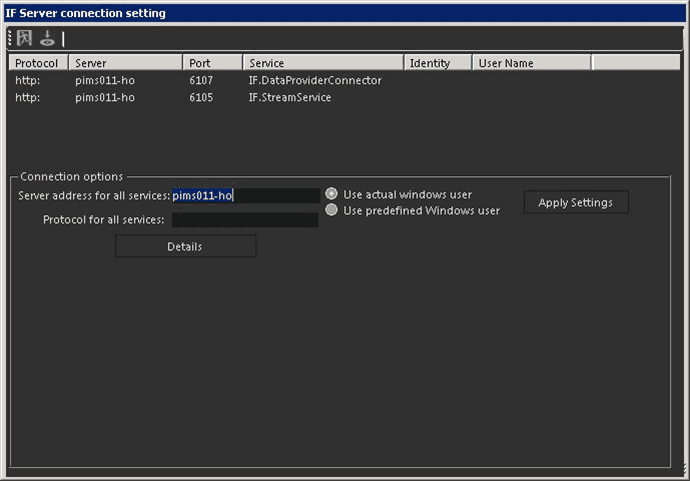
In the Server address for all services box, type the name of the server (as shown in the "IF Server connection setting" figure). This should be the same as the name of the IF Server machine.
Registered servers cannot be duplicated and must be defined by the machine or logical DNS alias name (no physical IP address can be used to define an Integration Framework server).
Note: The list of all registered IF Servers is stored in the
IF_Servers.Repfile located in the 'Repository' folder of the IF Client installation(e.g.
C:\Program Files (x86)\Sigmafine\Integration Framework\Configurator\Repository).If the
IF_Servers.Repfile is deleted, the Configurator will not automatically connect to the default server, and upon running the Configurator, you will be asked to setup a new Integration Framework server connection again.In the Protocol for all services box, type the protocol service to use (the default is 'http').
Select one of the following types for the log in user:
- Use actual Windows user: The name of the user (usually your name) who is running the Integration Framework Configurator. This setting causes the IF Configurator tool to use the log in credentials of the user who is currently logged in the system.
- Use predefined Windows user: A pre-configured Windows user name (and password) set in the configuration. This setting causes the IF Configurator tool to use the log in credentials of the predefined user in lieu of the user currently logged in the system.
Click the Apply Settings button to apply the connection settings.
Click the
 Save icon in the toolbar, to save the newly registered server.
You are returned to the IF Server Connections window where the 'Status' column displays “Connected” for the IF Server, as shown in the following figure.

You can test the connection by clicking the
 Test icon.
For more information about the Test feature, see Testing and Connecting Servers.
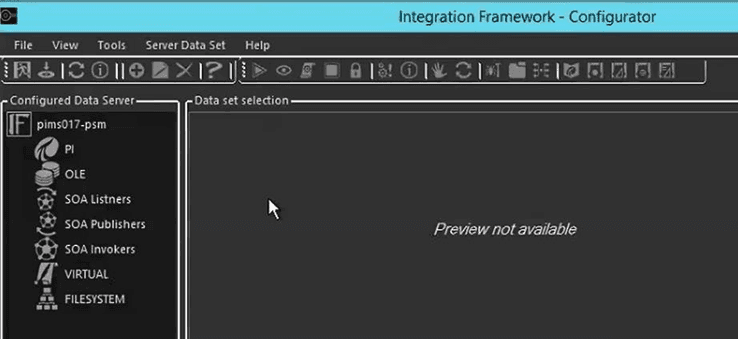
Once you have tested and connected to the server, you can begin defining PI Systems, OLE Systems, or any other connectors you wish to configure for your specific architecture, as seen in the following figure.