PI/AF Dataset
The PI/AF Dataset is the connection to the PI, AF and Sigmafine Servers used to retrieve data from those servers. This type of connection needs to be established in order to send or retrieve any data from an AF Server. In order to use a PI/AF Dataset, a valid PI/AF Connector must be defined, as the dataset uses the parameters defined for the PI/AF Connector as the basis for the data to retrieve.
Prior to defining a PI/AF Dataset we strongly suggest to:
- Test a trial data request over the target PI, AF or Sigmafine system.
- Verify that the credentials used in the definition of the PI/AF Connector have enough rights to access the requested data.
Note:
- The PI/AF Dataset does not check for query and configuration consistency. For example, if you configure a PI tag snapshot request(s) for a pure PI-AF 2.x system, the data result is empty since the PI snapshot calls fail when the PI System does not exist. Due to this issue we recommend that you check the consistency between the PI/AF Connector parameters and PI/AF Dataset request type before defining the Dataset.
- For further information regarding main PI, AF 1.x, 2.x, Sigmafine PI Snapshots, PI Event Exceptions, PI Archived Events and PI Archives please refer to PI System 3.4.x documentation.
The following table defines the PI/AF Connector supported direction, based on the system (PI, AF and Sigmafine) for which it is being configured.
Integration Framework PI/AF Dataset supported features
| System | ID | Action | Description |
|---|---|---|---|
| PI System | 1 | GetSnapshot(s) | Get the snapshot value for the specified tags |
| 2 | GetArcValue(s) | Get the archive value(s) for the specified tag(s) for the specified time or time-range | |
| PI AF 1.3.x(Sigmafine 4.4.x) | 3 | GetElementValue(s) | Get the AF/Sigmafine object(s) attribute(s) value(s) |
| 4 | GetTransferValue(s) | Get the AF/Sigmafine transfer(s) attribute(s) value(s) | |
| PI AF 2.4.x (Sigmafine 4.5.x) | 5 | GetElementValue(s) | Get the AF/Sigmafine object(s) attribute(s) value(s) |
| 6 | GetTransferValue(s) | Get the AF/Sigmafine transfer(s) attribute(s) value(s) |
Defining 'PI/AF Dataset' Parameters
When you add or edit a PI/AF Dataset, a configuration window automatically opens. This is the window in which you are to define the dataset's parameters.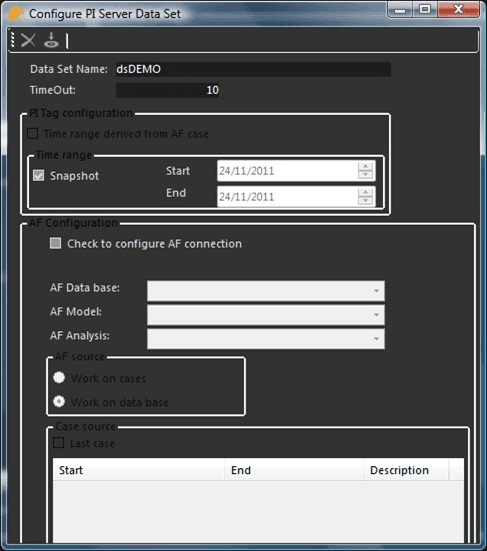
To define the PI/AF Dataset parameters:
Use the following table as a guide in entering the parameter mappings to be inserted for the PI/AF Dataset for the supported system.
Integration Framework PI/AF Dataset connection parameters
ID / Action Parameter Mapping and Notes #1 GetSnapshot(s) Set the following parameters as indicated:PI Tag Configuration:Time Range - Check the Snapshot checkboxStart and Endtime - Leave these boxes emptyTime range derived from AF Case - reserved for future use.AF Configuration:Check to configure AT Connection - Uncheck this checkbox to disable the AF behavior.All other parameters - do not useNote: With this setting the system returns the snapshot value(s) with the snapshot timestamp(s) and status(es). The system registers the PI tags for the exceptions, in order to have the automatic refresh of the value only upon a real change in the PI Snapshot. #2 GetArcValue(s) Set the following parameters as indicated:PI Tab Configuration:Time Range - Uncheck the Snapshot checkboxStart time - set the start time of the queryEnd time - set the end time of the queryTime range derived from AF Case - reserved for future use.AF Configuration:Check to configure AF Connection - Uncheck this checkbox to disable the AF behavior.All other parameters - do not useNote:Time range setting notes:Start time = EndTime, the system returns the interpolated value at the Start time.Start time < End time, the system returns all the compressed events from PI archive within the specified time range in ascending order.Start time > End time, the system returns all the compressed events from PI archive within the specified time range in descending order. #3 and #5 GetElementValue(s) Set the following parameters as indicated:PI Tag Configuration:All parameters in this section are not usedAF Configuration:Check to configure AF connection - Check this checkbox to disable the PI behavior and enable the AF one.AF Data base / AF Model / AF Analysis - select the AF path for the cases.Work on...Cases - When selected, this option is used to work with Element data inside cases (adjustments included).It enables the “Case Source” section.Database - When selected, this option is used to work with Element data outside cases.Case Source:Last Case - Check this option if you want to work with the latest available Case regardless of its start/end times.Case List - Select the working Case from the available Cases list. #4 and #6 GetTransferValue(s) Set the following parameters as indicated:PI Tag Configuration:All parameters in this section are not usedAF Configuration:Check to configure AF connection - Check this checkbox to disable the PI behavior and enable the AF one.AF Data base / AF Model / AF Analysis - select the AF path for the cases.Work on...Cases - When selected, this option is used to work with Element data inside cases (adjustments included).It enables the “Case Source” section.Database - When selected, this option is used to work with Element data outside cases.Case Source:Last Case - Check this option if you want to work with the latest available Case regardless of its start/end times.Case List - Select the working Case from the available Cases list. In the toolbar, click on the
 Test icon to test the connection.
In the toolbar, click the
 Save icon to save your parameter settings.