Add Symbols to Library
Once the Graphic Template Library has been created, Graphic Templates can be added to library sections.
1. Select Symbol
As the first step, you must select the symbol you want to add to the library.
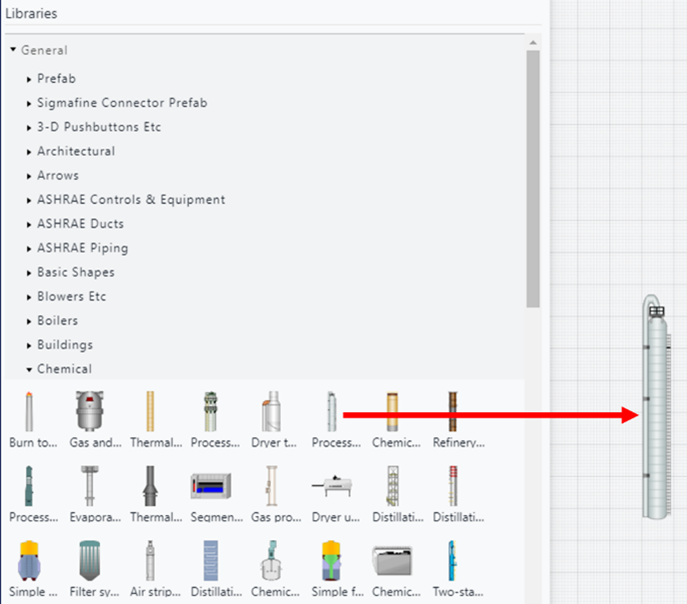
- Open the Symbol Libraries Panel from the display editor.
- Select a symbol from the 'General' library and drag it on the display.
2. Add Symbol
Click on a symbol to open the Symbol Property Panel and click on the Template tab.
In the Template tab:
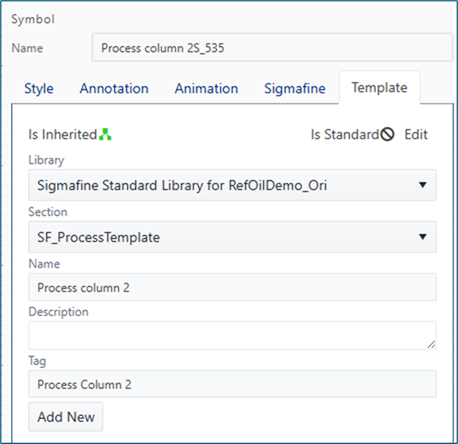
- Select the Graphic Template library and the library section where to record the symbol.
- Type the symbol name.
- Type the symbol description (optional)
- Type the symbol tag (mandatory for whiteboard library)
- Press the Add New button.
The symbol is now available in the Graphic Templates library.
If you are adding a symbol to a whiteboard graphic template library, it is important to assign the symbol tag. The symbol tag will be used to assign the symbol to a Sigmafine Element Template during the whiteboard to Model conversion procedure. See Convert Whiteboard to Model
3. Modify Symbol
Parameters can be added to a symbol, like annotations or animations or change a style (see Symbol Property Panel for more details).
- Click on a symbol to the Symbol Property Panel and select the Template tab.
- Change or add information in one of the panel tabs.
- Press the Save button to store changes.
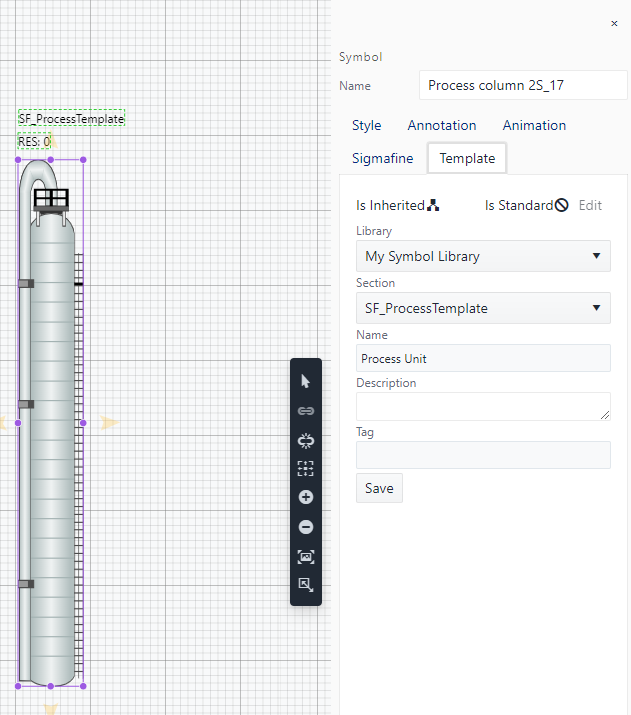
In the example above, two annotations have been added on top of the symbol. Element Name is the name of the Sigmafine Element when the Graphic Template will be associated to a Sigmafine Element.
The Graphic Template shows the name of the Element template since it is in the configuration step.
4. Set Graphic Template as Standard or Global
This optional step allows to save a Graphic Template as a Standard Graphic Template or a Global Graphic Template.
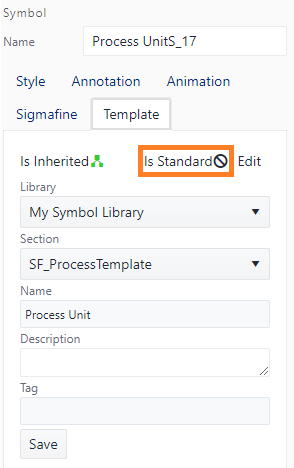
This template can be changed to a Standard Graphic Template by clicking on the Edit button.
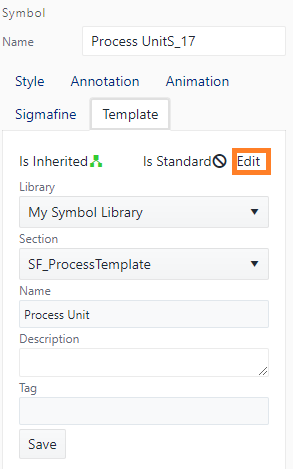
And selecting one of the two options:
- Standard Graphic Template: Select this option to indicate that it will be the current user’s own default Graphic Template.
- Global Graphic Template: Select this option to indicate that it will be the default Graphic Template for each user using that symbol library.
In both the cases, the Graphic Template will be the default when an Element is added to the display from the Elements Panel or Template Panel.
Multiple Graphic Templates can be added in each library section.