Export/Import Library
You can export and import a Graphic Template Library using the Export Library and Import Library features. This allows you to share Graphic Template Libraries between different SFHub Visualizer instances or back up your library.
Export Library
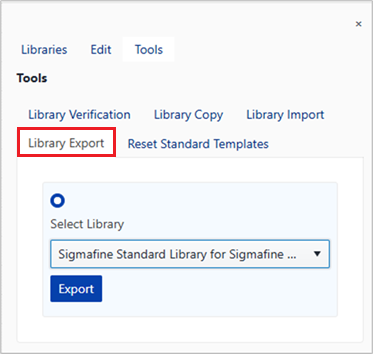
- Open in authoring any display containing the Graphic Template library to be exported.
- Open the Symbol Libraries Panel from the display editor.
- Open the Library Property Panel and then select the Tools tab.
- Select the Export Library section.
- Select the Graphic Template library to be exported from the Select Library drop down.
- Press the Export button.
- A file download dialog will open to save the library as a
.sflibfile.
Import Library
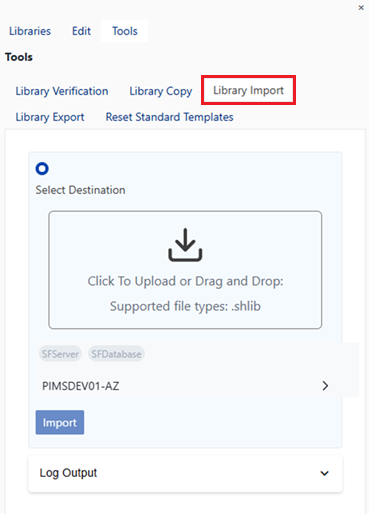
- Open in authoring any display where you want to import the Graphic Template library.
- Open the Symbol Libraries Panel from the display editor.
- Open the Library Property Panel and then select the Tools tab.
- Select the Import Library section.
- A file selection dialog will open to select the
.sflibfile to be imported. - Select the Server and database where to import the library.
- Press the Import button.